SNB Production WorkflowTrainingMarking a delivery as delivered
Marking a delivery as delivered
The one button in SNB that cannot be undone. It closes the job the moment you press it, and it does not ask you first.
Be certain the sign is actually with the customer.
Not loaded. Not on its way. With the customer, and accepted by them.
Everything else in SNB can be corrected afterwards. This cannot. Read the warning below before you press anything on this screen.
Delivered takes effect the instant you press it. Nothing asks you to confirm.
There is no “are you sure”, no second screen, and no undo. One press and the job is closed.
It does three things at once:
- the delivery is marked delivered, with your name against it
- the project is closed and its status becomes Delivered
- the delivery task on the factory’s job list is completed
And the button disappears. There is no way back to it from this board.
If you press it early, the system will tell everybody the customer has their sign. The office will see a finished job. The factory will see the work closed. Nobody will be told otherwise, because as far as SNB is concerned it happened.
1Find the delivery on the board
Open Delivery Schedule in the menu on the left, under Delivery.
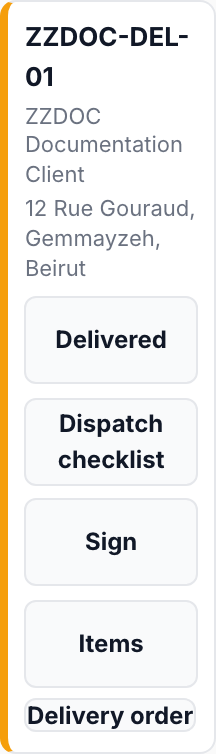
Each delivery is a card. The card shows the delivery’s reference, the customer, and the address it is going to.
Underneath are the things you can do with it. Delivered is the top one.
Check the card is the right one before you go near that button. The reference at the top and the address underneath it are how you tell two of the day’s deliveries apart.
A card only offers Delivered once the vehicle has left. If you cannot see the button, the delivery has not been sent out yet — and that is the system stopping you from closing a job that has not happened.
2Press it only when the sign is with the customer
There is nothing to fill in and nothing to confirm.
The moment you press Delivered, it is done.
Most of this system is built so a mistake can be walked back. A held job can be resumed. A date can be changed, with a reason. A user can be switched off and switched on again.
This one is different, and it is worth knowing why rather than just being told to be careful. Marking a delivery delivered is the system’s record that a customer received their sign. That record is what closes the project, what the office bills against, and what the factory sees when it stops thinking about the job.
Letting somebody quietly reverse it would mean the record could say a different thing tomorrow than it says today — and then it is not a record of anything.
So: it does not ask, because asking would suggest the decision is being made at the moment you press. It is not. It was made when you confirmed the customer had their sign.
3Check the card afterwards
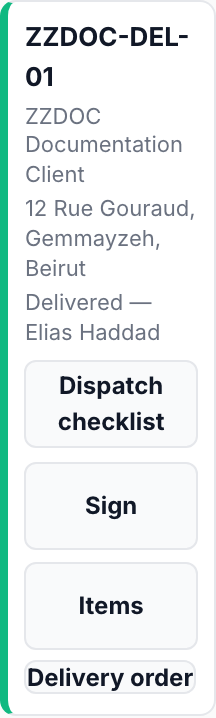
The card changes to show it is done.
The Delivered button is gone, and in its place is the word Delivered followed by the name of the person who made the delivery.
The stripe down the side of the card turns green.
4The project is now closed
Open Projects in the menu on the left, under Customers & Projects, and find the project.
Its Status now reads Delivered.
That is the whole job finished — not just the trip.

What happens next
Nothing more is needed from you. The job is complete.
The customer’s paperwork — the delivery order they sign — is printed from the same card, using Delivery order. Print it before the trip, not after.
If it goes wrong
| What you see | What it means |
|---|---|
| You pressed Delivered and should not have | You cannot undo it on this screen, and neither can anybody else. Tell your manager immediately. The longer the project sits closed, the more people act on it. Do not try to fix it by editing the project. |
| No Delivered button on the card | The vehicle has not been marked as having left yet. Send it out first. |
| You pressed it and the card did not change | The page may not have refreshed. Reload before pressing anything again — pressing twice is how a second job gets closed by accident. |
| The wrong person’s name is against the delivery | It records the team member who went out. Tell your manager; it is the delivery record that is wrong, not the project. |