SNB Production WorkflowGuideWhere the people are
Where the people are
Every person who can sign in to SNB has an account. This is the screen that lists them, and the one column on it that decides what each of them can do.
You need an administrator account. If you can see a System heading near the bottom of the menu on the left, you have one.
1Sign in and look at the menu
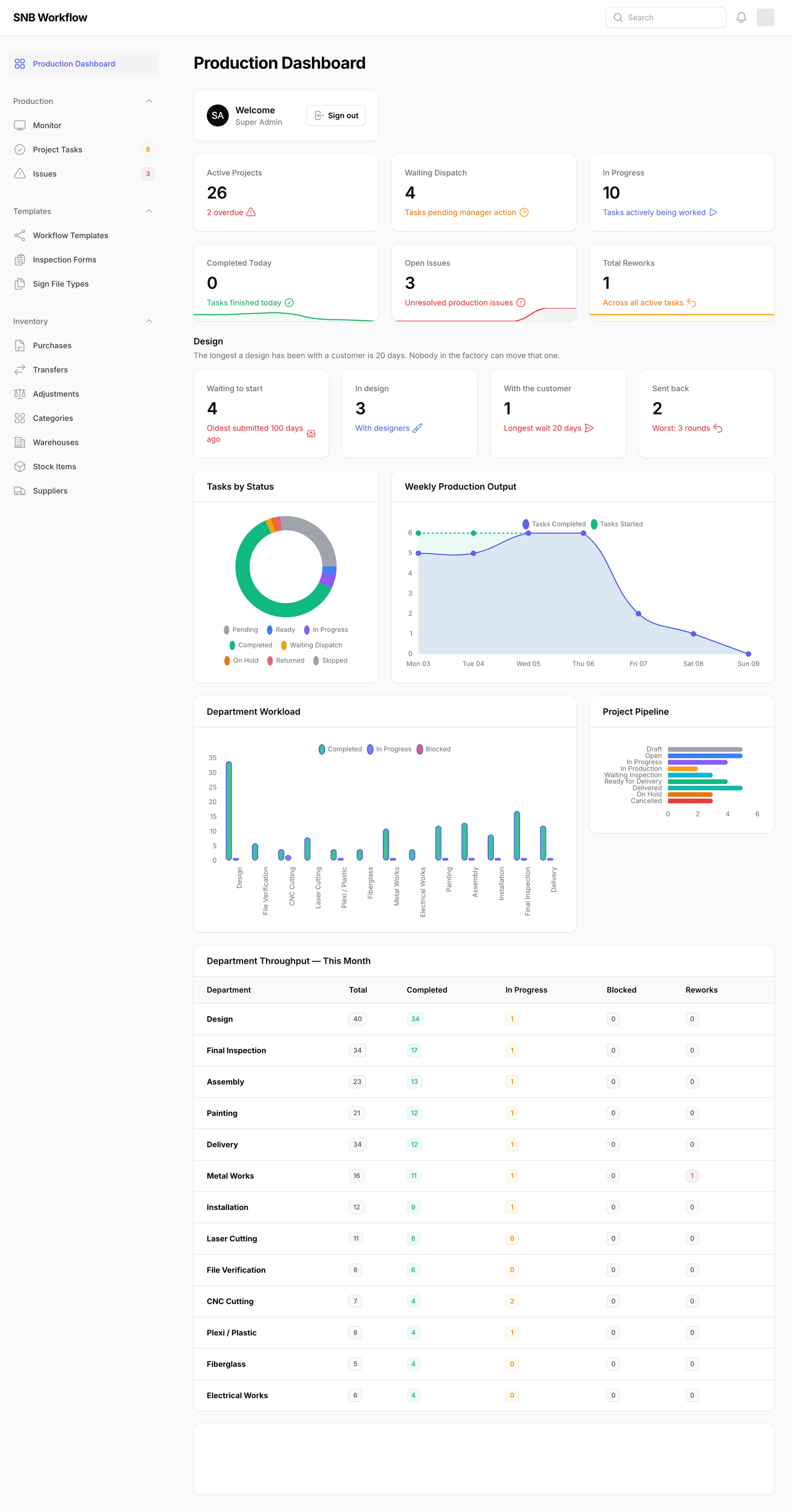
Signing in brings you to the dashboard. Everything in SNB is reached from the menu down the left-hand side.
That menu is grouped. Most of it is the daily work of the factory — Inspections, Design Jobs, Customers, and a Delivery group. The last group, System, is the settings that everything else runs on: who the people are, what they may do, and how the factory itself is described to the software.
If you cannot see the System group, your account is not an administrator. That is a setting on your account, not something you can turn on yourself — ask whoever set SNB up.
2Open the list of people
Under System, click Users.
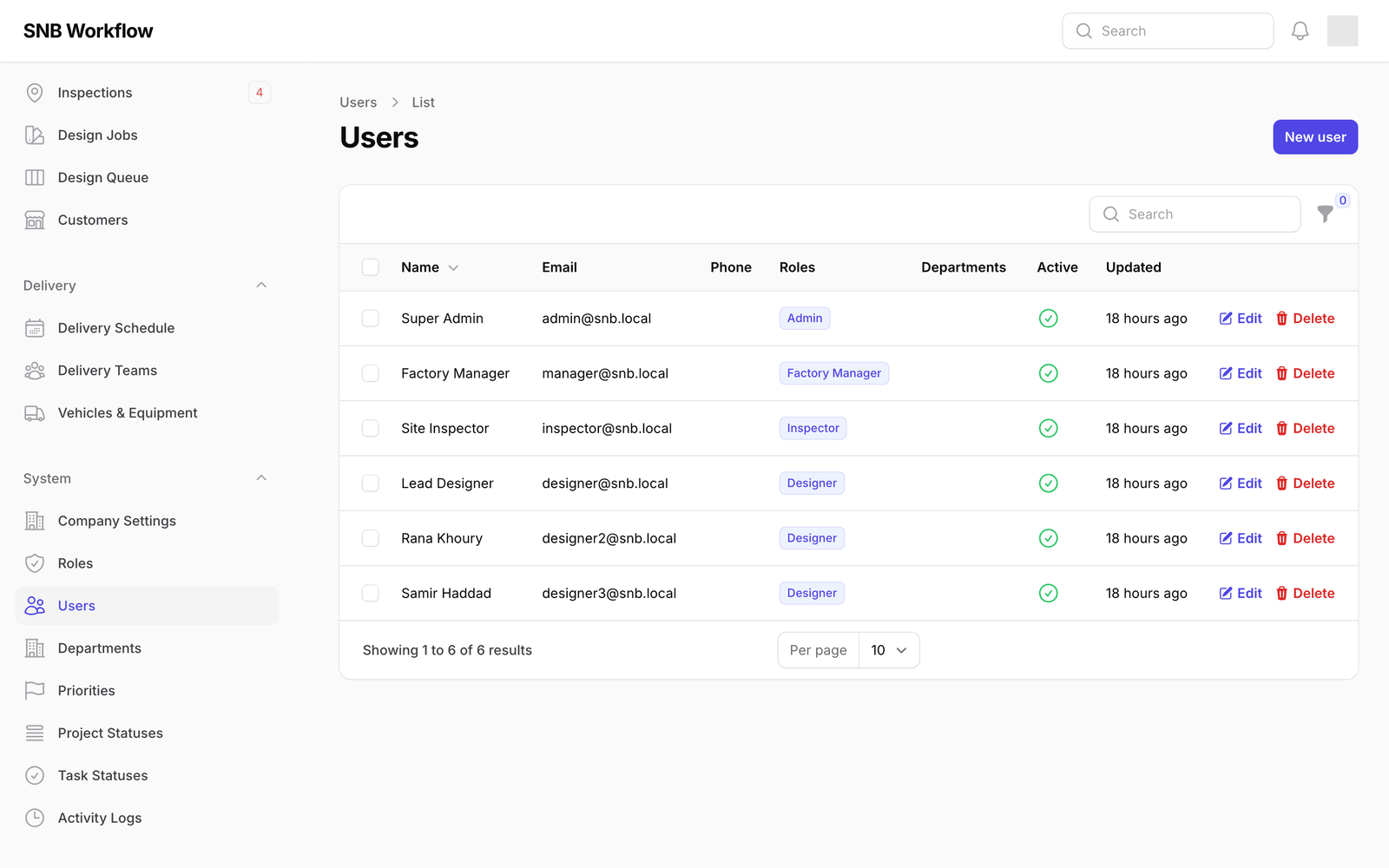
You are now looking at every account that exists. Each row is one person who can sign in.
Reading across: their Name and Email — the email address is what they type to sign in — then their Phone, their Roles, the Departments they belong to, whether the account is Active, and when it was last Updated.
At the bottom left the screen tells you how many accounts there are in total.
3Find the column that matters
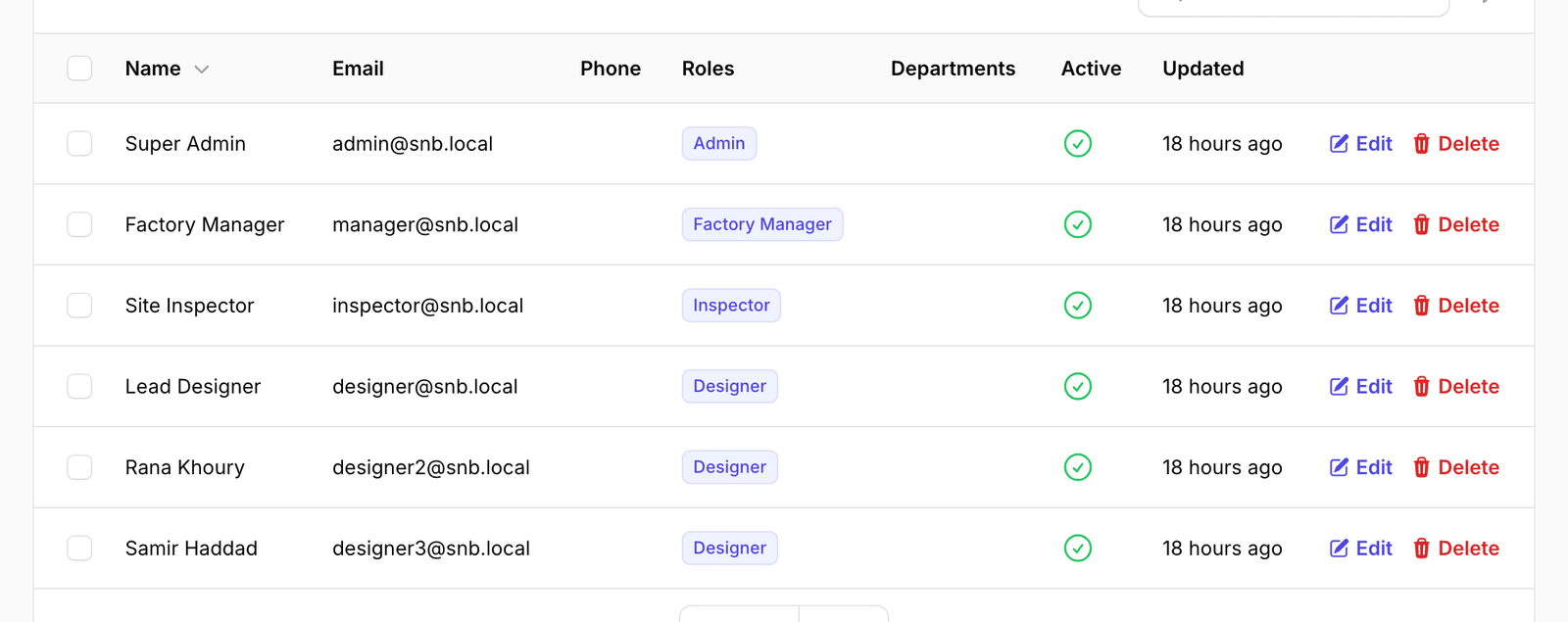
Of those seven columns, one decides what a person can actually do: Roles.
Everything else on this screen is a detail about the person. The role is the whole of their access — which screens they see, which buttons work for them, and which parts of SNB do not exist as far as they are concerned.
It is worth being clear about what a role is not. It is not a job title, and it is not a description of what somebody does all day. Two people doing the same job can hold different roles, and one person can hold more than one.
A role is a list of permissions, and nothing else. When you give somebody a role you are handing them that list. That is why the next thing to learn is what is on those lists — see What a role is.
 3
3
What happens next
Nothing on this screen changes anything. It is a list.
From here you can add somebody new, change what an existing person is allowed to do, or deal with somebody who has left. Each of those is its own short walkthrough.
If it goes wrong
| What you see | What it means |
|---|---|
| No System group in the menu | Your account is not an administrator. Nothing on this page is available to you. |
| The list looks short | It shows a limited number of rows at a time. The count at the bottom left is the real total; use Per page to show more. |
| Somebody you expected is missing | They may never have had an account, or theirs may have been removed. Removed accounts are hidden but not gone — see When someone leaves. |