SNB Production WorkflowGuideSetting up the waste list
Setting up the waste list
The list the factory floor picks from when something is scrapped. Four or five entries is plenty, and the limit on each one is what turns a pattern into a warning somebody sees.
You need an administrator account, and you need to have decided — with whoever runs production — what the floor should actually be able to record.
That conversation is the real work. This screen is ten minutes.
SNB ships with this list empty, on purpose. Nobody but your own factory knows what it scraps.
Until it is filled in, operators finishing a job are told no types have been set up and can only record that there was no waste. Everything still works — but nothing useful is being collected.
1Open the Waste Types screen
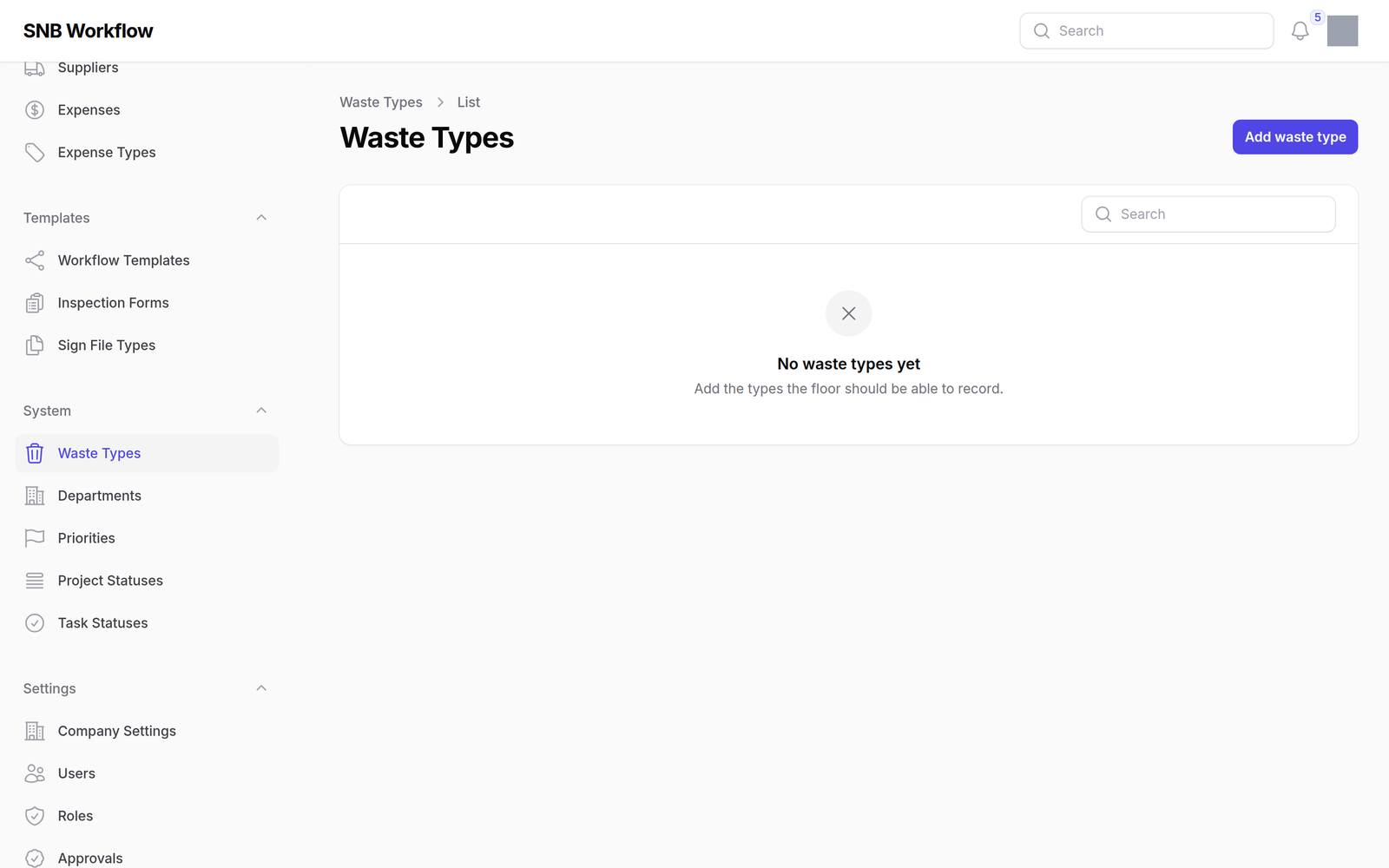
In the menu on the left, under System, click Waste Types.
If nothing has been set up yet the screen says so:
No waste types yet Add the types the floor should be able to record.
2Add the first type
Click Add waste type.
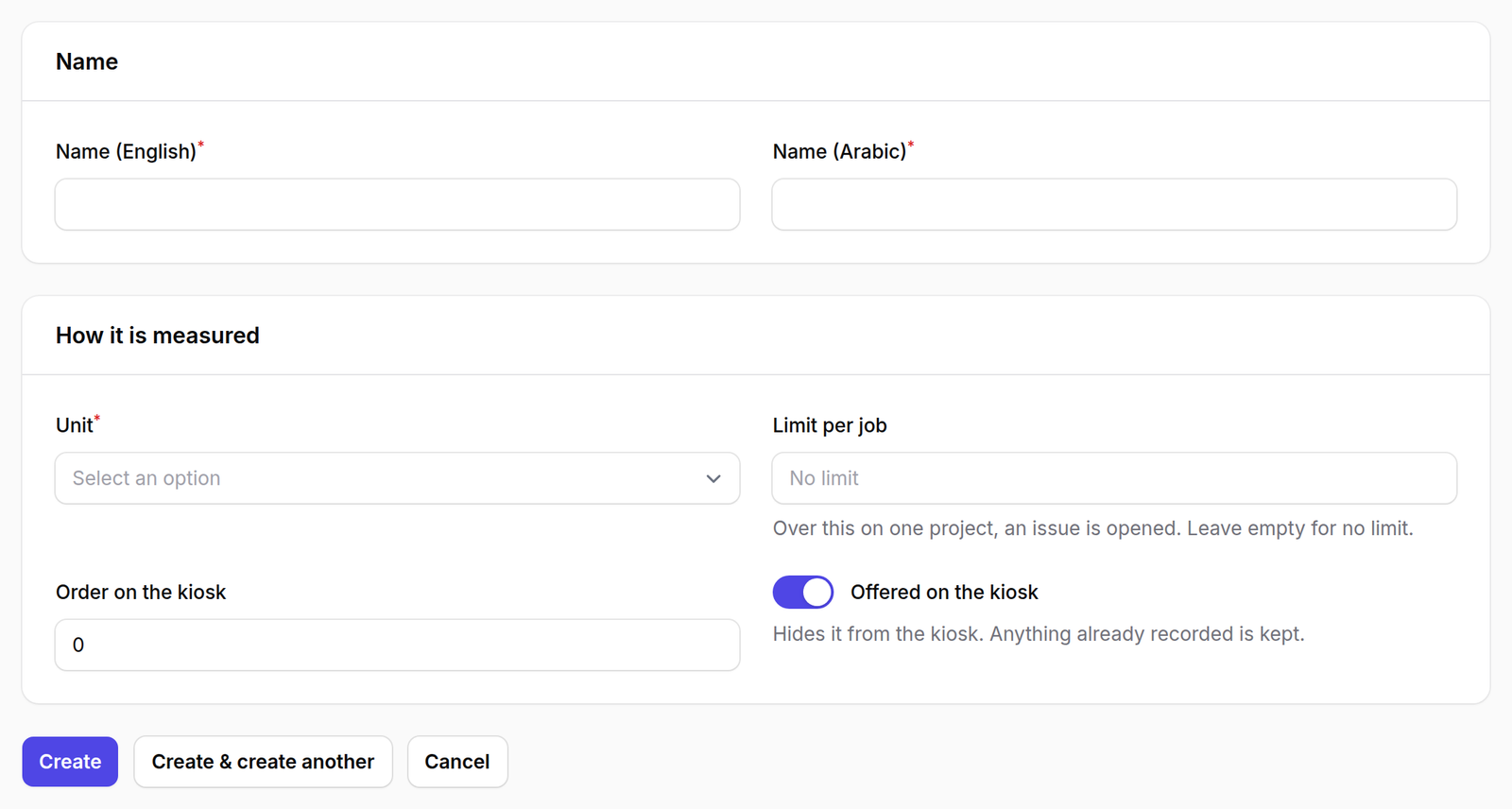
The form is in two parts.
Name — the type needs a name in English and in Arabic. Both are required.
How it is measured — Unit is what the floor counts it in: kg, m², m, pcs or l.
The Arabic name is not optional, and it is the one field people are surprised by.
The factory screen is the only part of SNB that speaks Arabic, and the waste type is picked from a dropdown on that screen. A type with no Arabic name would be the single English word in an otherwise Arabic list, chosen by somebody working in Arabic. The form refuses rather than letting that happen.
3Set a limit, or do not
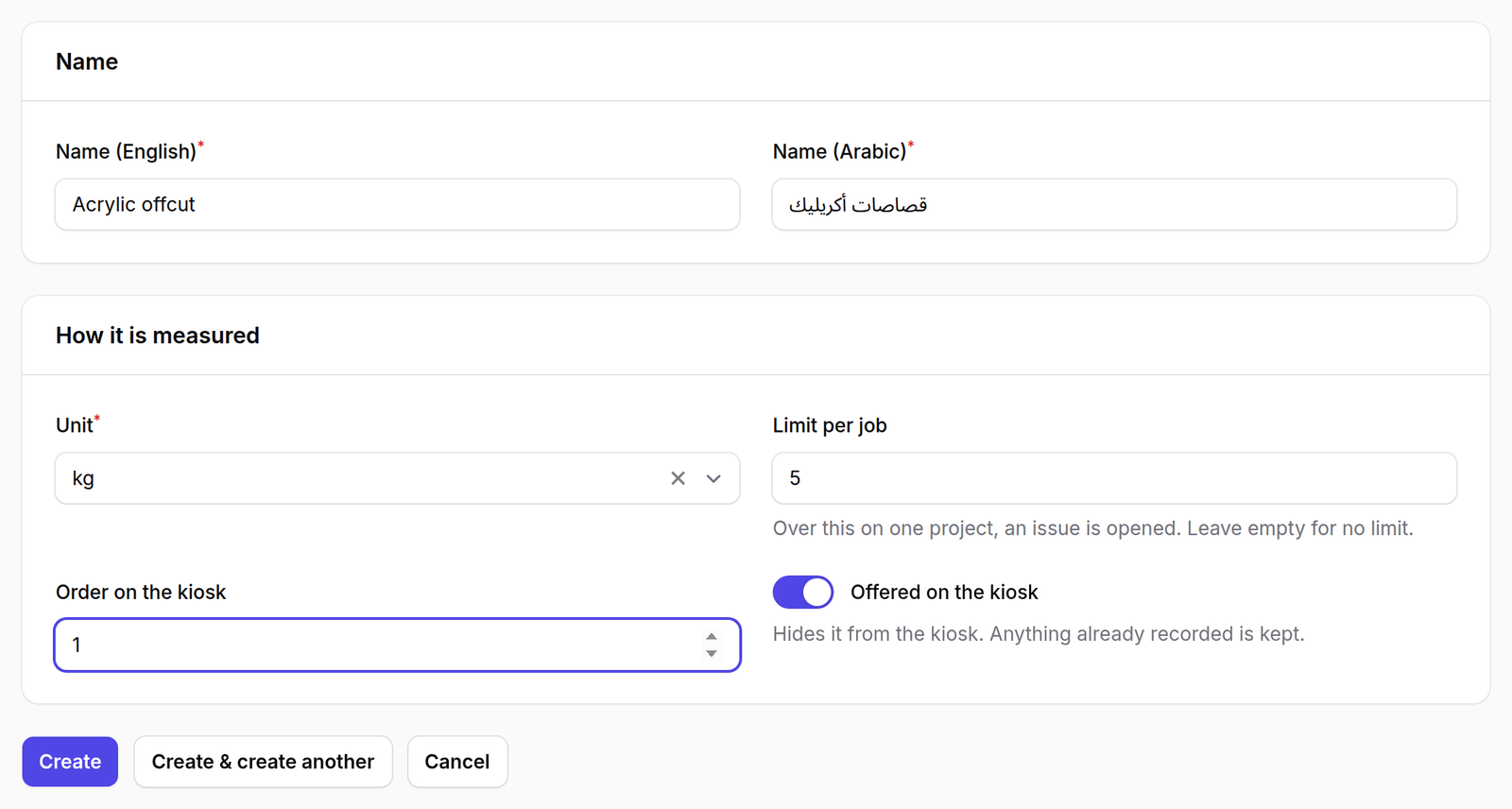
Limit per job is how much of this can be wasted on one project before somebody is told.
Go over it and SNB opens an issue and notifies a manager. One issue per project per type — further entries add to it rather than raising a second.
Empty is not zero.
Leave the box empty and there is no limit — the waste is recorded and nobody is notified. That is a perfectly reasonable setting for something you expect to lose a little of on every job.
Type 0 and you have said that any waste at all is over the limit, so the
first gram anybody records raises an issue. Then the issues become noise, and
noise is how a warning stops being read.
If you are not sure what the right number is, leave it empty. You can add one later, once you have a few weeks of real figures to look at.
4Set where it appears on the kiosk
Order on the kiosk decides the position in the dropdown the floor uses. Lower numbers come first.
Put the things your factory wastes most often at the top. It is a list read on a touchscreen by somebody wearing gloves.
5Save
Click Create.
The type is saved and opens again for editing, so anything you got wrong is still in front of you.

6Add the rest
Add the others the same way. Four or five is plenty — this is a list somebody picks from in a hurry, not an inventory of everything that can go wrong.
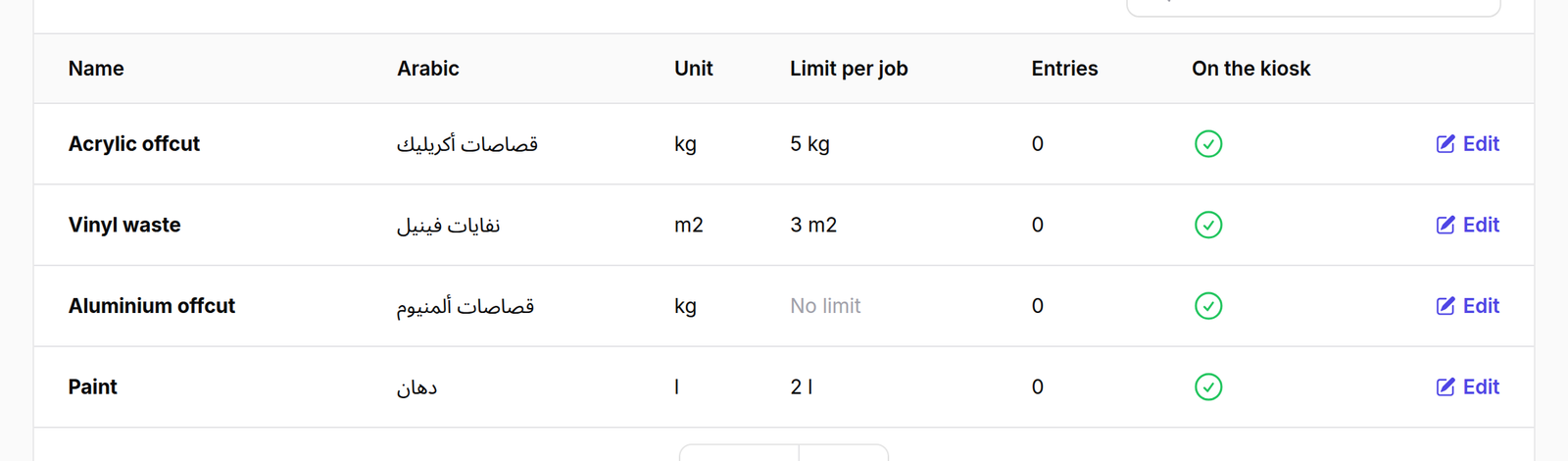
The finished list reads across as Name, its Arabic name, the Unit, the Limit per job — or No limit, for the ones you left empty — how many Entries have been recorded against it, and whether it is On the kiosk.
What happens next
The types appear on the factory screen immediately. The next operator to finish a job will see them.
Nothing else needs doing, and nobody needs telling — the kiosk reads this list every time it opens the waste screen.
Retiring a type without losing its history
Do not delete a type you no longer want. Open it and turn Offered on the kiosk off.
It disappears from the floor’s list, and everything already recorded against it is kept — the figures stay in the reports and the history stays readable.
This is the same idea as deactivating a person rather than deleting them.
A waste type that has been used for six months is attached to six months of recorded quantities. Removing it would leave those numbers describing something with no name, and the reports would quietly stop adding up.
Switching it off says “stop offering this” without rewriting what already happened.
If it goes wrong
| What you see | What it means |
|---|---|
| The form will not save | One of the two names is empty, or no Unit is chosen. All three are required. |
| The floor says the list is empty | Check On the kiosk in the table. A type that is switched off is not offered. |
| A manager is getting an issue on every job | A limit is set too low, or set to 0. Open the type and raise it, or empty the box. |
| You changed a type’s unit and old figures look wrong | They are not wrong. Every entry keeps the unit it was recorded in, so past quantities still mean what they meant. Only new entries use the new unit — which is why changing a unit is worth a word to the floor first. |
| A type you want to remove has entries against it | Switch it off rather than deleting it. See above. |