SNB Production WorkflowTrainingWhat a role is
What a role is
A role is a list of permissions that a number of people share. Understanding that one sentence is most of what you need to run access in SNB.
You need an administrator account. This walkthrough only looks — nothing here changes anything.
1Open the Roles screen
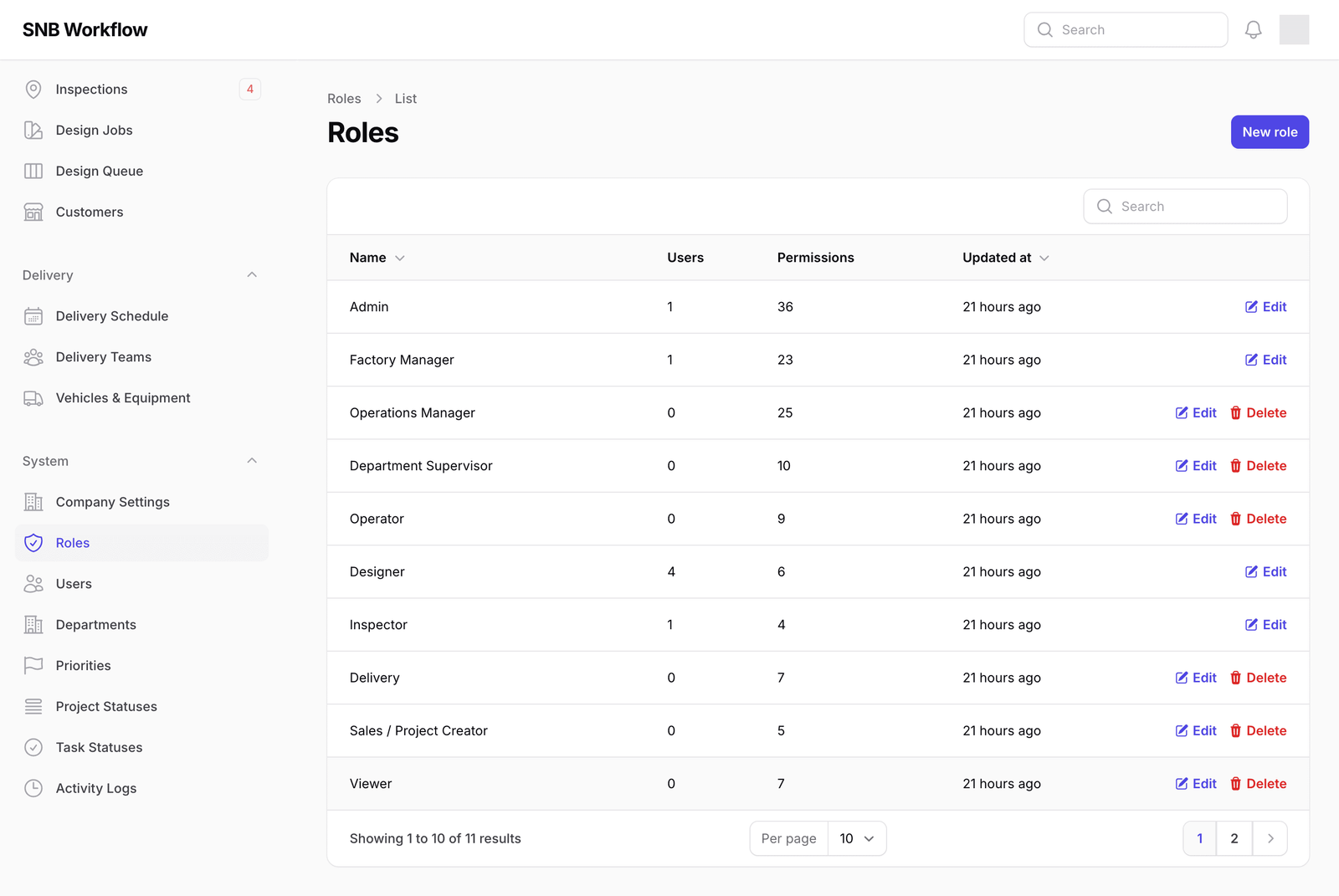
In the menu on the left, under System, click Roles.
SNB comes with eleven roles, covering every kind of person who works with the system: Admin, Factory Manager, Operations Manager, Department Supervisor, Operator, Designer, Inspector, Delivery, Sales / Project Creator, Viewer and Stock Manager.
The list shows ten at a time. The count at the bottom left tells you how many there are altogether, and Per page beside it will show the rest.
2Read the two numbers
Each role carries two counts, and together they are the whole point of this screen.
Users is how many people hold this role right now. Permissions is how many separate things it allows.
The spread is wide and it is meant to be. Admin holds every permission in the system. Designer holds a handful — enough to do design work and nothing else — and it is held by several people. Inspector holds fewer still.
Notice what those two numbers mean together: a role is not a description of one person, it is a setting shared by everybody who holds it.
Change a role and you change it for all of them at once, immediately. If four designers hold Designer and you add a permission to it because one of them asked, you have given it to all four.
That is why, when one person needs different access, you move that person to a different role rather than editing the role they are in. Editing a role is for when the job itself has changed for everyone who does it.
3Notice which roles can be deleted
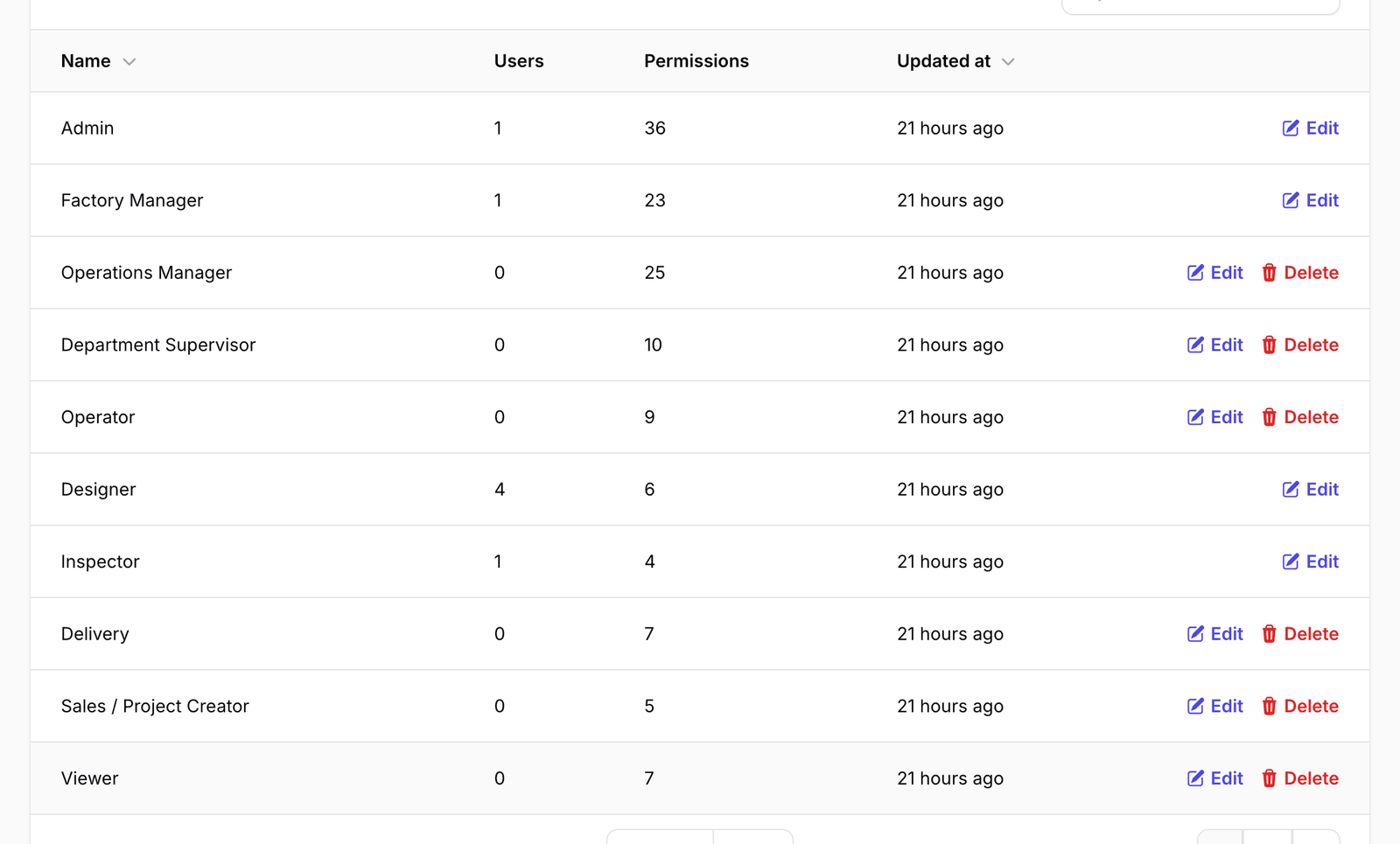
Look at the end of each row. Some rows offer Edit and Delete; others offer only Edit.
The difference is the Users count. A role that nobody holds can be deleted. A role somebody holds cannot — the option is simply not there.
This is the software refusing to leave people stranded. Deleting a role that people hold would take away their access with no record of what they used to have and no obvious way to put it back, and the person would find out by discovering they can no longer do their job.
Move everybody off a role first, and then it becomes deletable. The absence of the button is the system telling you that you have not finished.
What happens next
Nothing — this screen is a summary.
To see what a role actually allows, open one and read its permissions. That is the next walkthrough, and it is where the ideas above become concrete.
If it goes wrong
| What you see | What it means |
|---|---|
| A role you expected is not listed | The list shows ten rows at a time. Check the count at the bottom left and use Per page before concluding it is gone. |
| A role has 0 users but you know somebody uses it | They may hold a different role that happens to allow the same things. Look at the person’s account rather than the role. |
| No Delete on the role you want to remove | Somebody still holds it. The Users count tells you how many; move them off it first. |