SNB Production WorkflowTrainingChange what someone is allowed to do
Change what someone is allowed to do
Somebody has changed job, or was given the wrong access to begin with. This is how you move them from one role to another.
You need an administrator account, and you need to know which role the person should hold now. Changing a role takes effect immediately, so decide before you start rather than trying one and seeing what happens.
1Find the person
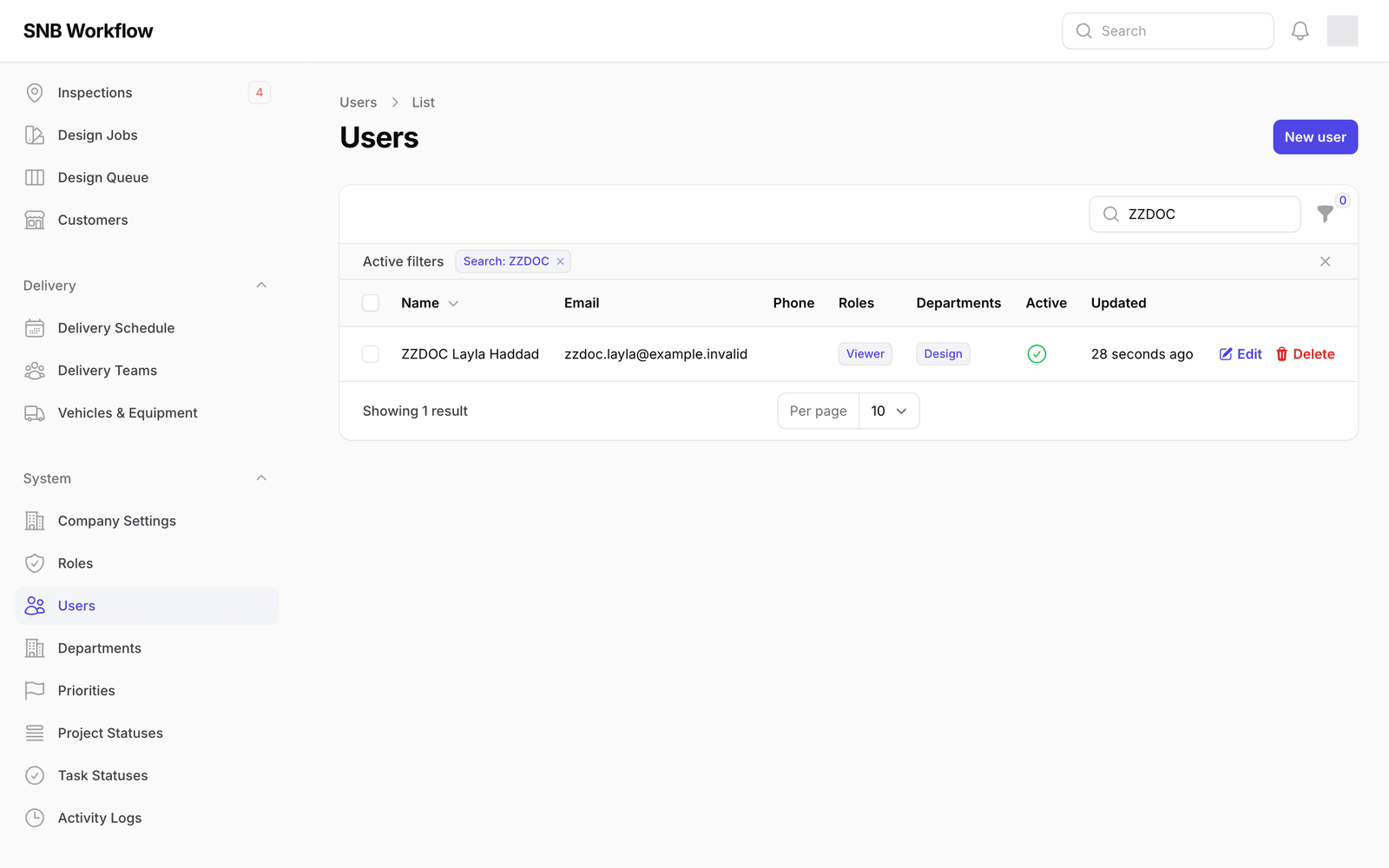
Open Users under System, and type part of their name into the search box above the list.
The list narrows as you type.
There are two search boxes on this screen. The one at the very top of the window searches the whole of SNB; the one just above the table is the one that filters this list. Use the second.
2Open their account
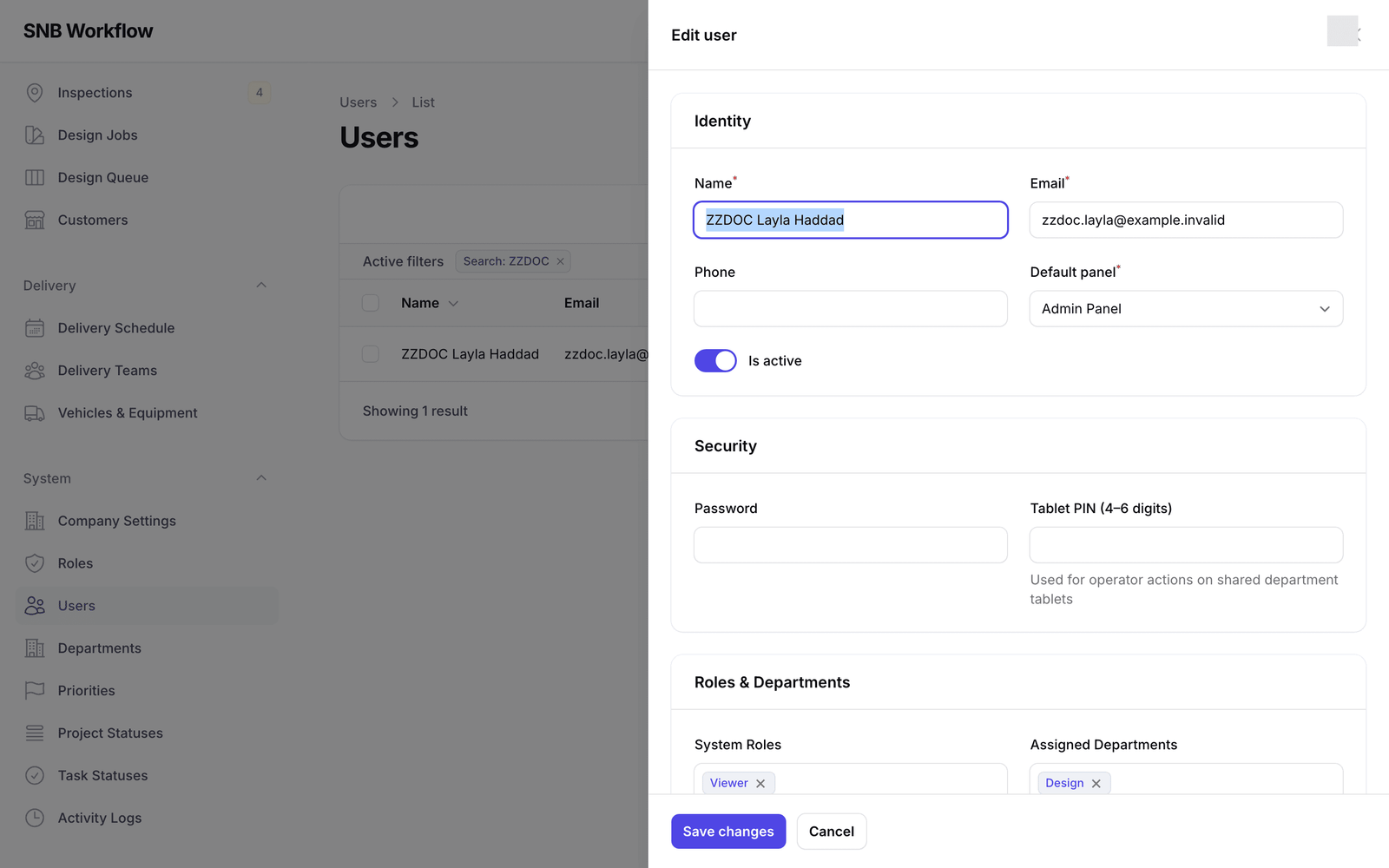
Click Edit at the end of their row.
The same panel you used to create an account slides in, filled with their details.
3Swap their role
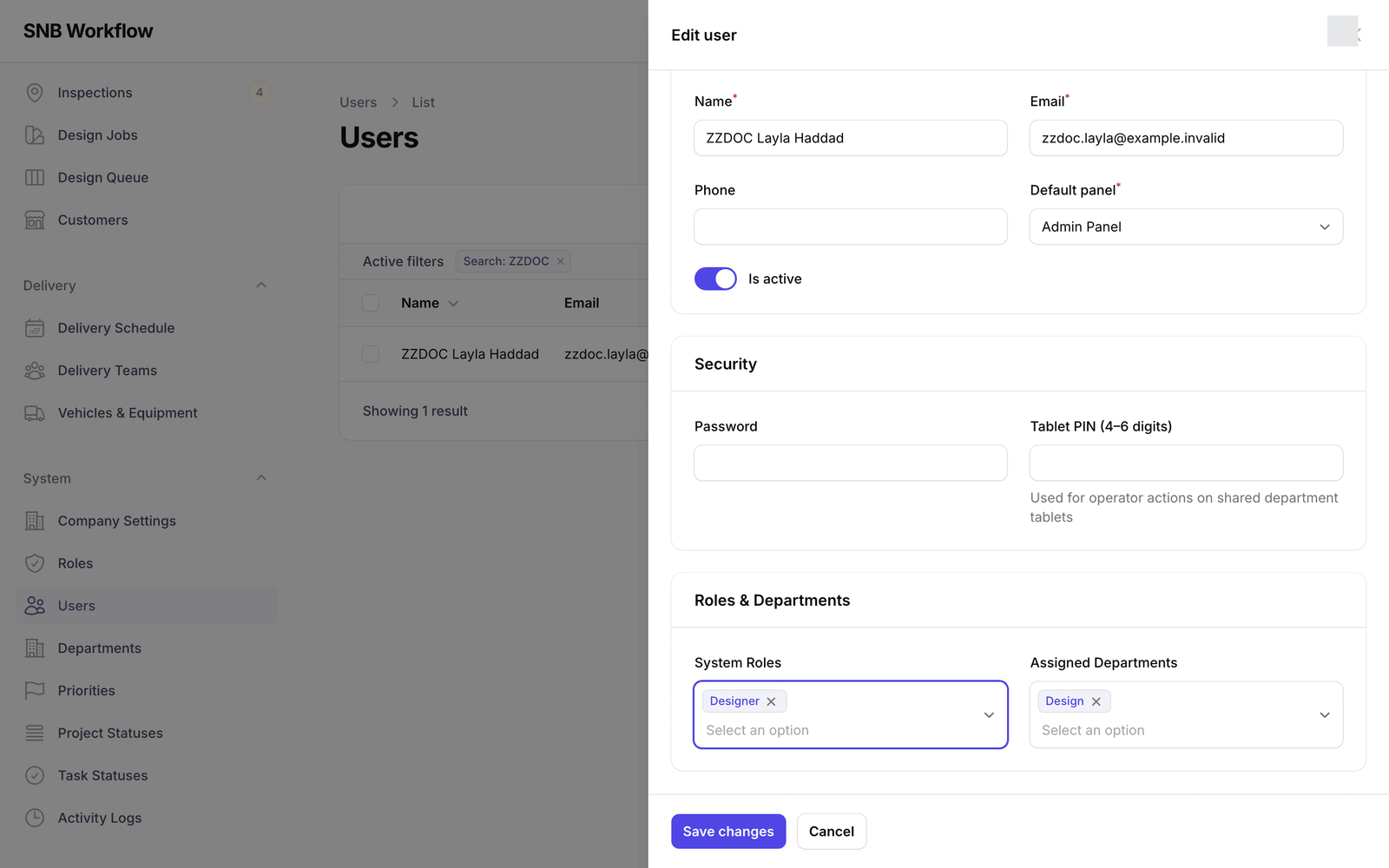
Go to System Roles. Remove the role they hold now by clicking the small × beside it, then choose the new one from the list.
When you are done there should be exactly one role showing, and it should be the new one.
Choosing a new role does not replace the old one — it adds to it. If you skip the removal you will leave the person holding both, and their access becomes everything on both lists at once. This is the single easiest mistake to make on this screen, and nothing warns you about it.
A person’s permissions are the sum of every role they hold. There is no ranking and nothing cancels out: if either role allows something, they can do it.
That is occasionally what you want — somebody who genuinely does two jobs — but it is almost never what you want by accident, because the result is somebody quietly holding more access than anyone intended and no single role on the Roles screen that explains it.
4Save
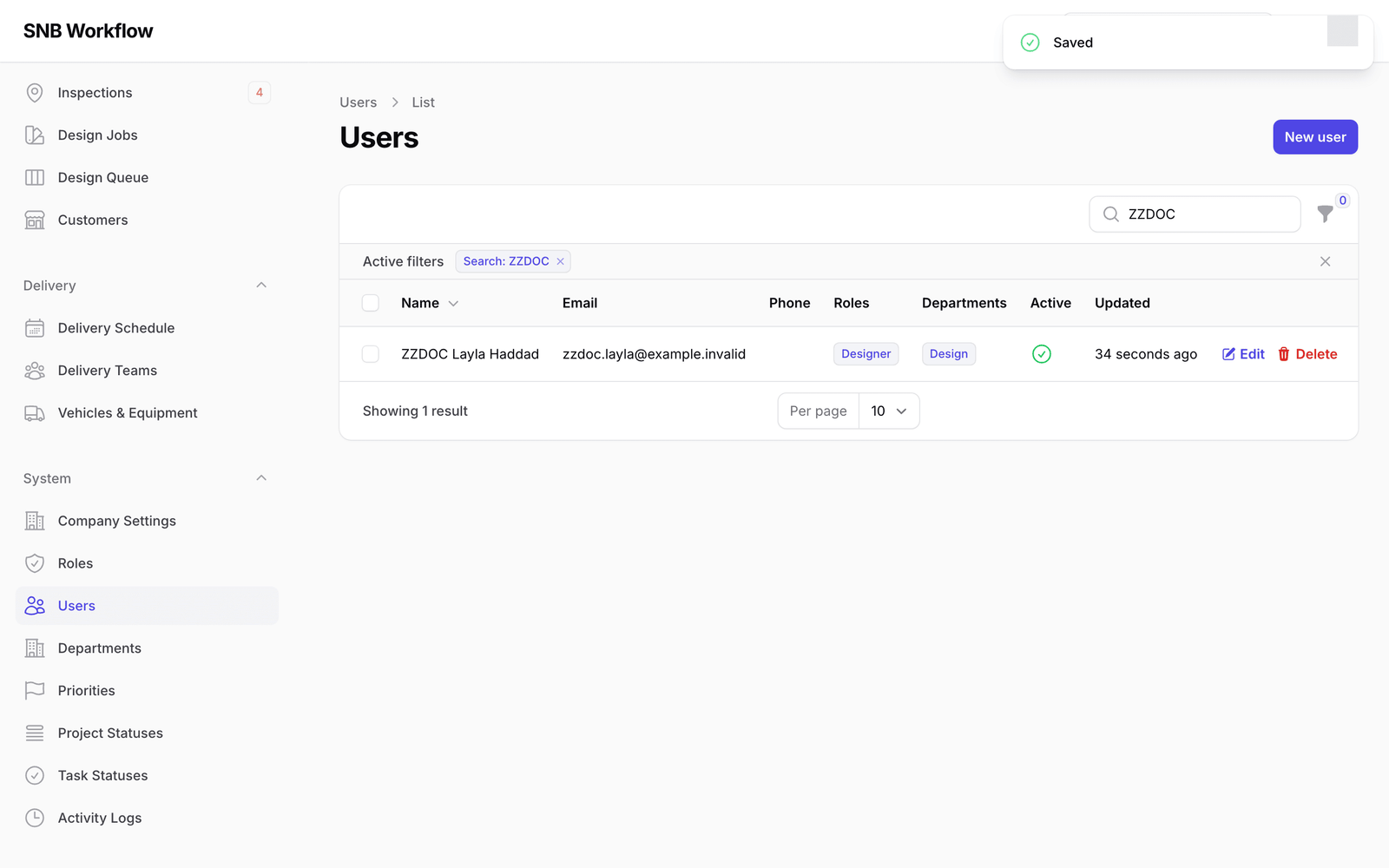
Click Save changes.
The panel closes and the badge in the Roles column now shows the new role.
What happens next
The change applies straight away. The person does not need to sign out and back in — the next screen they load reflects their new access.
If you have taken access away, anything they had open stays on their screen until they move; the moment they do, the removed screens are gone.
If it goes wrong
| What you see | What it means |
|---|---|
| Two badges in the Roles column | The old role was never removed. Open the account again and remove it — the person currently has both. |
| The person says nothing has changed | Ask them to reload the page. Their browser may still be showing a screen it loaded before the change. |
| The person has lost something they still need | Roles are shared. Do not add permissions to a role to solve one person’s problem — you would be changing it for everybody who holds it. Move them to a role that fits, or read Read a role’s permissions first. |