SNB Production WorkflowGuideSplitting a job into pieces
Splitting a job into pieces
A job too big for one day, cut into named pieces so the board shows what you actually did today.
Nothing, beyond a job that is too big to finish in one go.
Splitting does not change the job.
The office still sees one job with the same steps. The customer is not told the job grew. No progress figure moves, and nothing you do here makes your department look slower.
The pieces are yours, for your board.
1Press the split icon
Along the bottom of the card there is a small icon of two branching lines.
Press it. Type your PIN if it asks.
2Name the first piece
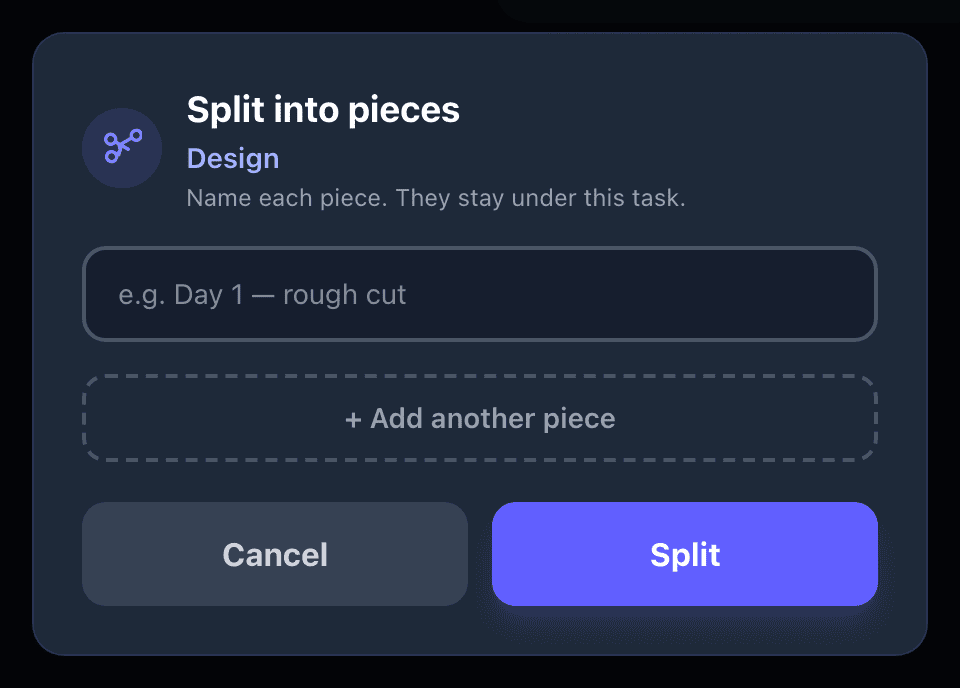
The screen is headed Split into pieces and says Name each piece. They stay under this task.
There is one box, Piece name.
Type a name that says what that piece is. The example on screen is e.g. Day 1 — rough cut, and it is a good pattern:
- Day 1 — rough cut
- Day 2 — finish and polish
- Front panel
- Back panel
Name pieces so somebody else can read them.
“Day 1 — rough cut” tells the next person what was done. “part 1” tells them nothing, and it will be on the board for days.
3Add more pieces if you need them
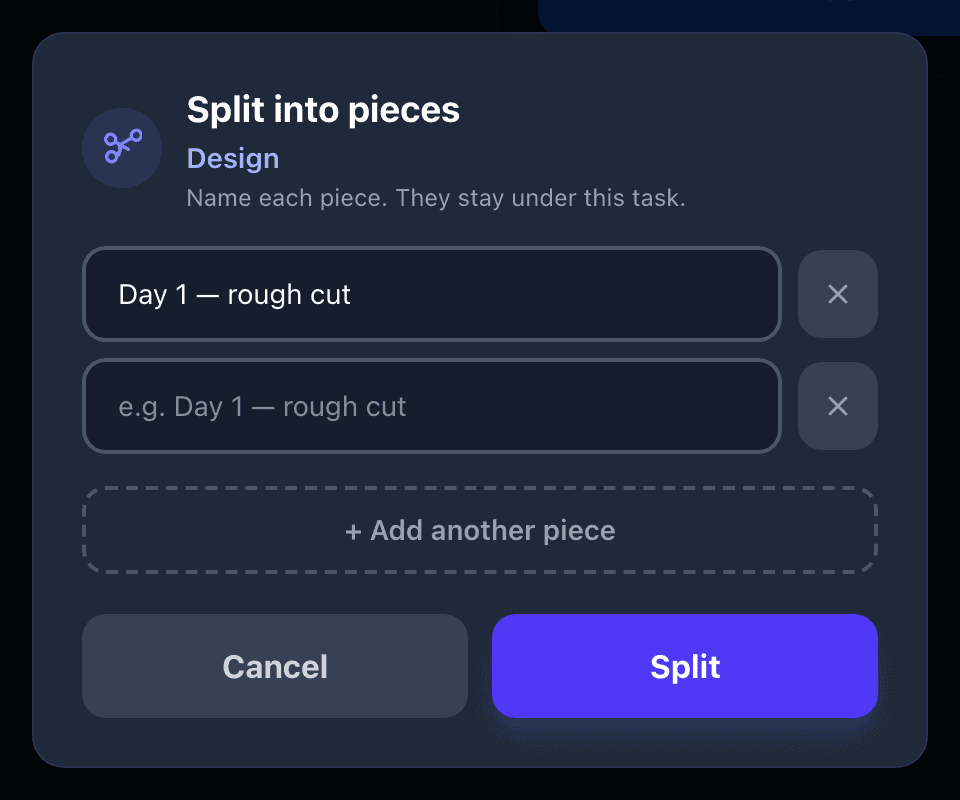
Press Add another piece and a second box appears.
Add as many as you need. Remove takes one away.
Only one box has to be filled in. If you only want to peel off today’s piece, name that and stop.
4Press Split
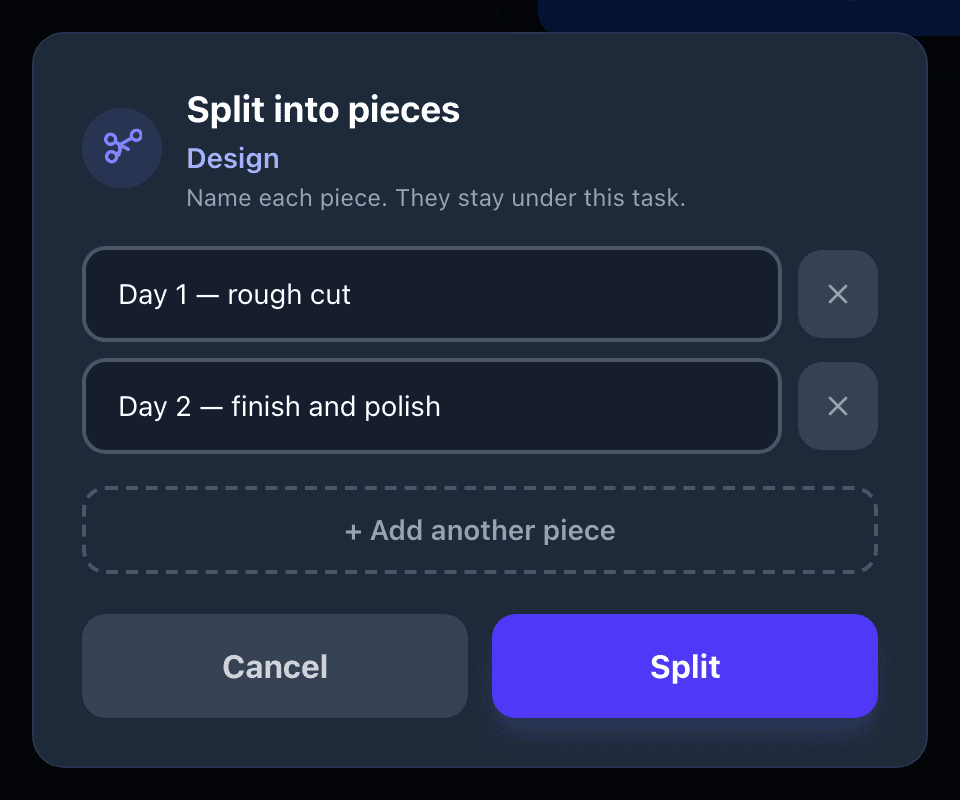
Press Split.
A message confirms how many pieces were made.
5The card changes
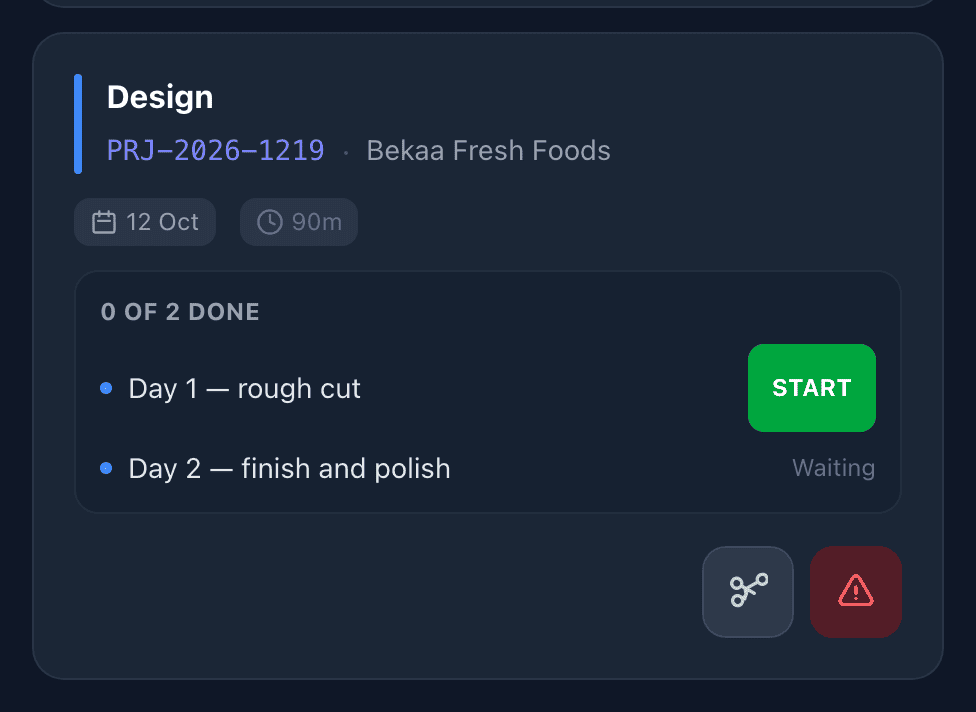
The pieces now sit under the job, each with its own buttons.
The job itself no longer has buttons. From now on you start and finish the pieces, not the job.
A line on the card shows how many are done, for example 0 of 2 done.
Two sets of buttons on one card is how somebody presses the wrong one.
The work is now in the pieces, so that is where the buttons are. When every piece is finished, the job is finished.
What happens next
Work the pieces exactly as you would work a job — START, HOLD, COMPLETE.
If it goes wrong
| What you see | What it means |
|---|---|
| No split icon on the card | The job is already split, or your account is not set up to split work. Ask your supervisor. |
| Split does nothing | Every name box is empty. At least one piece needs a name. |
| The job has lost its buttons and you did not expect it | That is what splitting does. The buttons are on the pieces underneath. |
| You named a piece wrongly | Tell your supervisor. Piece names are not changed from this screen. |