SNB Production WorkflowTrainingRead a role's permissions
Read a role's permissions
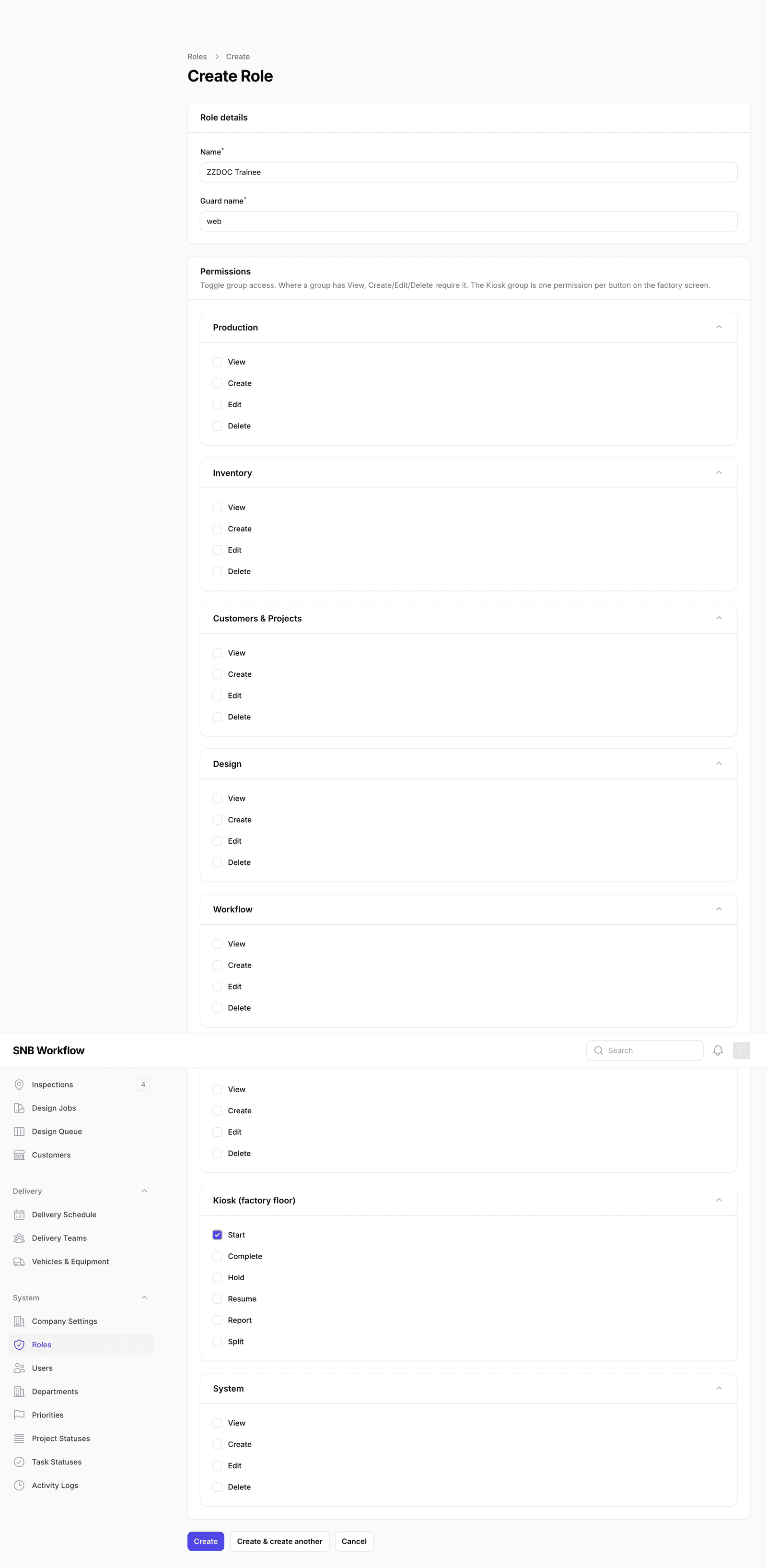
Permissions are grouped by the part of SNB they govern. Seven groups work the same way. The eighth — the factory floor — works differently, and the difference is worth understanding.
You need an administrator account.
Do not open an existing role to look around in. Roles are shared, and a tick-box changed by accident changes what real people can do, immediately, with nothing to warn you and no undo.
This walkthrough opens a new role instead, reads the permission list, and leaves without saving. Nothing is created and nothing is changed.
1Open a blank role
Open Roles under System, then click New role.
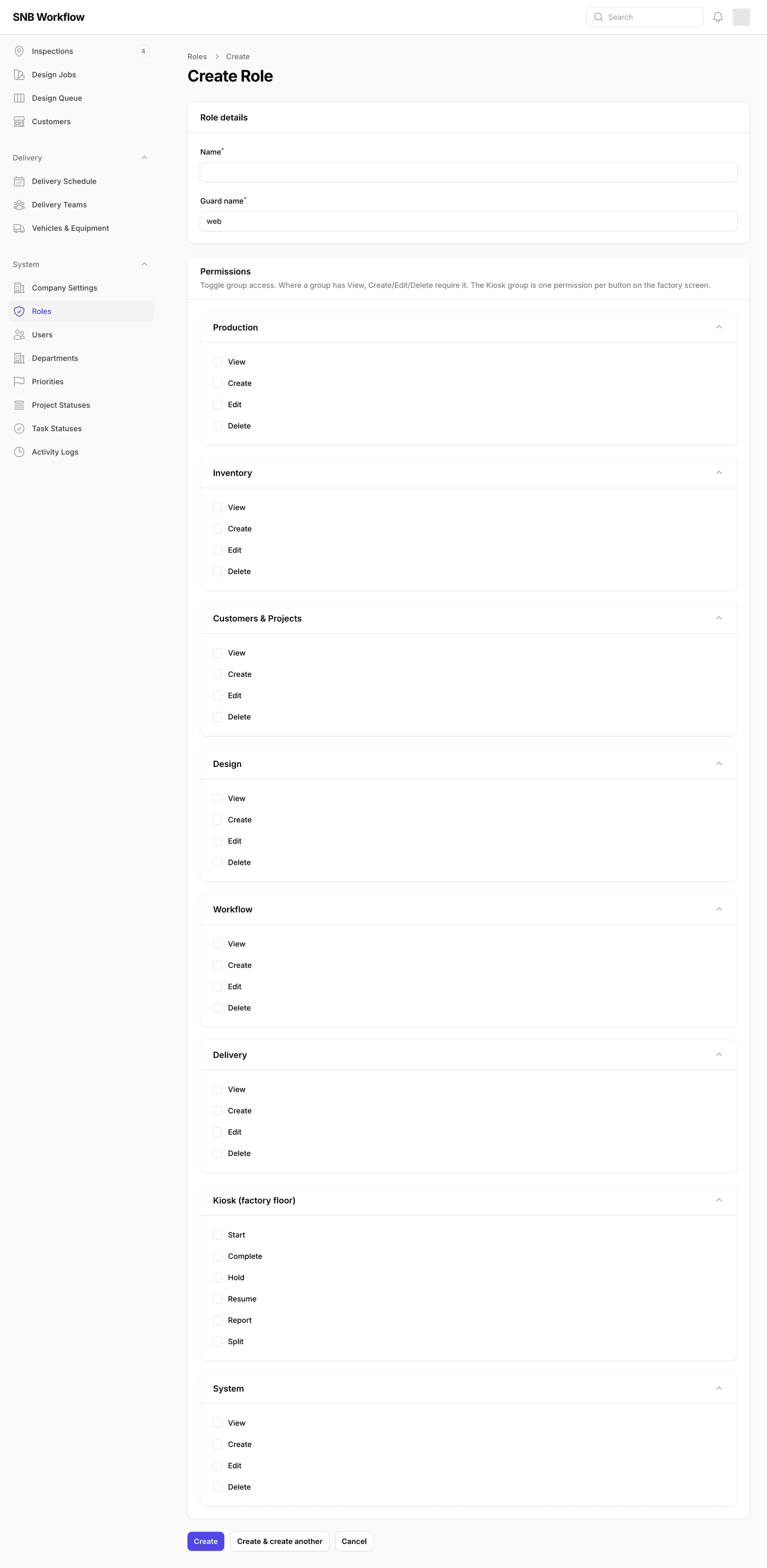
You get an empty form in two parts. Role details is the name. Permissions — everything below it — is the role itself.
The line under the Permissions heading is worth reading. It says: “Toggle group access. Where a group has View, Create/Edit/Delete require it. The Kiosk group is one permission per button on the factory screen.” The rest of this walkthrough is that sentence, explained.
2Look at the eight groups
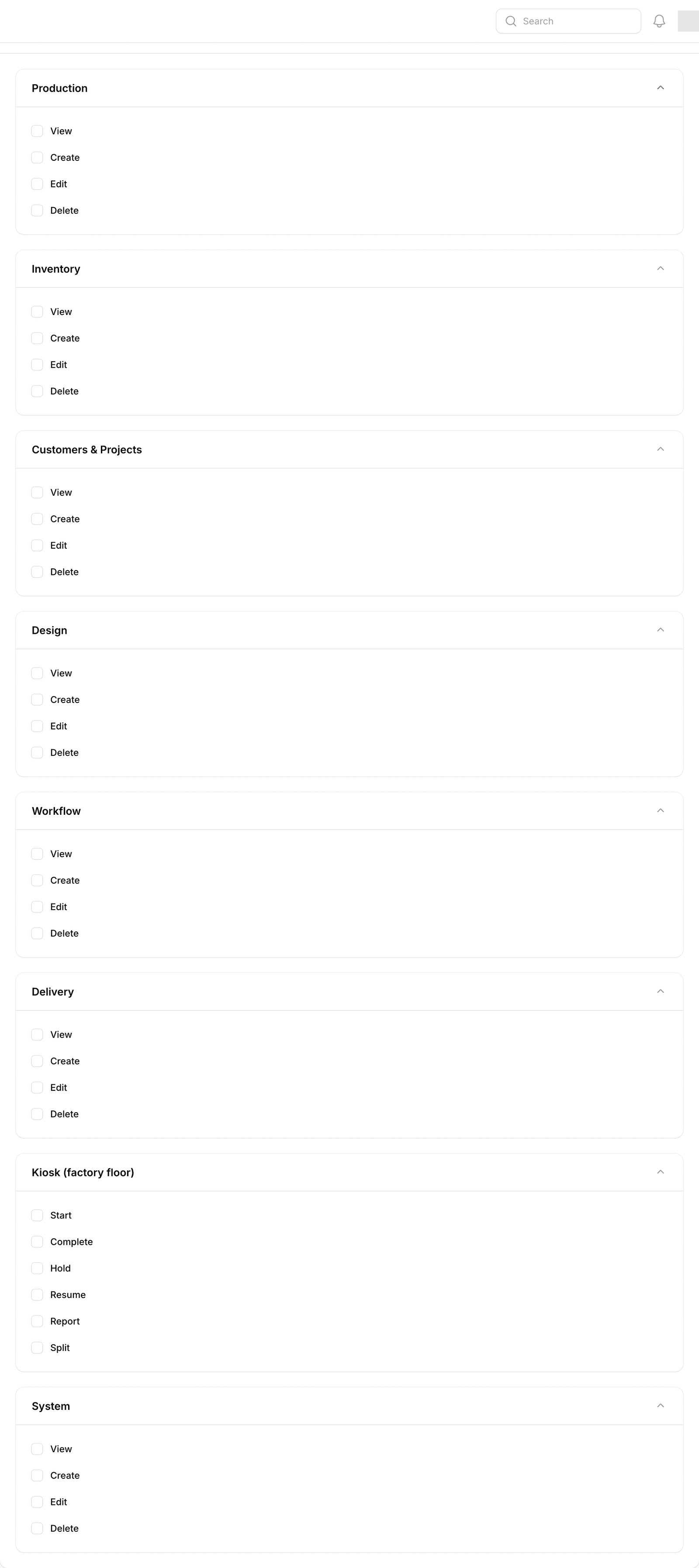
Permissions are gathered into eight groups, each covering one part of SNB:
Production, Inventory, Customers & Projects, Design, Workflow, Delivery, Kiosk (factory floor) and System.
A role is built by ticking boxes in these groups. Nothing else defines it.
3Read a normal group
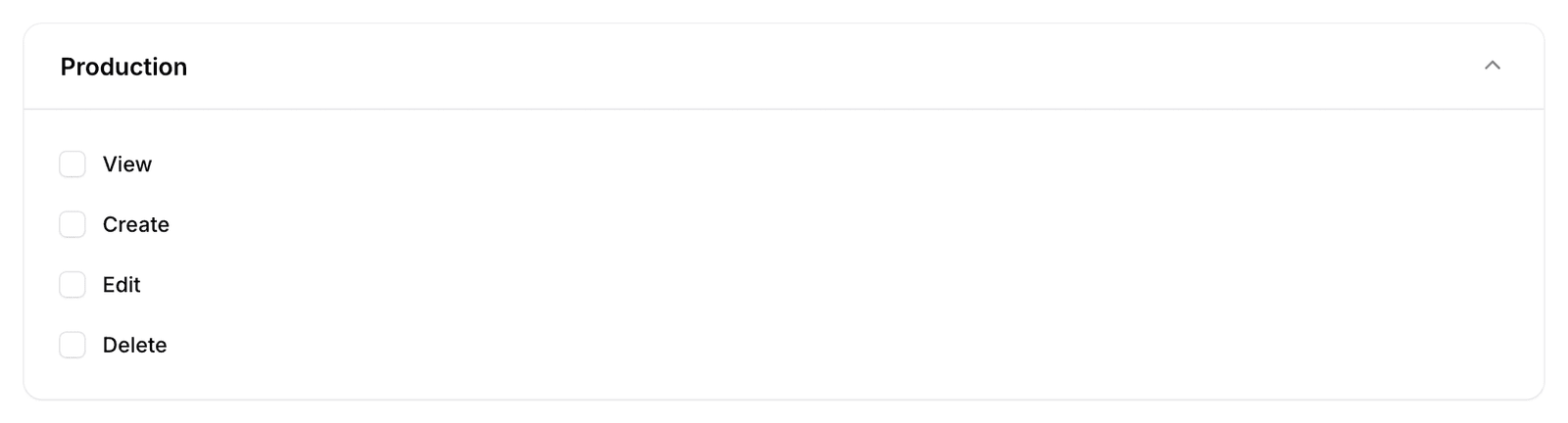
Seven of the eight look like this one. Four boxes:
| View | may open this part of SNB and read it |
| Create | may add new records |
| Edit | may change existing ones |
| Delete | may remove them |
View is the foundation. The other three need it — being allowed to change something you are not allowed to see would be meaningless, so ticking any of them requires View as well.
4Read the Kiosk group
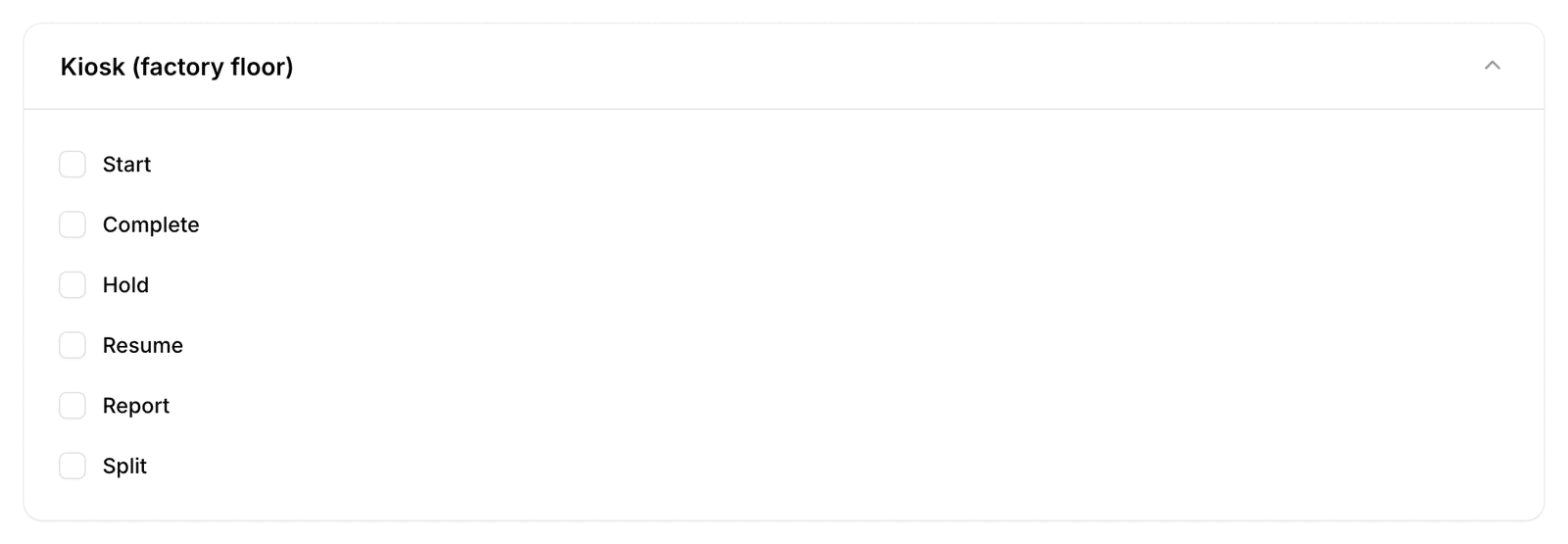
Now look at Kiosk (factory floor). It has six boxes, and they are not View, Create, Edit and Delete. They are named after buttons:
Start, Complete, Hold, Resume, Report and Split.
There is no View.
Both differences come from the same fact: the kiosk is not like the rest of SNB.
The kiosk screens are the touch screens on the factory floor. Nobody signs in to them. A worker walks up to the screen for their department and it is already showing the jobs waiting there — no password, no account, nothing to open. They tap their PIN only at the moment they press a button, and the PIN says who did this, not who may look.
So there is nothing for a View permission to control. The board is visible to whoever is standing in front of it, which on a factory floor is the whole point — a screen you have to sign in to read is a screen nobody reads.
And because every action is a distinct thing a person may or may not be trusted with, the permissions are the buttons themselves. A delivery driver may be allowed to Start and Complete a job but not to Split one into pieces or to Hold it. That does not fit into “create, edit, delete” — those four words would have to be stretched to mean things they do not mean, and the tick-boxes would then lie about what they grant. Six buttons, six permissions, each one saying exactly what it does.
What the worker actually sees. A button their role does not allow is not hidden — it is shown, dimmed, in the same place, the same size, and it explains itself when tapped.
That is deliberate. Buttons that appear and disappear depending on who last used the screen are worse than a refusal: an operator reaches for where a button was, finds nothing, and has no idea whether the system is broken, the job is different, or they have done something wrong. A dimmed button that says why is a screen that still makes sense.
5Ticking a box
Ticking Start in this group would let anyone holding this role press Start on a kiosk. Nothing more.
Notice how narrow that is, and how readable. You can hand somebody the ability to begin a job without also handing them the ability to put one on hold or break it into pieces.
6Leave without saving
Click Cancel.
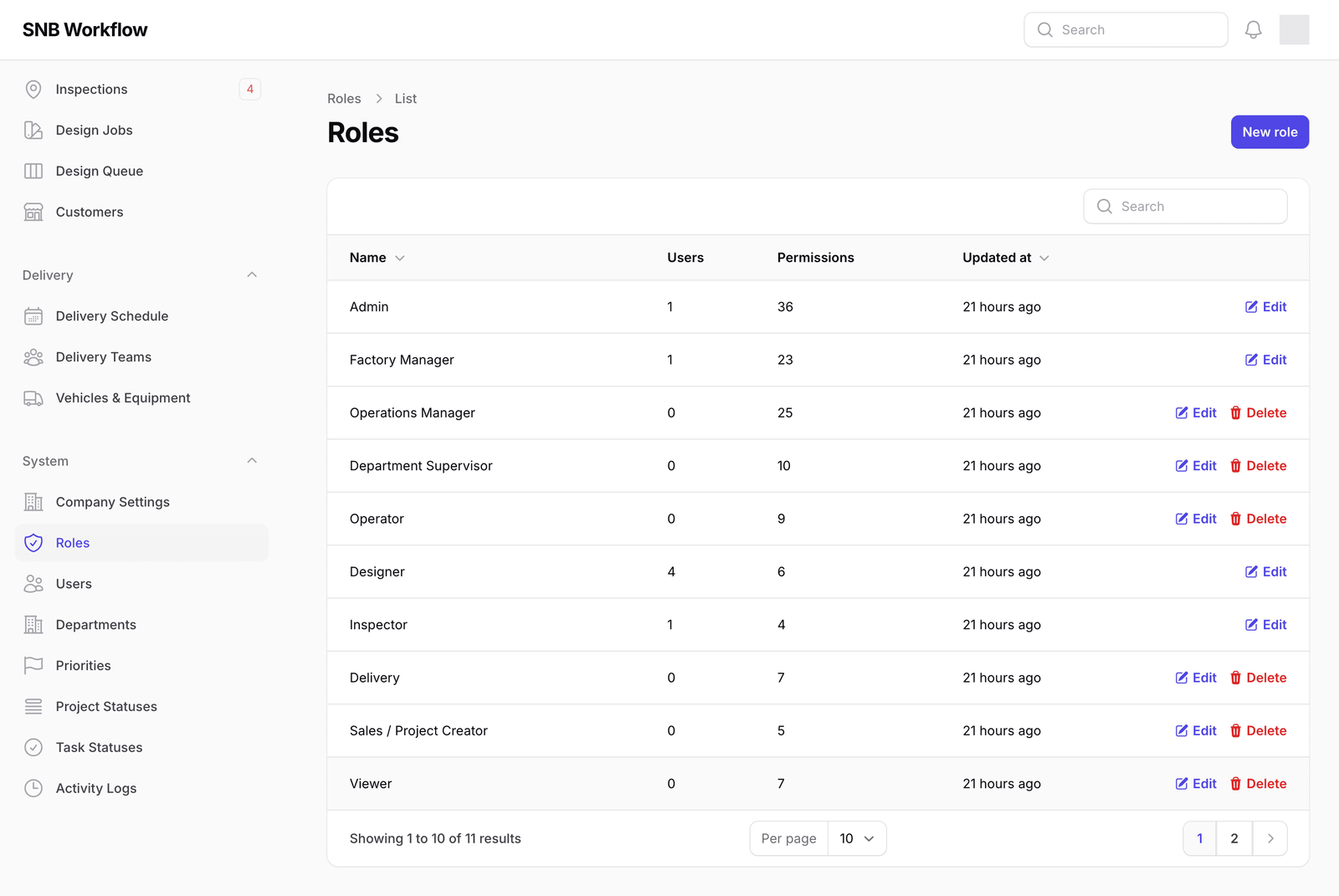
You are back at the list of roles, and it is exactly as it was — the role you were looking at was never created.
Cancel is the safe way to explore this screen. Nothing is written until you press Create, so you can open a blank role, read every group, and back out having changed nothing.
What happens next
If you had saved, the new role would appear in the list with a Permissions count matching the boxes you ticked, ready to be given to somebody on their account.
Changes to a role take effect immediately for everyone holding it. There is no publish step and no delay.
If it goes wrong
| What you see | What it means |
|---|---|
| You ticked Create and View ticked itself | Expected. The other three permissions require View, so it is added for you. |
| A person still cannot do something after you ticked its box | Check which role they actually hold — see Change what someone is allowed to do. Ticking a box on the wrong role changes nothing for them and quietly changes something for somebody else. |
| A kiosk button is greyed out on the factory floor | That role does not hold that button’s permission. The button is dimmed rather than hidden on purpose; the fix is on this screen, in the Kiosk (factory floor) group. |
| You are not sure whether you changed something | If you left with Cancel, you did not. If you pressed Create or Save changes, you did, and it is already live. |