SNB Production WorkflowGuideFinding your work on the screen
Finding your work on the screen
The screen on the wall in your department already knows what your team has to do today. This is how to read it.
Nothing. You do not sign in to this screen.
It is switched on, it shows your department’s work, and it is ready when you walk up to it.
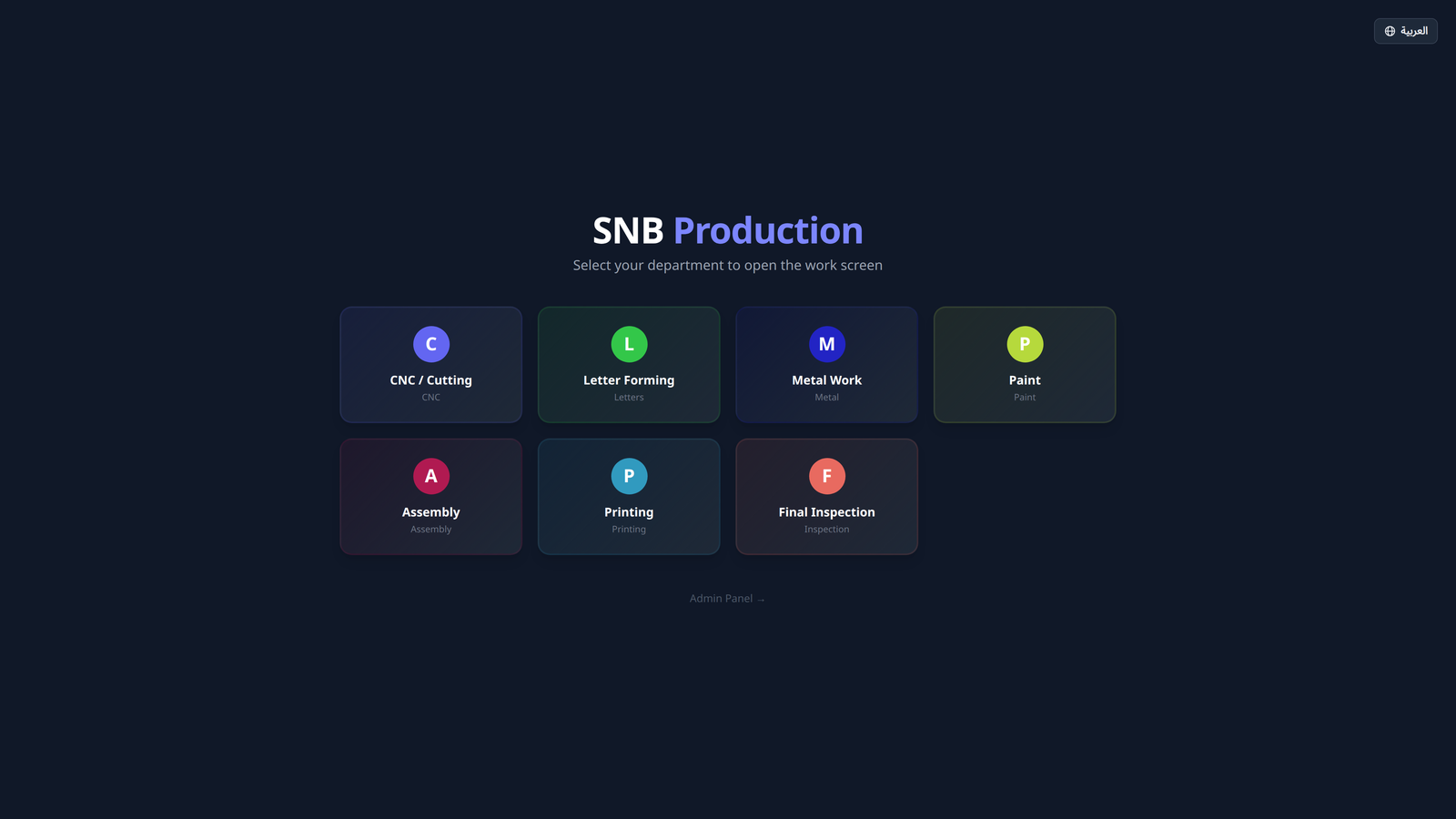
1Open your department
If the screen shows a list of departments, find yours and tap it.
The list is headed SNB Production.
Most screens are already set to their own department and stay there. You will usually walk up to the work, not the list.
2Read the four columns
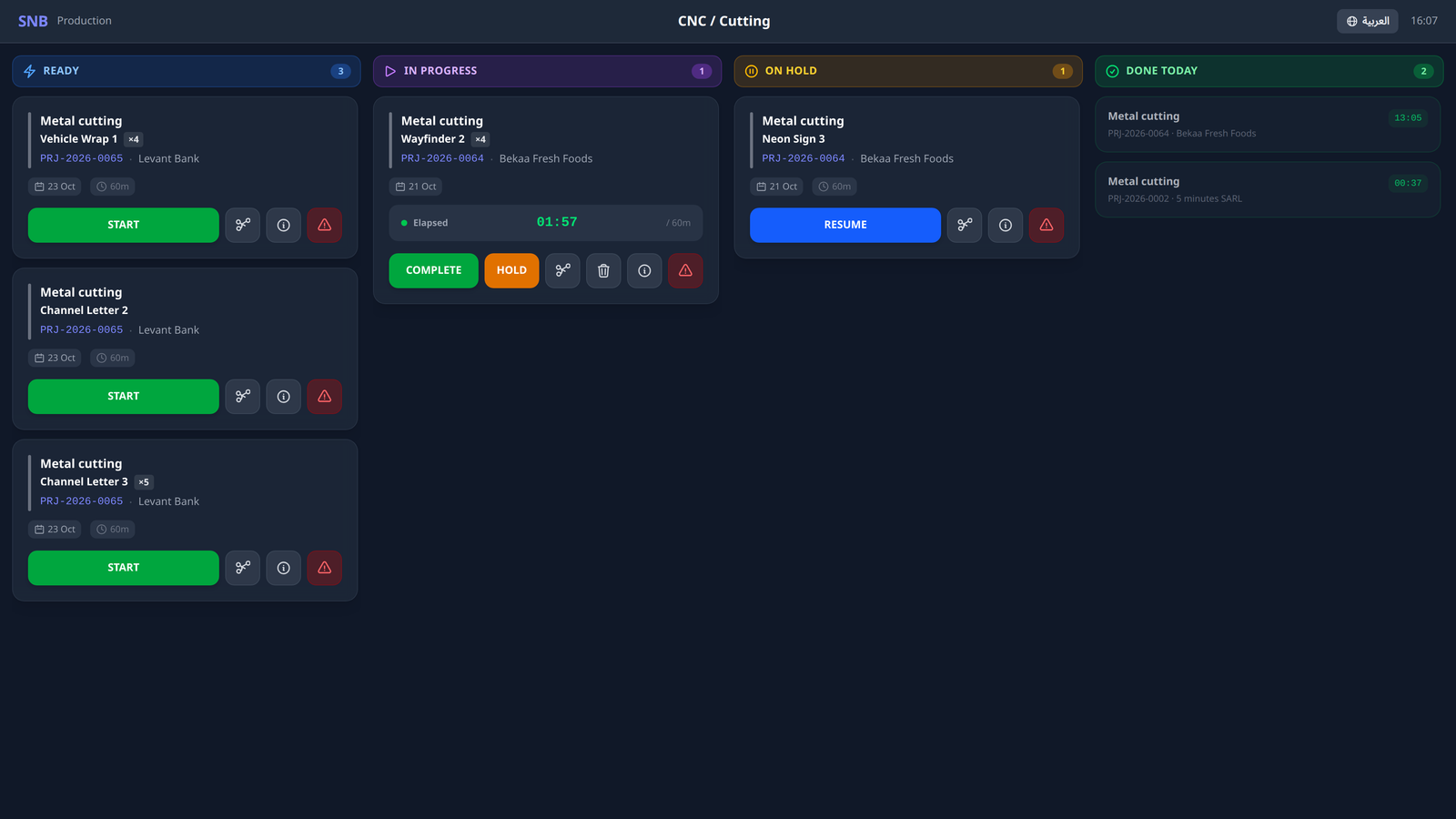
Your department’s work sits in four columns. Left to right, they follow the day:
| Column | What is in it |
|---|---|
| Ready | Work waiting for someone to pick up |
| In Progress | Work being done right now |
| On Hold | Work that was stopped, and why |
| Done Today | Work your department finished today |
A column with nothing in it says so, for example No ready tasks. That is not a fault.
3Read one card
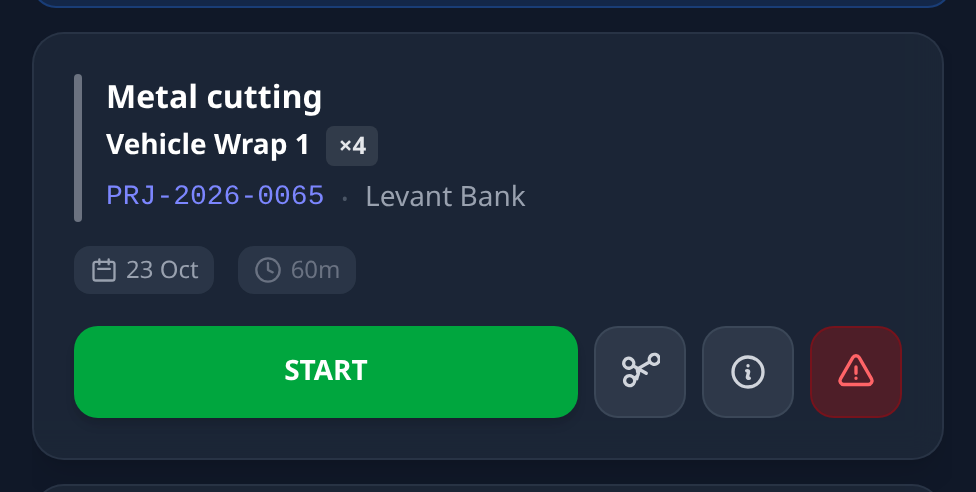
Each job is a card.
The card tells you the name of the job, which project it belongs to, and who the customer is.
Under that it names the sign this card is for, with a ×2 beside it when there is more than one of them.
The factory builds a chain per sign, so a job with three signs puts three cards on your board — and they can carry the same task name, the same project number and the same customer.
The project number says which job. The sign says which letters. Without it, three cards that look identical are three chances to cut the wrong one.
A job worked as a whole has no sign named, and the line simply does not appear.
If the job is late, the card says OVERDUE.
If somebody is working on it, the card shows Elapsed and the time so far.
The buttons along the bottom are what you can do with that job. They change depending on what state the job is in — a job nobody has started shows START; a job in progress shows COMPLETE and HOLD.
There is also a small info button on every card. It opens the job’s pictures — the designer’s files and the inspector’s site photographs — and it asks for no PIN, because looking at a picture changes nothing.
The screen refreshes itself every few seconds. If somebody in your department starts a job on another screen, this one catches up on its own. You never need to reload it.
What happens next
Pick up a job with START. That is the next walkthrough.
If it goes wrong
| What you see | What it means |
|---|---|
| The screen shows a different department | Tap the department name at the top to go back to the list, then tap yours. |
| All four columns are empty | Your department has no work assigned today. Ask your supervisor before assuming the screen is broken. |
| A job you expected is not there | Two reasons, and the second is the common one. It may not have reached your department yet — work moves between departments in order. Or the job has not been handed to the factory: a manager generates the work and then releases it, and nothing appears on any screen in between. Ask your supervisor rather than waiting. |