SNB Production WorkflowGuideCounting a Bay
Counting a Bay
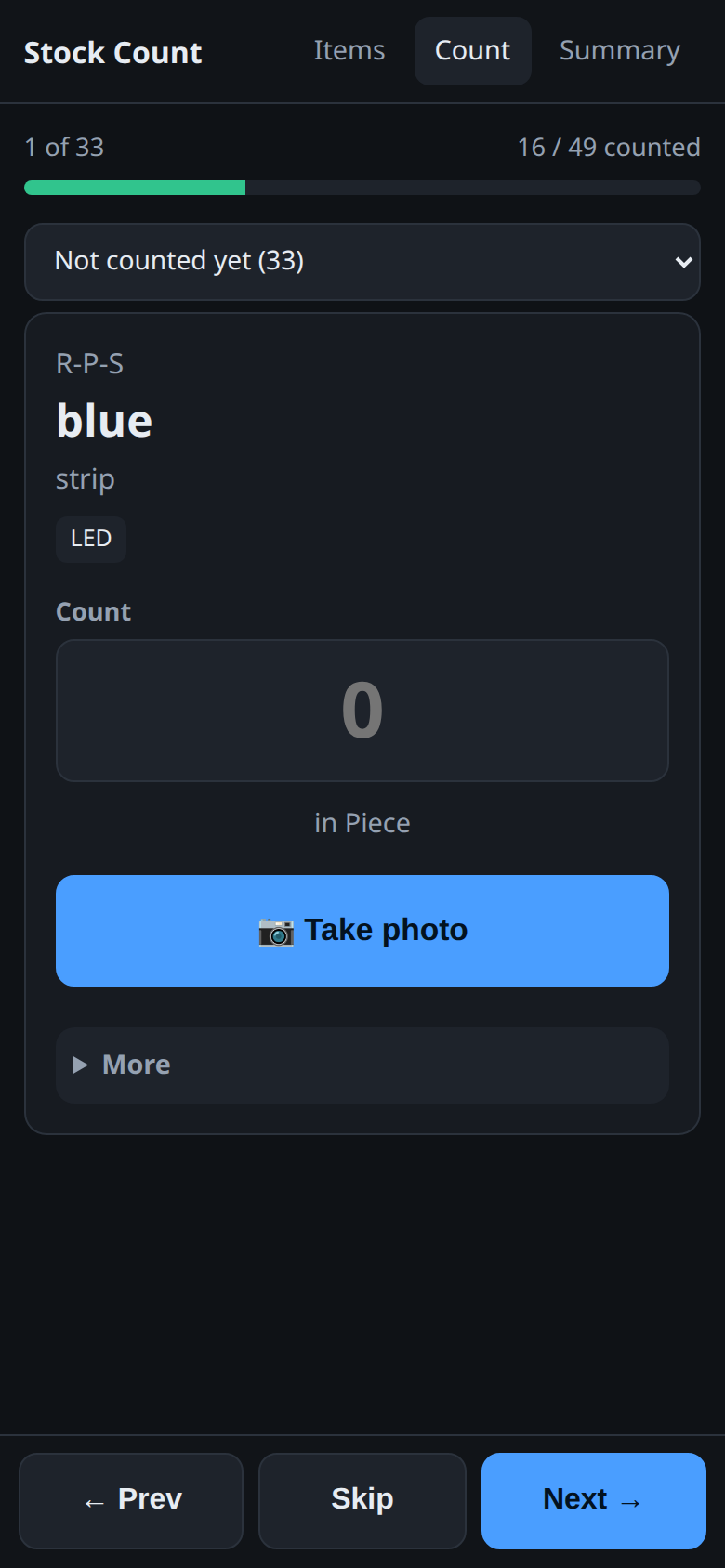
One shelf filling the screen, and three buttons at the bottom. This is the screen you actually count on.
The Count tab is for walking a bay end to end: one shelf at a time, a number, then next. It is the screen to use when you are standing in front of the stock rather than looking for one thing.
Nothing here reaches the server except saving a number and sending a photograph. Prev, Skip, Next and the scope picker are instant because they never leave the phone.
1Choose what you are walking
The picker at the top decides the run:
- Not counted yet (33) — the default, and the right one nearly always
- Everything (49)
- one entry per category — LED — 37 (21 left)
Above it, 1 of 33 is your position in that run, and 16 / 49 counted is the count as a whole.
The run is a snapshot, not a live filter.
Counting a shelf while you are on Not counted yet does not make it vanish from under you. If it did, the list would shorten with every entry and Prev would jump somewhere you have never been.
Change the picker and the run is rebuilt from scratch, starting at the beginning.
2Read the shelf
The card is the whole shelf: its code at the top, the name large beneath it, then the size and thickness, then the category.
Tags appear beside the category when they apply — NEW for a shelf added during this count, COUNTED for one already done, and UNSENT for one with a number typed but not yet saved.
A note somebody left shows in amber under the tags.
3Type the count
The Count box takes a number. Part of a unit is fine — 2.5 is a valid
answer.
The line under it says what you are counting in — in Piece — and on a count that is not blind it also says what the books expect: in Piece · system says 12.
Most counts here are blind: the system’s own figure is deliberately not shown while you count.
A number on the screen is an anchor. Shown “system says 12”, a person who finds eleven checks twice and writes 12; shown nothing, they write 11. The second is the count. The first is the system agreeing with itself.
Blind or not is decided when the count is opened, at a desk, not here.
4Photograph it if it is worth photographing
📷 Take photo opens the camera and attaches the picture to the item.
Thumbnails appear underneath as they upload, marked sending… until they land. A photograph that fails is marked failed and is retried — the queue badge lives in the app’s chrome, so a picture taken here is still sending while you are three shelves further on.
5More
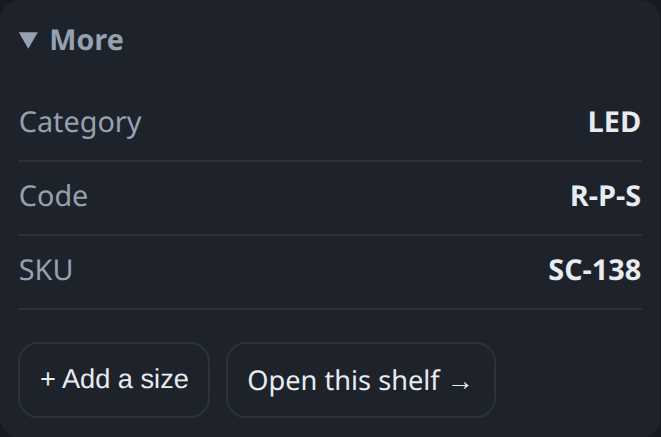
More opens the shelf’s identifiers — Category, Code, SKU — and two actions:
- + Add a size — the same item at a size the catalogue does not have
- Open this shelf → — the shelf’s own page, where the note box and the photo list are
6Move on
Three buttons are pinned to the bottom of the screen:
| Button | What it does |
|---|---|
| ← Prev | saves what you typed, then goes back one |
| Skip | records the shelf as skipped and moves on |
| Next → | saves what you typed, then goes forward one |
Pressing Enter on the keypad does the same as Next, which is what makes a long bay quick.
At the end of the run you get That was the last one 🎉 and stay where you are.
Skip is not the same as leaving a shelf alone.
Skip is a decision — the shelf is behind a pallet, the stock is out on a job, somebody will come back to it. It records that a person looked and could not count.
An untouched shelf records nothing at all. Both leave the quantity unchanged when the count is applied; only one tells the next person you were there.
What happens next
Nothing you do here moves stock. The numbers sit on the count until somebody reviews and applies it from Inventory → Stock Counts.
A number typed and not yet saved is kept on the phone, and the UNSENT tag says so.
Warehouses have holes in their signal. Losing four shelves’ work because a handset walked behind a steel rack would teach people to distrust the screen, and a counter who does not trust the screen writes on paper instead.
If it goes wrong
| What you see | What it means |
|---|---|
| Nothing in this selection | The run is empty — usually Not counted yet on a finished count. Switch to Everything, or use the link to the shelf list. |
| The count box will not take a number | The count is closed, or your role cannot write to it. The list is still readable. |
| UNSENT stays after you press Next | The save did not reach the server. The number is safe on the phone; get back into signal and press Next again. |
| A photo is marked failed | Tap the queue badge to retry. It is the upload that failed, not the count. |
| Prev goes somewhere unexpected | The run was rebuilt — changing the scope picker starts it again from the beginning. |