SNB Production WorkflowGuideThe Production Flow
The Production Flow
The chain of steps a job takes, drawn one graph per sign. This is the screen a factory manager reads before taking a job on.
SNB has no production line, and this screen exists because of that.
A workflow template is a starting guess. A metal sign made from galvanized steel needs no paint job, and the template says it does — so every job’s chain has to be looked at by somebody who knows the work before the floor sees it.
Reach it from a project: Review the production flow, in the header of the project’s own page.
Reading this screen needs production.view, which is a factory permission rather than the wider one that lets a role read customer records. A designer can open a project perfectly well and cannot open this.
1Open the flow
The heading names the job, and the line under it says where it stands:
Nothing here has reached a department screen yet. Check the flow, then hand the job over.
Once the job is on the floor, the same line reads On the floor since and the date instead.
Three parts, left to right:
- What this job makes — one entry per sign
- Flow and Job files — two tabs over the middle
- the step inspector, on the right, empty until you tap a step

2Read the rail of signs
Each entry carries the sign’s reference, its name, 0 of 6 done and the quantity — ×5 where the job makes five of them.
The factory makes signs, and a chain is generated per sign.
A job with three signs has three chains, so the floor can say which of the three it is holding. That is why this is a rail of signs rather than one diagram: there is no single graph for the job.
A sign with no chain is still listed, and says so. Leaving it out would make a half-generated job look complete on the one screen whose whole purpose is checking it before release.
An entry named Extra work is not a sign. It is the steps that belong to the job rather than to any one sign — work somebody added by hand.
3Read the graph
The screen says how to read it, under the canvas:
Work flows left to right — an arrow means the step it points at waits for the step it comes from. The number on a step is how long it should take.
Steps side by side with no arrow between them are parallel: the letters and the metalwork can happen at the same time, and the assembly waits for both.
The legend under the canvas names the two badges a step can wear and the one state that looks different:
| 👤 | a manager signs this step off |
| 📎 | a file has to be attached |
| dashed | stepped over — the flow passes it by |
The steps cannot be dragged. The layout is worked out from the arrows every time the screen opens.
There is nowhere to store a hand-placed position, so a graph you arranged would reflow on the next load — which reads as the screen having lost your work. It is laid out the same way every time instead.

4Tap a step
The panel on the right fills with that step: its Status, its Position in the chain, the Estimate, what has been Worked so far, who it is Assigned to and when it is Due.
Under that, what the step needs, in sentences rather than ticks — Required work. Cannot be skipped. Reaches its department on its own once the steps before it are done. — plus a line for a file or a manager’s signature where one is needed.
One step in each chain carries The release point — the ISO release checklist is signed here.
5Read the job's files
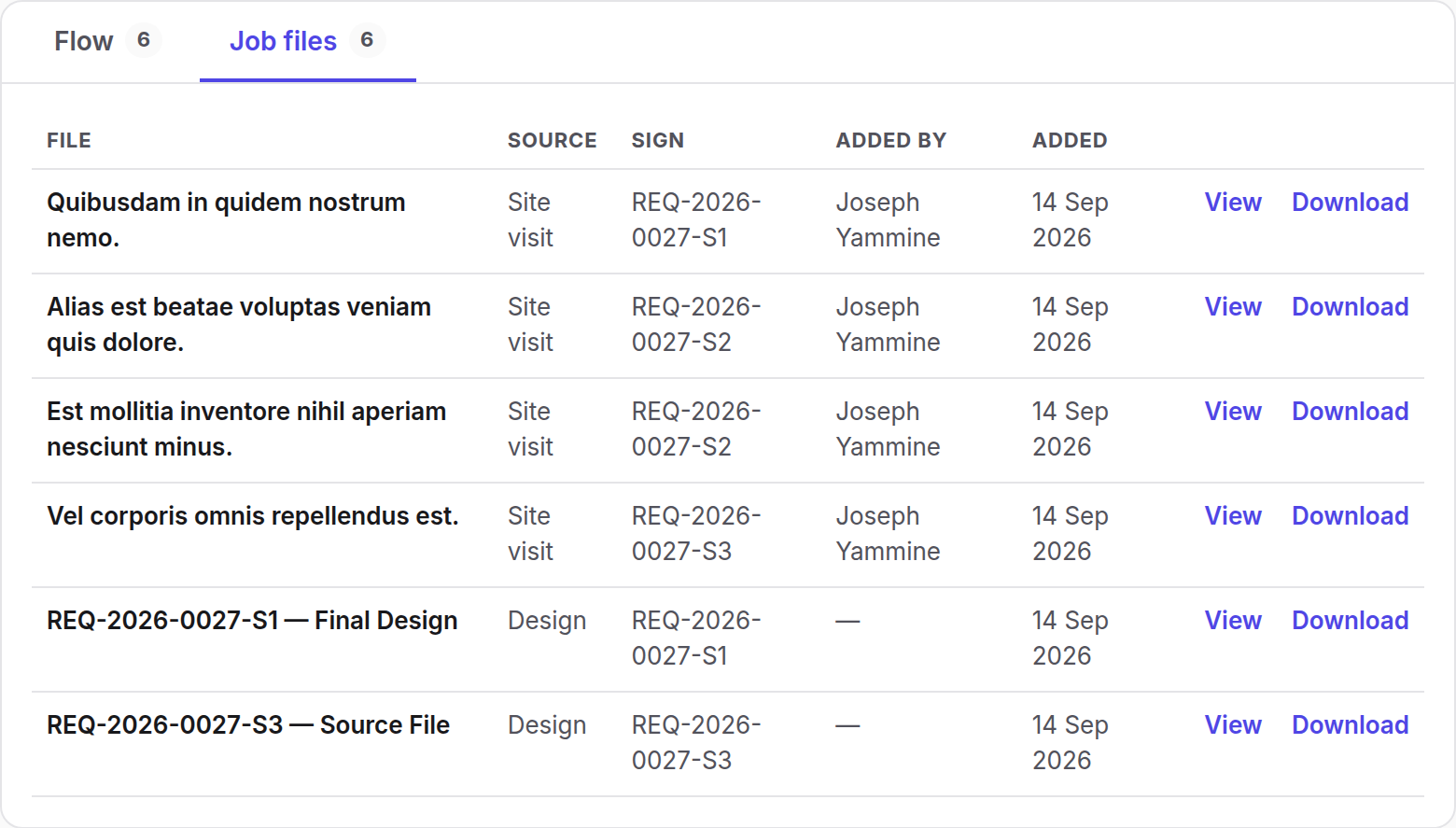
The Job files tab is the other half of checking a job over: every file attached to it, with the Source it came from — an upload, the inspection, or the design — the sign it belongs to, who added it and when.
It is here rather than a click away because a manager checking a chain is usually checking it against a drawing.
What happens next
Reading is one thing this screen does. The other two have their own pages: Changing a job’s flow, and Handing a job to the factory.
If it goes wrong
| What you see | What it means |
|---|---|
| No production steps have been generated for this sign yet | The chain has not been generated. Go back to the project and press Generate Tasks. |
| A red sentence above the graph | The flow has a fault that would stop the job. See Handing a job to the factory. |
| A permission message instead of the page | Your role does not hold production.view. |
| The graph is empty and the job is on the floor | You are looking at a sign whose chain was never generated. Check the rail — the count beside each sign says which. |