SNB Production WorkflowGuideSubmitting And Signing A Job Order
Submitting And Signing A Job Order
How a job gets permission to be built, who gives it, and what happens when somebody refuses.
Nothing on a job can start until its job order has been approved. Not the first step, not any step — the refusal is in the service that starts work, so no screen can talk its way past it.
There is no approval inbox.
You are told through The bell, you open the job, and you sign it in the job’s own Actions menu. There is no list of things waiting for you.
Everything on this page happens on the project’s Overview tab, on the panel called Job Order Approval.
1Reading the panel
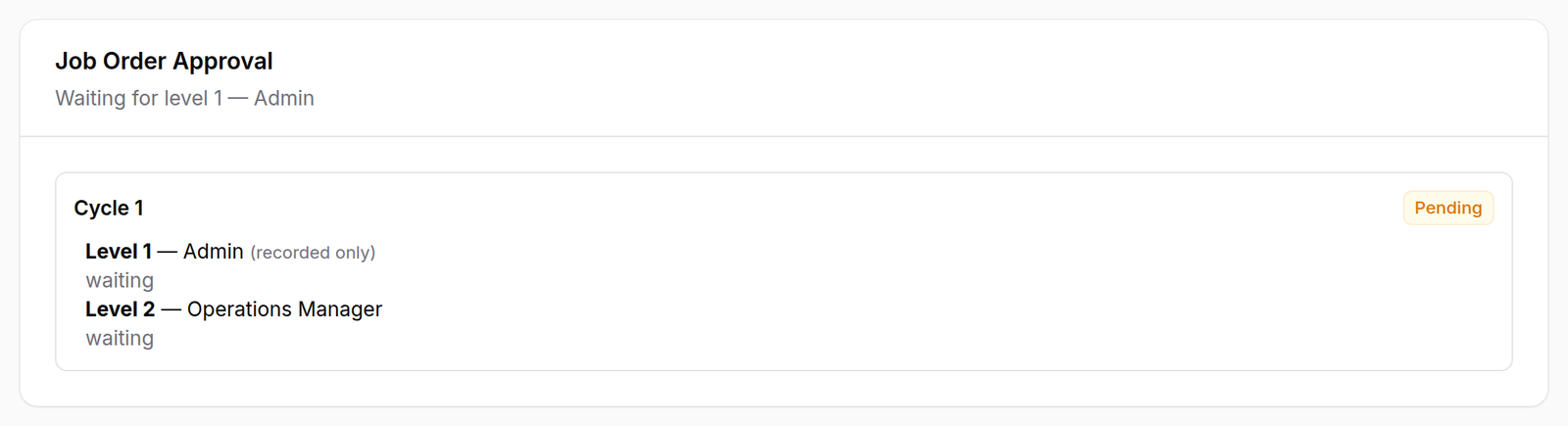
One line at the top says what has to happen next. Under it, every cycle this job has been through.
Each level names a role, not a person — anybody holding that role can sign — and says whether it stops work:
| (nothing) | blocking. Work cannot start until this is signed. |
| (recorded only) | it is asked for, and work does not wait for it. |
A job can be released with its chain still unfinished.
Once the last blocking level has signed, the work is free to start even though later recorded-only levels have not answered. The panel then says “Approved for production. Still to acknowledge: level N” rather than “waiting” — because chasing that signature would be chasing something that is holding nothing up.
2Submitting
Submit for approval appears on a job that has never been submitted, or whose last cycle was rejected. Confirming puts it into the chain and notifies everybody who can sign level 1.
Submitting freezes the numbers.
The job’s value and the threshold in force are copied onto the cycle at that moment, and each level’s role name and blocking flag are copied onto its step.
Change the chain next month and this cycle is unaffected — a document whose required signatories change under the person about to sign it is not a record of anything.

3Approving
Approve — level N appears only for somebody who can sign the level the job is actually at. Level 2 cannot sign while level 1 is pending; the order is enforced where the signature is written, not by hiding a button.
A comment is optional.
4Rejecting
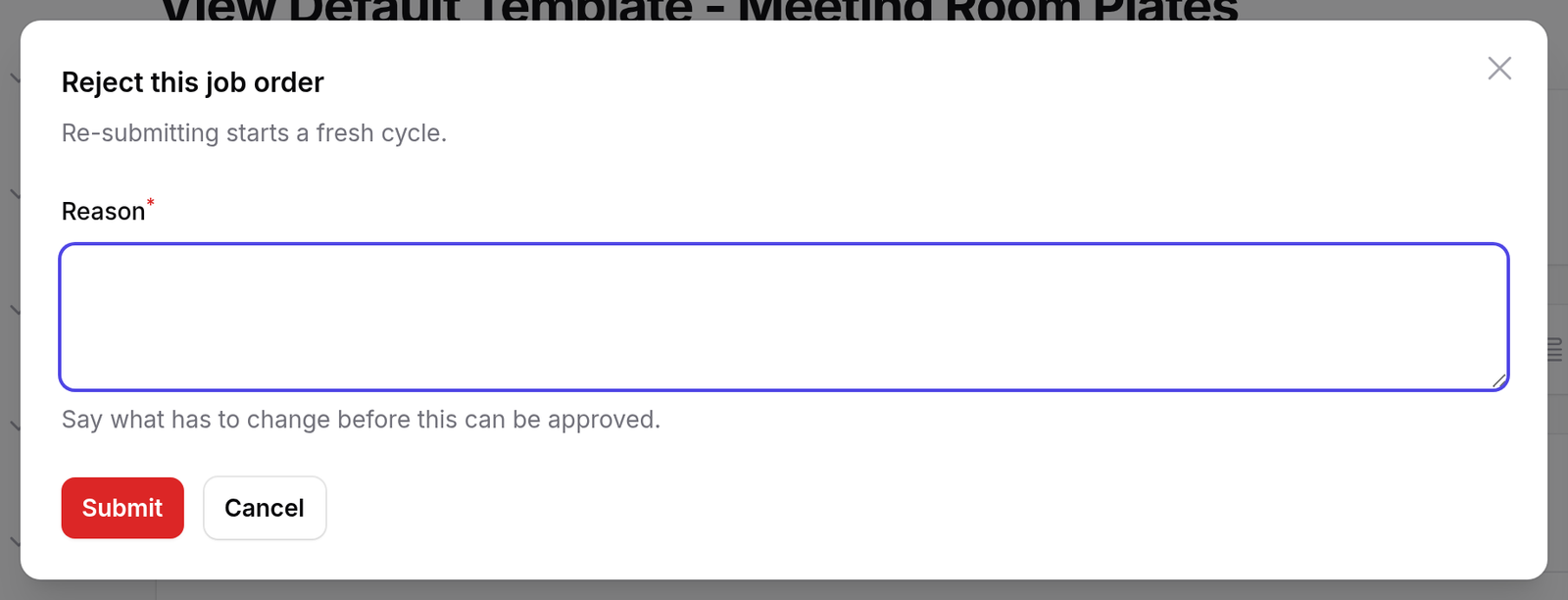
The reason is required, and by the engine rather than by the form. Say what has to change.
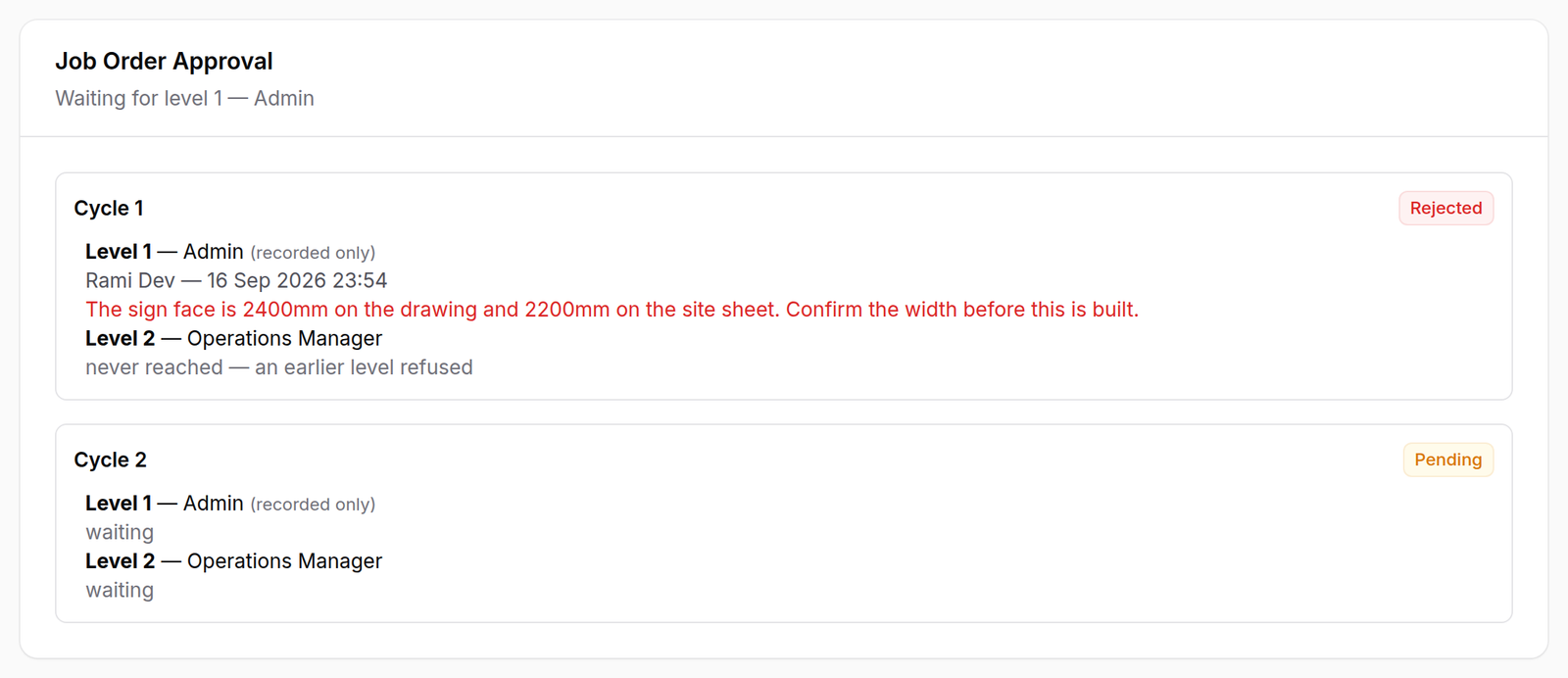
Rejecting closes the whole cycle at once. Levels that had not been reached are marked never reached rather than left waiting — a step sitting at pending forever on a closed cycle reads as somebody who did not do their job.
5What a rejection leaves behind
Cycle 1 stays exactly as it was: rejected, with the reason, the name and the time. Cycle 2 is a new cycle underneath it.
Re-submitting never reopens the old one. History is not overwritten here.
What happens next
The last blocking signature releases the job: its status moves to in production, and steps may start. Handing the work to the floor is still a separate, deliberate act — see Handing a job to the factory.
An approved job cannot be re-submitted. To add to it, use Adding work to an approved job.
If it goes wrong
“…is already waiting for approval at level 1.” It has been submitted. Somebody has to sign it.
“…is already approved. Raise an amendment rather than re-submitting it.” Exactly that — see Adding work to an approved job.
Nobody can sign, and nothing is wrong. The level names a role that no active user currently holds. The engine is refusing correctly and nobody can clear it. The panel lists those levels, and so does Who signs what. An administrator has to give somebody the role or change the chain.
You hold the role and the button is not there. The job is at a different level, or there is no open cycle at all.