SNB Production WorkflowGuideTransfers
Transfers
Moving stock from one warehouse to another — written, filled, and posted. Nothing leaves the shelf until the last step.
A transfer records stock leaving one warehouse and arriving at another — material going from the Main Warehouse out to the Factory, for example.
It is written in two stages, and the gap between them is the point of the screen:
- You create the transfer and list what is being moved. Nothing has happened yet.
- You post it. Only now does the stock leave one warehouse and appear in the other.
A transfer sitting at draft has changed no quantity anywhere.
That is what makes it safe to build one up over a morning, have somebody else look at it, and commit it only when the material has actually been handed over. A document that moved stock the moment you typed it would have to be right first time.
1Open the list
Go to Inventory → Transfers.
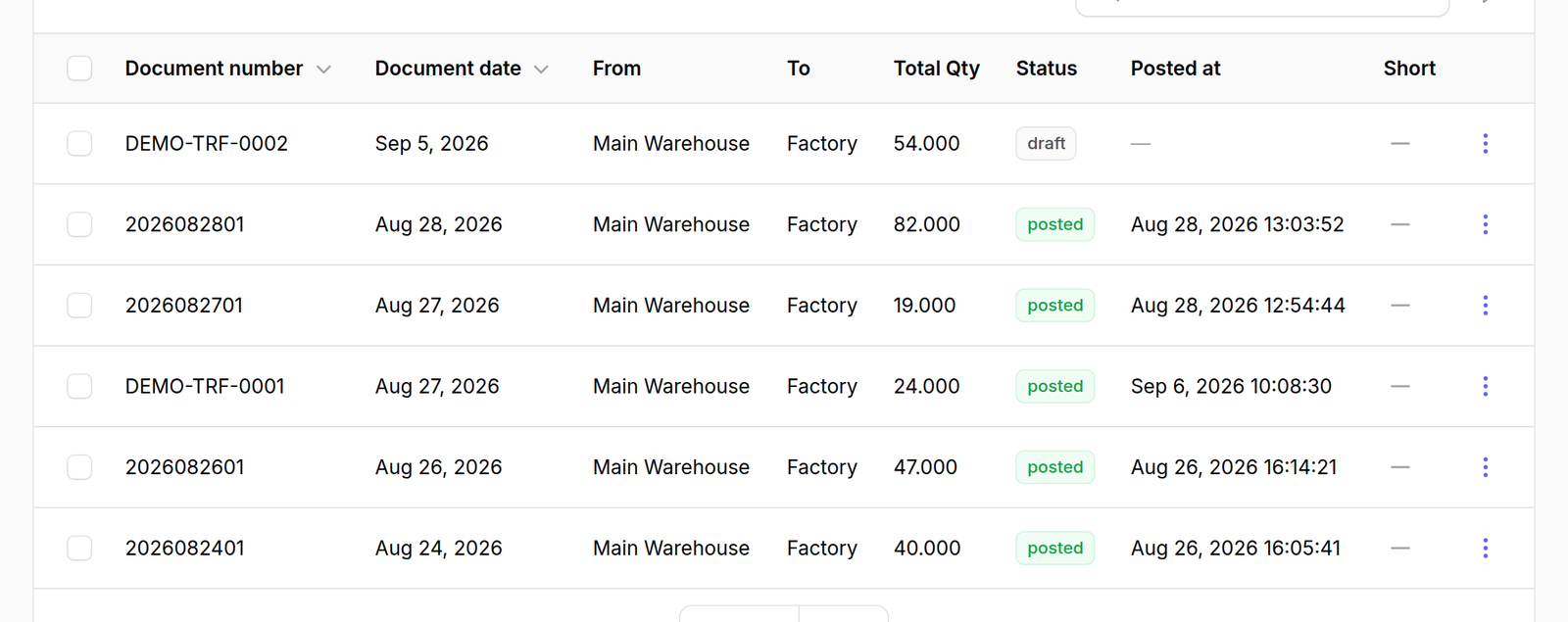
Each row is one movement, and the columns read left to right the way the document does — Document number, Document date, From, To, Total Qty, Status, Posted at.
Read the Status column first. A draft row is a plan; a posted row is
stock that has already moved. Posted at stays empty until it is posted.
2Press New transfer
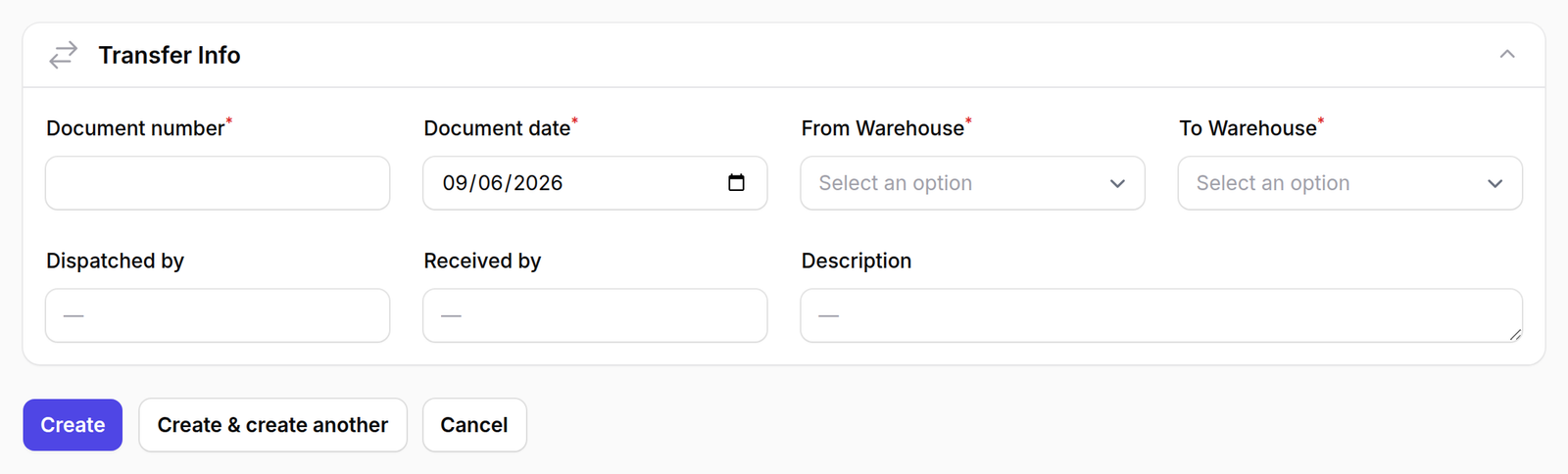
The form asks for six things, and four of them are required — the ones marked with a red asterisk:
- Document number — yours to decide
- Document date — filled in with today’s date already
- From Warehouse and To Warehouse
- Dispatched by and Received by — optional
- Description — optional
3Fill it in
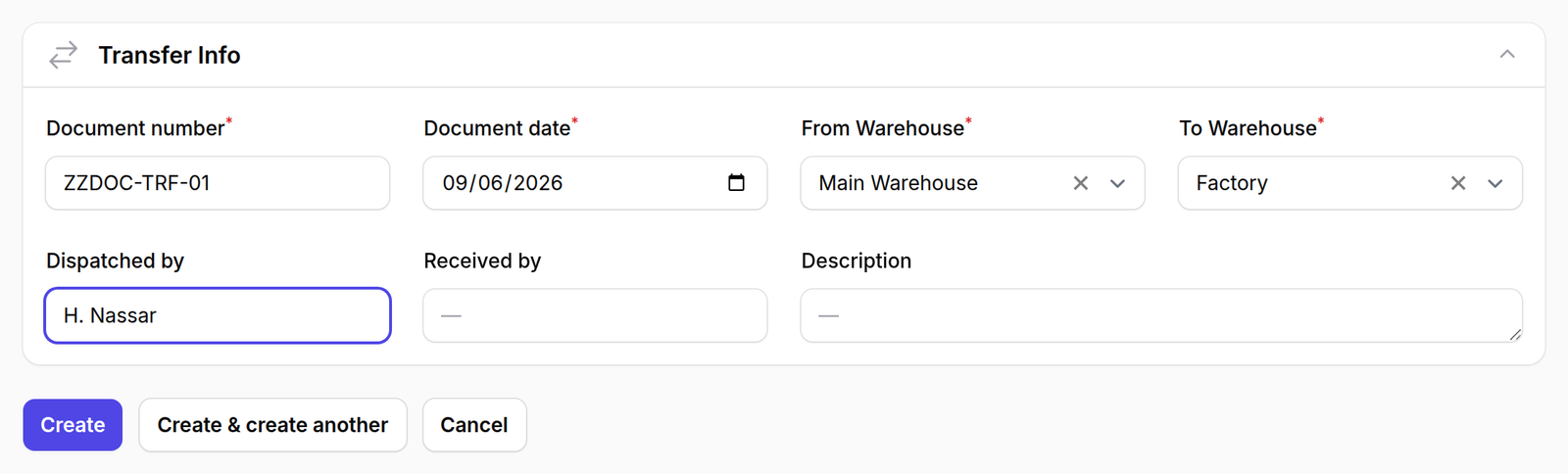
Type the document number, then choose the two warehouses.
From and To must be different. Choosing the same warehouse on both sides describes stock that never moved.
Dispatched by and Received by are free text rather than a list of users, and that is deliberate. They are the names of the two people who physically handed the material over, which is very often not whoever is sitting at the computer typing it in.
4Press Create
The transfer now has a page of its own, headed with the document number you typed, and its Status reads Draft.
Three things appear that were not on the empty form:
- a Post transfer button, top right
- a Print button beside it
- a Lines panel underneath, still empty

5Add what is being moved
Press New transfer line.
The dialog asks for an Item and a Quantity. Two of its fields you cannot type into:
- Unit reads Pick an item first, then takes the unit from the item itself. To change it, change the item under Inventory → Stock Items.
- Quantity starts at 1.
Notes is free text against that one line.
Press Create to add the line, or Create & create another to keep the dialog open for the next one — which is the faster way to enter a transfer of several items.

6The line appears
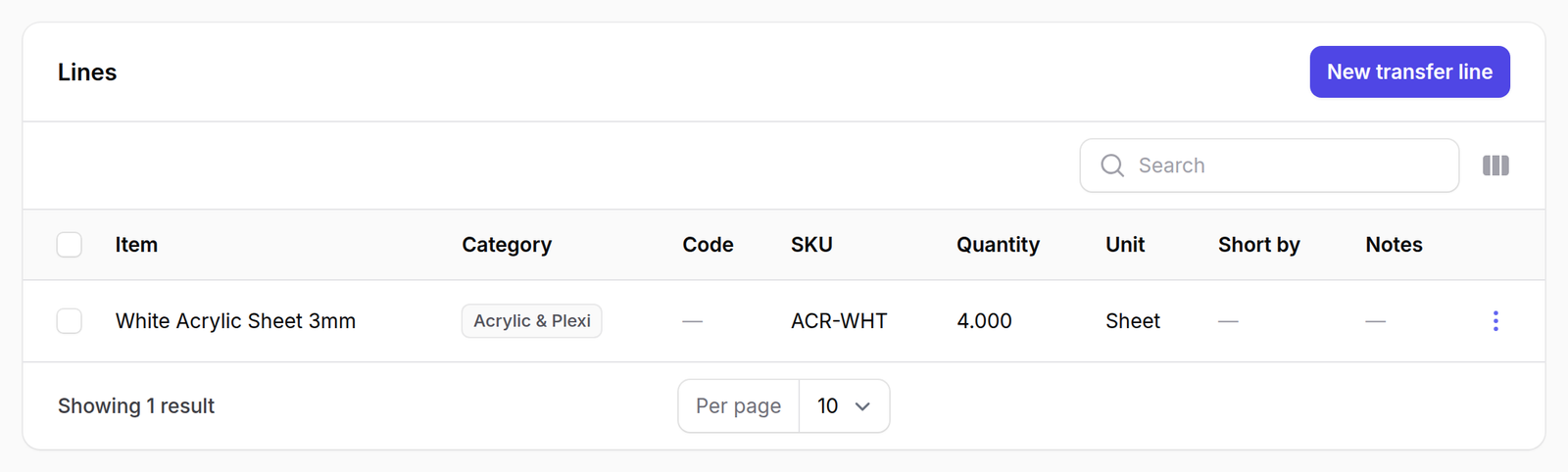
The Lines panel now lists what is being moved: the item, its category, code and SKU, the quantity and the unit.
The transfer is still a draft. Nothing has moved.
7Post it
Press Post transfer. You are asked to confirm before anything happens.

8It is posted
Status now reads Posted, with the date and time beneath it.
The stock has left Main Warehouse and arrived at Factory.

What happens next
Posting is the moment the stock actually moves. Until then the transfer has changed nothing, whatever it says on it.
A posted transfer can be reversed with Unpost, which puts the quantities back. Both actions are recorded against your name.
Unposting is not the same as deleting: the document stays, and so does the record that it was posted and then reversed.
A transfer with no lines can be created and saved. It moves nothing, and it is not an error — it is an empty document waiting to be filled in.
The Short column on the list, and Short by on a line, flag a line asking for more than the source warehouse actually holds. Read them before you post.