SNB Production WorkflowGuideChanging a Job's Flow
Changing a Job's Flow
Add a step, take one out, step over one, or redraw the arrows — on this job and no other.
Changing a flow needs production.create, which is not the permission an operator holds.
Every Operator and Department Supervisor holds production.edit so they can work their own tasks. Shaping a flow is a different thing, and none of them should be able to delete the paint step out of a job.
So the verb for it is create — the verb for bringing a task into existence, which is what every edit on this canvas does.
It changes this job and no other. Until this screen existed, the only way to say that a job did not need the paint step was to edit a template that every future job reads.
1Tap the step you mean
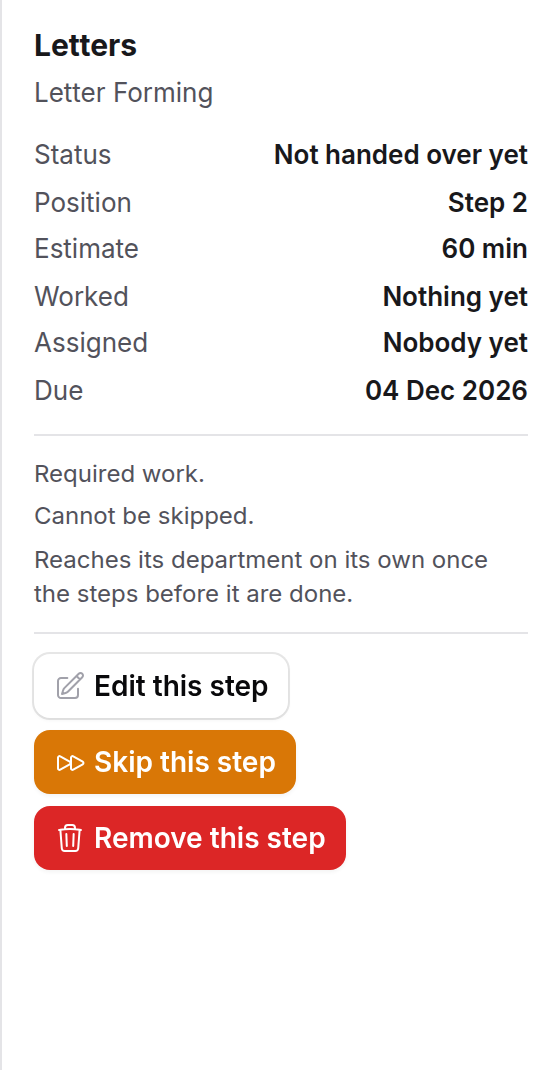
The inspector on the right fills, and under it three buttons: Edit this step, Skip this step and Remove this step.
2Edit this step
Its name, its department, its estimate — and what it waits for, which is a field on this form rather than a slide-over of its own.
May be skipped is settable here, and was settable nowhere until now. It is inherited from the template, so the galvanized-steel case was not merely unsupported — it was impossible.
3Skip this step
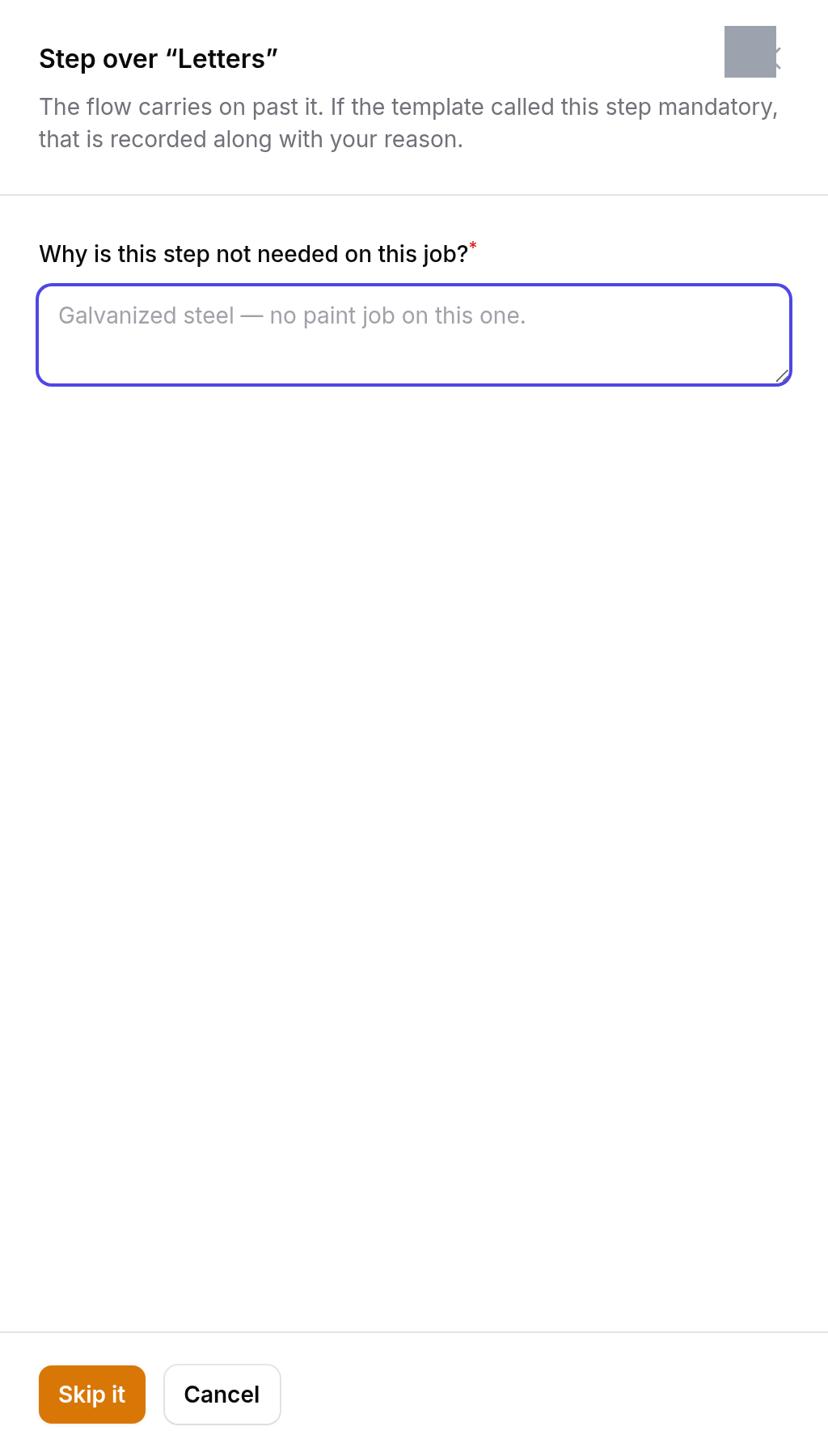
Stepping over a step leaves it in the chain and lets the work flow past it:
The flow carries on past it. If the template called this step mandatory, that is recorded along with your reason.
A reason is required, and the example on the screen is the case it exists for: Galvanized steel — no paint job on this one.
Skip is what removal becomes once work has happened.
A step somebody has already worked on is never deleted. The time entries, the waste records and the signed checklists are the proof that the work happened, and removing the step would take them with it.
A skipped step satisfies whatever waits on it, exactly as a deleted one would, so the chain flows past it just the same.
4Remove this step
Only for a step nobody has touched. You are asked to confirm, and told what it will do:
Whatever came before it is joined to whatever came after, so the chain stays a chain. A step somebody has already worked on cannot be removed — skip it instead.
Taking a step out of the middle would otherwise leave the chain in two pieces — everything downstream waiting on something that is gone, and no screen saying why. So the join is made for you.
This is also why Remove is safe where deleting a task from anywhere else is not: a soft delete never fires the cascade, so the dependency rows outlive the task. Remove deletes them explicitly, both directions.
5Add a step
Add a step is in the header rather than the inspector, because it belongs to the flow rather than to any one step.
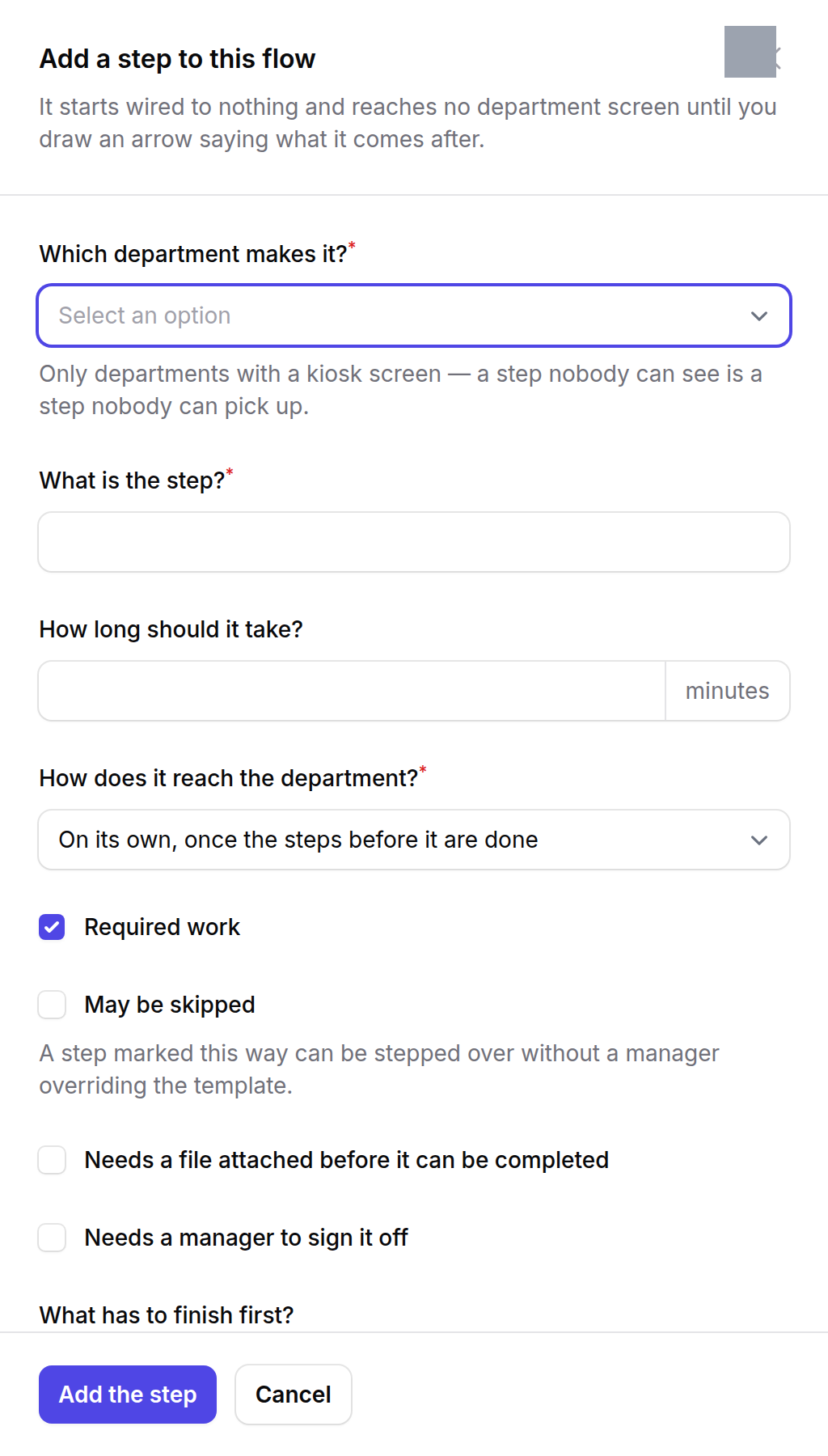
It starts wired to nothing and reaches no department screen until you draw an arrow saying what it comes after.
The form asks for a department, a name, an estimate, and what it waits for. Add the step and draw its arrow in the same breath.
A department with no kiosk screen is refused. A step nobody can ever pick up is not a step, and the generator has refused to create one since the factory started working sign by sign. This screen applies the same rule.
6Draw and rub out the arrows
Drag from the edge of one step onto another to draw an arrow. Tap an arrow to rub it out.
The canvas will let you draw anything; the system will not keep it.
Drawing is a convenience. Every arrow is checked when it is written, and one that would leave the flow unable to finish — a loop, or a link to another sign’s work — is rolled back with the reason.
What happens next
A reshaped flow is still not on the floor. Releasing it is a separate decision — see Handing a job to the factory.
The release point moves with the graph.
It used to be whichever step sorted last. The moment anybody reorders or deletes one, “last” and “the end of the chain” stop being the same step — so the ISO release checklist is now signed at the end of the graph, wherever the arrows put it.
If it goes wrong
| What you see | What it means |
|---|---|
| No buttons under the step | Your role does not hold production.create. You can read the flow and not change it. |
| Remove this step refuses | Somebody has worked on it. Skip it instead — that is what the refusal is protecting. |
| An arrow you drew disappeared | It was refused and rolled back. The message says which rule — a loop, or a link across to another sign. |
| A step you added is on no screen | It is wired to nothing yet. Draw the arrow saying what it comes after. |
| The graph reflowed and moved your steps | Expected. The layout comes from the arrows every time; positions are not stored. |