SNB Production WorkflowGuideThe Design Workspace
The Design Workspace
Where the designer works: the survey on one side, the files to be delivered on the other.
The workspace is the designer’s screen. Reach it from Design Jobs → ⋮ → Workspace.
1The workspace
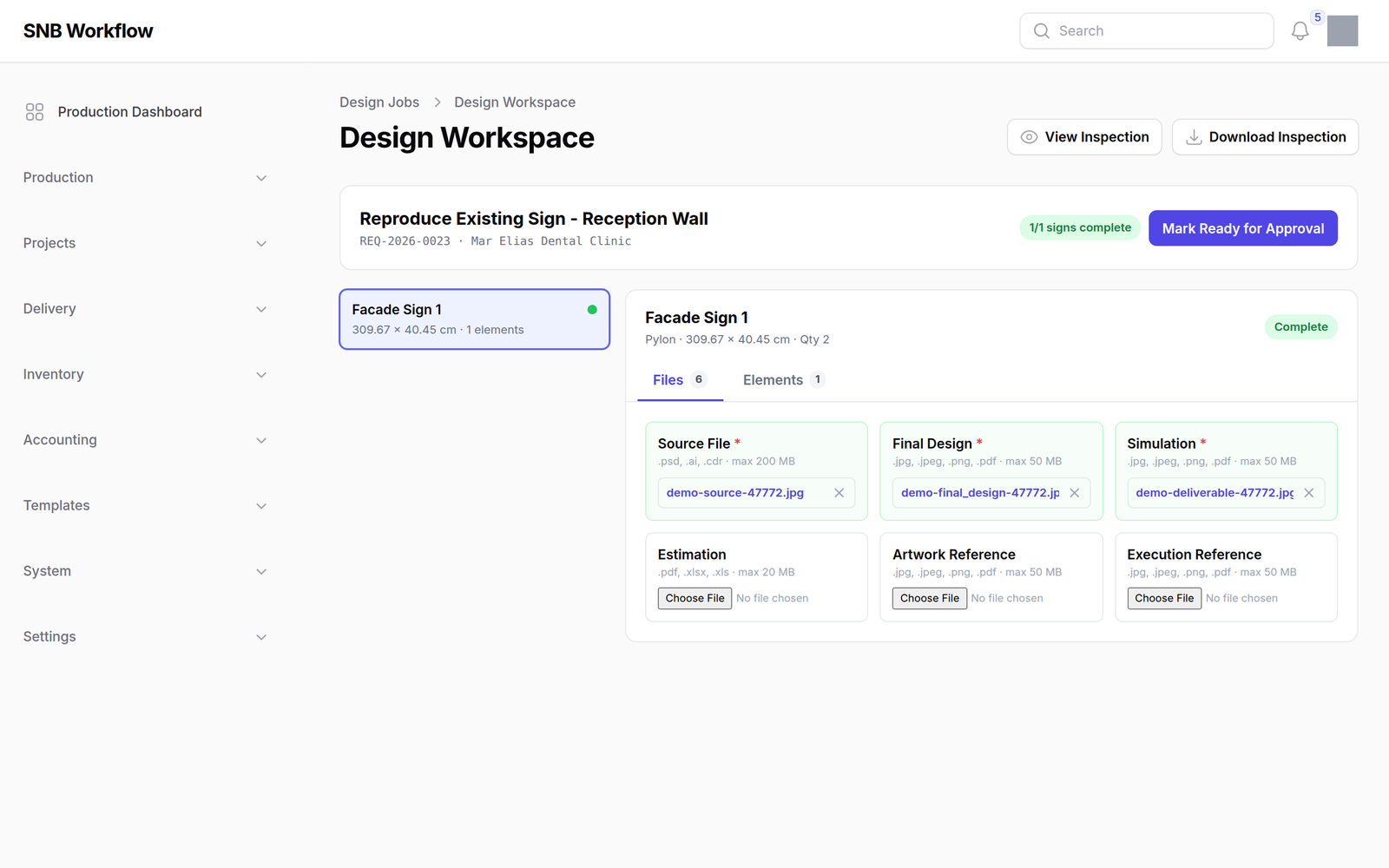
The header names the job — the project, the request number and the customer — and carries the progress as a fraction: 1/1 signs complete.
Three controls sit at the top:
- View Inspection — the survey, on screen
- Download Inspection — the same as a PDF, for working offline
- Mark Ready for Approval — the handover
Below them, the signs on the job, each with its measurements and quantity.
Files and Elements are two panels, and the counts beside them — Files 6, Elements 1 — say how much is in each.
The Files panel is the substance of the job. Each slot names what it wants and what it will accept:
| Slot | Accepts | Limit |
|---|---|---|
| Source File * | .psd, .ai, .cdr |
200 MB |
| Final Design * | .jpg, .jpeg, .png, .pdf |
50 MB |
| Simulation * | .jpg, .jpeg, .png, .pdf |
50 MB |
| Estimation | .pdf, .xlsx, .xls |
20 MB |
| Artwork Reference | images and PDF | 50 MB |
| Execution Reference | images and PDF | 50 MB |
The three marked with an asterisk are required.
Whose files these are depends on how the job was raised.
SNB works in one of two modes, set once on Company Settings:
- Per sign — every sign needs its own files and materials
- Per project — one set of files and materials covers the whole job, which is how a single multi-page simulation covers every sign on it
The setting applies to new requests only. Every request keeps the mode it was raised under, right through design, the project and production — so changing it steers what comes next and never re-judges work a designer has already finished.
On a job designed whole, the files hang off the request rather than off any one sign, and a per-sign progress figure legitimately reads zero while the job is complete. That is why the fraction in the header counts what it counts.
The Source File is required and it is the one a designer is most tempted to skip, because the customer never sees it.
It is the editable original. Without it the next revision — or next year’s repeat order — starts from a flattened JPEG, which means redrawing work that was already paid for once.
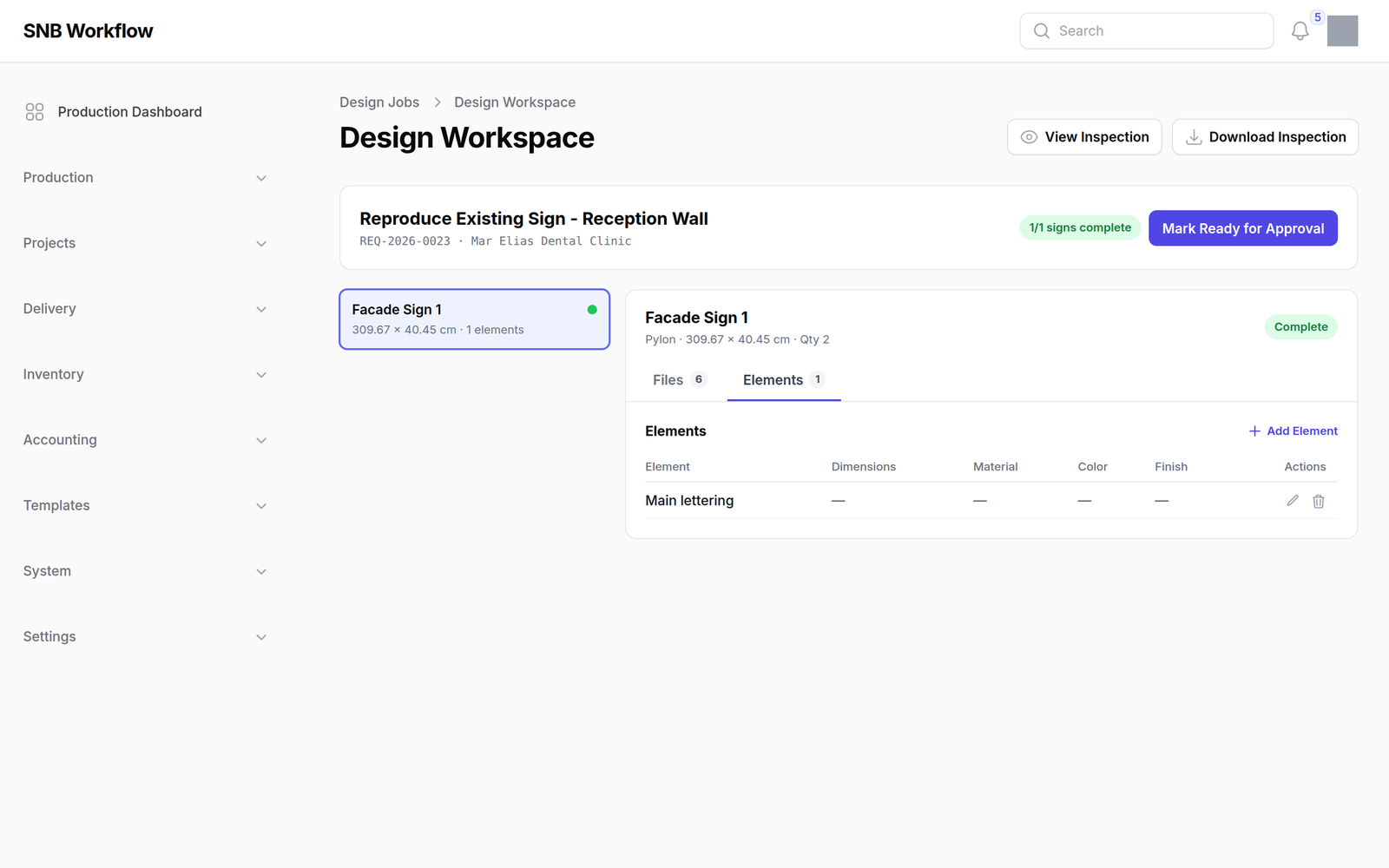
2The Elements panel
The signs themselves: what is being made, at what size, in what quantity, and whether each is Complete.
What happens next
Mark Ready for Approval sends the design to the customer. What they see is the Simulation — which is why it is required, and why it is worth being the picture that flatters the job.
The button goes once you have pressed it, replaced by a line saying the design is with the customer and whose turn it is now.
It is not greyed out, because a greyed-out button still says “this is the thing to do here”. A design goes to the customer once: pressing it again used to restart the clock the design queue measures the customer’s wait from, so a job they had been sitting on for five days read as freshly sent.
A rejection comes back here, and the Rejections count on the list goes up by one. The count is permanent: it records that the customer sent it back, not whether the current version is any good.