SNB Production WorkflowGuideQuotations
Quotations
Putting a price on a request, and the revision trail behind it.
A quotation prices a request. It belongs to the request, not to the customer directly — which is what lets one enquiry be priced more than once.
1Open the list
Go to Quotations.
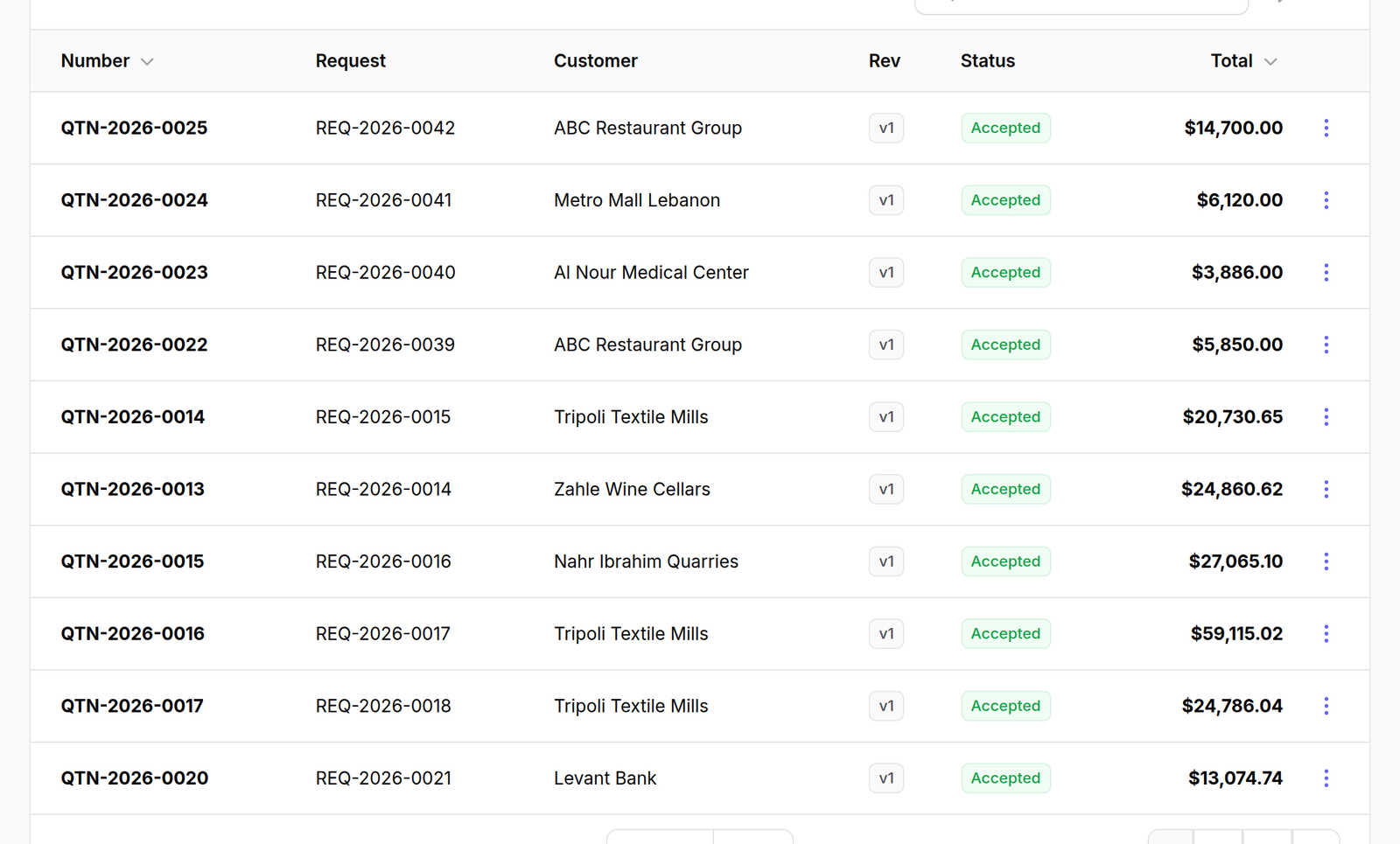
The columns are Number, Request, Customer, Rev, Status and Total.
Rev is the revision number. Re-pricing a job does not overwrite the old quotation — it raises a new revision, and both stay on the list.
A customer who was quoted one figure last month and a different one today is entitled to ask what changed.
Keeping every revision means that question has an answer, and it means nobody can quietly edit a price that has already gone out.
2Raise one
Press New quotation and fill in the price lines.

3The quotation's own page
Click any row to open it.
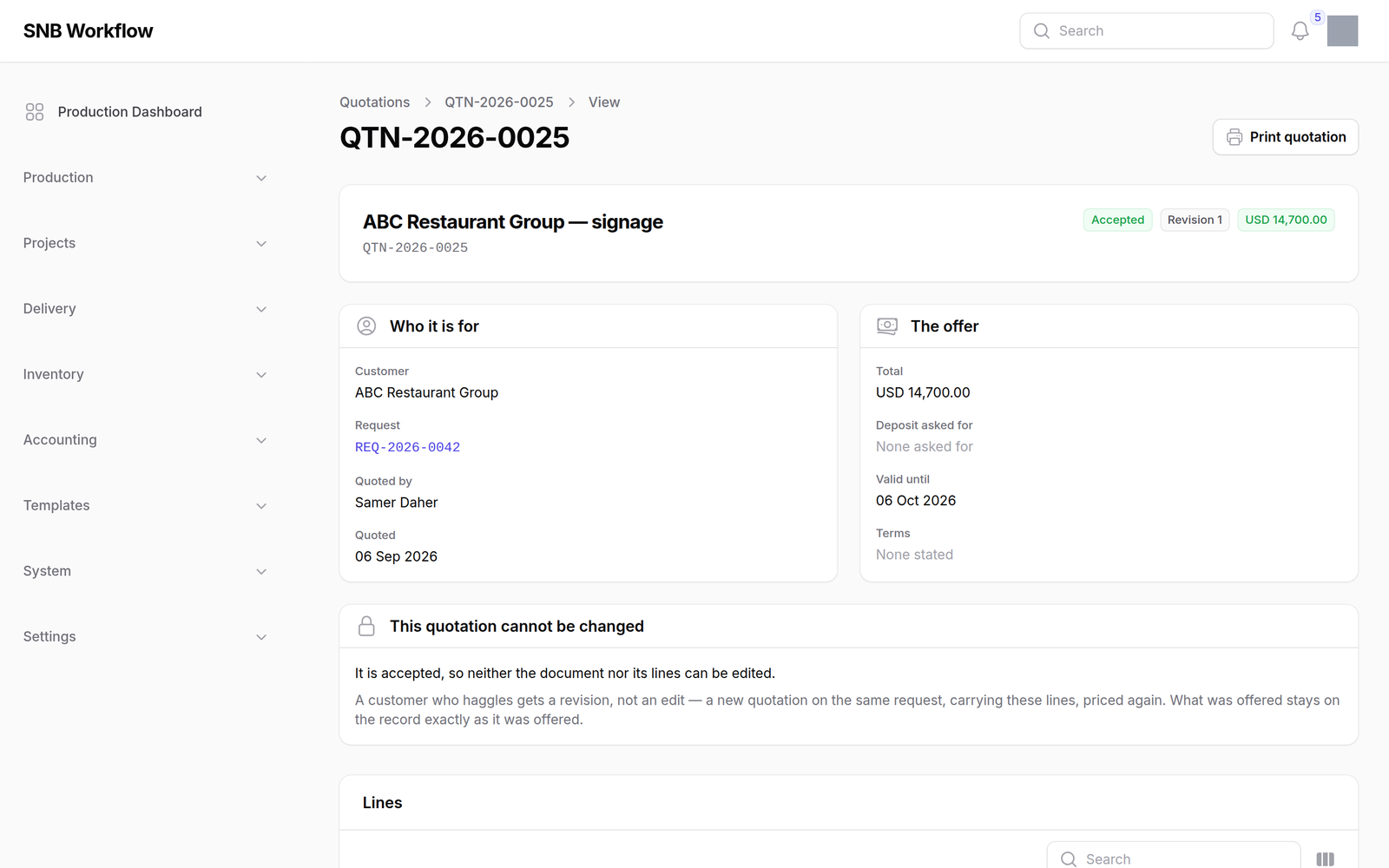
The header carries Print quotation, which produces the PDF that goes to the customer.
Neither Print nor Submit appears on a quotation with no lines, and that is deliberate rather than a fault.
A quotation with nothing on it has no price to approve, so submitting one was always refused — the button existed only to produce a red message. Printing one produced a header, a footer and an empty middle. Both are now withheld until there is something to quote.
What happens next
A quotation is submitted, approved internally, sent, and then accepted or not. Accepting one is what turns the request into a project.
The row menu on this list offers View and Print quotation — and no Delete.
A quotation that has been sent is a document the customer holds a copy of. Removing it from the system would not remove it from their inbox.