SNB Production WorkflowGuideDispatch and Transfer
Dispatch and Transfer
The two verbs a manager has and the floor does not: sending work to a department, and moving a step to a different one.
Four of the floor board’s verbs are the kiosk’s own — START, COMPLETE, HOLD, RESUME — and use the kiosk’s permissions, so a role that cannot start a job at a kiosk cannot start it here either.
Two are a manager’s:
| Verb | Permission | What it is |
|---|---|---|
| DISPATCH | production.release |
the release verb — sending work to a department |
| TRANSFER | production.create |
the flow-editing verb — moving a step elsewhere |
They are not the same permission, and neither is edit. Shaping a flow and
releasing work are different decisions from working a task, and every Operator
holds production.edit so they can work their own.
1Dispatch
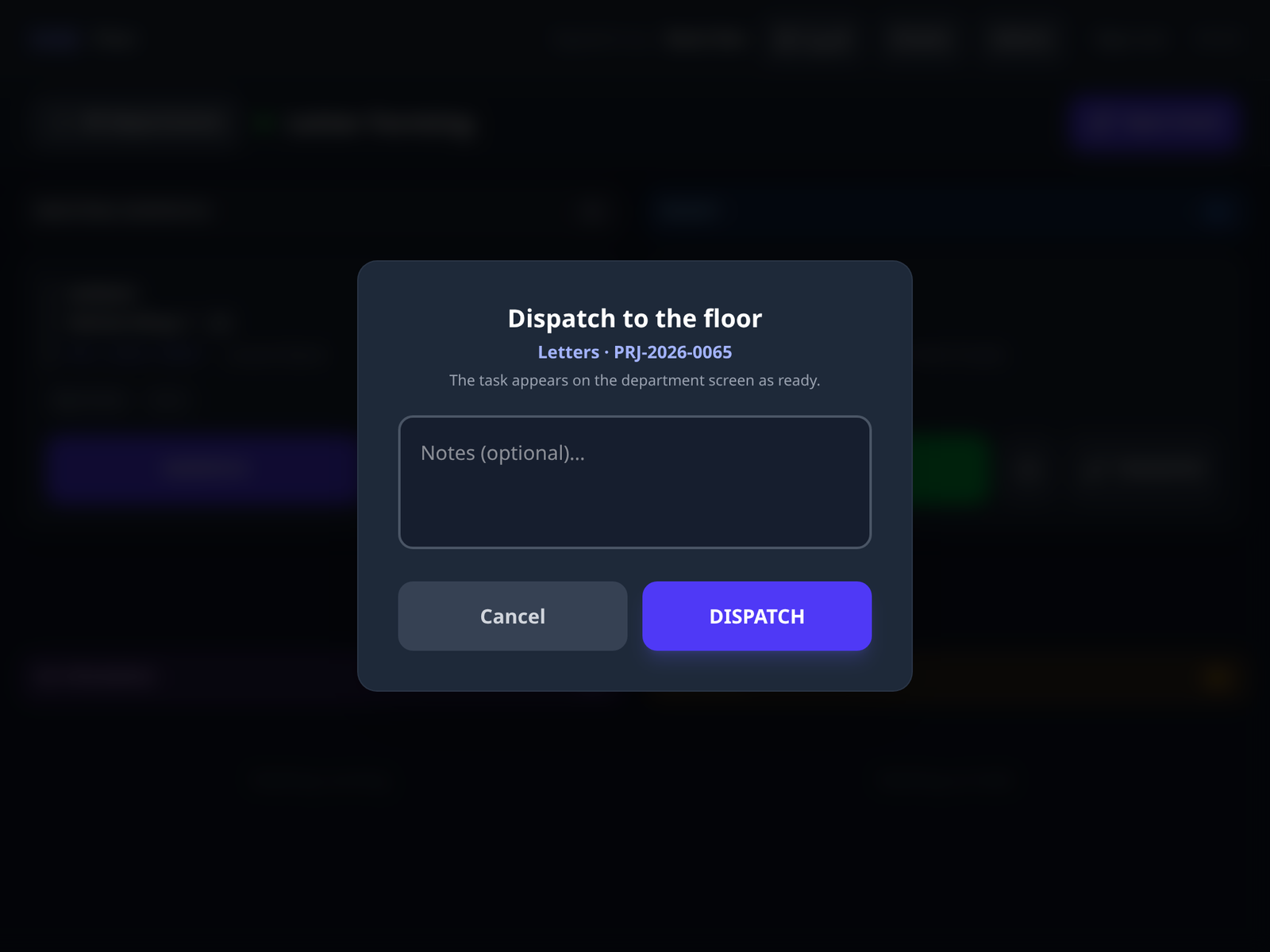
A card in Waiting dispatch carries DISPATCH. The panel says what it does:
The task appears on the department screen as ready.
Notes are optional. That is the whole action.
A step reaches its department one of two ways, and the template decides which.
Most steps arrive on their own once the work before them is done. A step whose template says a manager dispatches it waits instead — because somebody has to decide when that department takes it on.
Until it is dispatched it is on this board and on no kiosk.
2Transfer
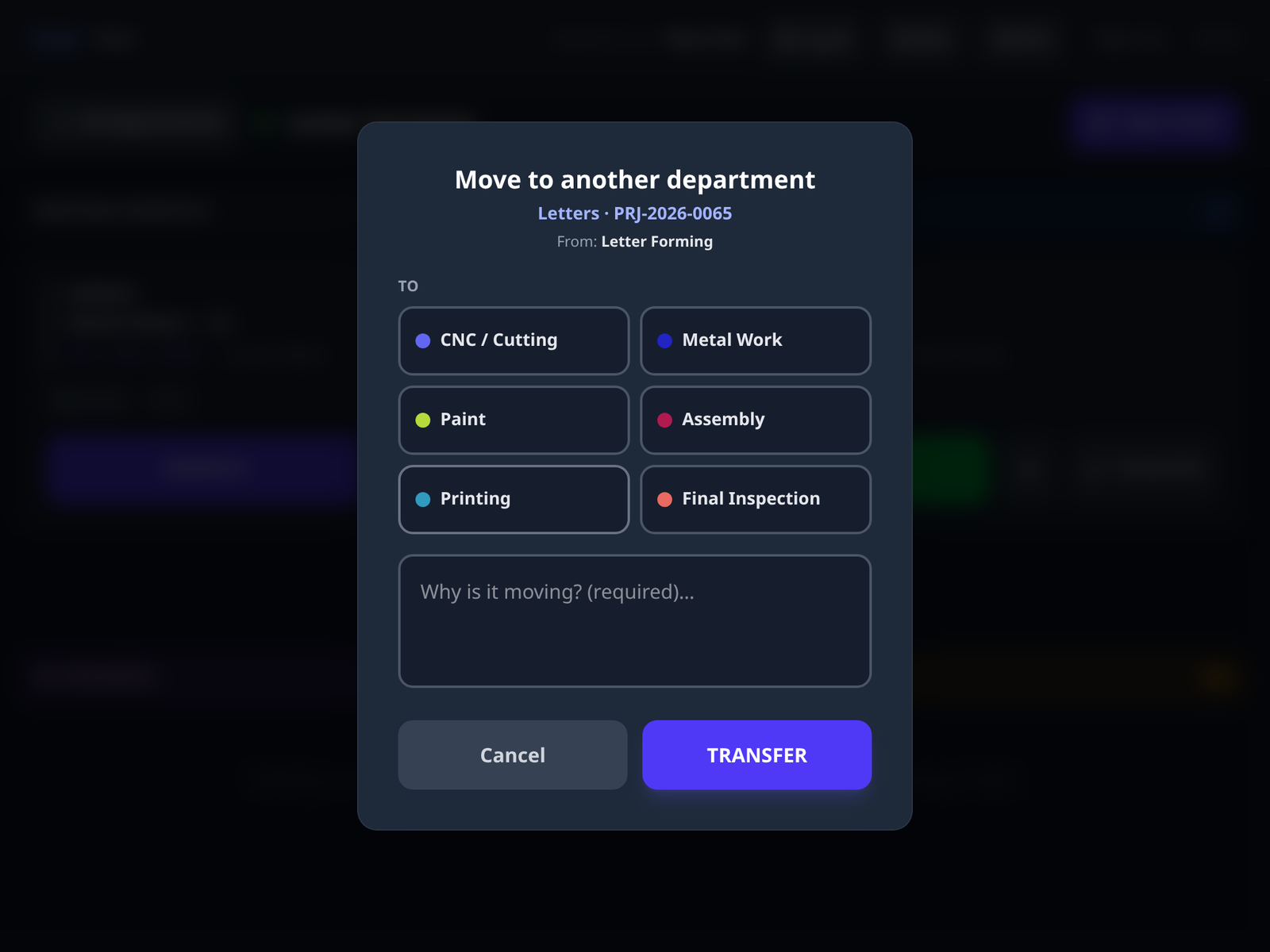
TRANSFER moves a step to a different department. The panel asks for the department it is moving To, and a reason, which is required.
A running step is not moved until it is held.
The button is dim on work in progress and the reason is on it: “Put it on hold first, then move it.”
Its time has to close against the department that spent it. Moving a running step would hand the minutes to a department that never did the work.
What moves with it: the status is kept, the old department’s people are cleared, and a split task’s pieces follow. The move is recorded twice, with both departments named, and once on the project’s timeline.
Moving a step is a change to the job’s flow, which is why it is
production.create and not one of the floor’s four verbs.
It is the same edit the office makes on the production flow — the one verb
updateStep() refuses there on purpose, because it needs the holding and the
time-closing this panel does.
What happens next
A dispatched step appears on its department’s kiosk as ready, and the floor can start it.
A transferred step appears on the new department’s board in the state it was in, and the old department no longer sees it.
If it goes wrong
| What you see | What it means |
|---|---|
| No DISPATCH on any card | Nothing is waiting. Every step on this board arrived on its own, which is what most templates say. |
| DISPATCH refuses | Your role does not hold production.release. |
| TRANSFER is dim | The step is running. Hold it first — the reason is in the button’s own tooltip. |
| Say why this step is moving | The reason is required. It is what the timeline will carry. |
| Choose the department it is moving to | No destination picked. |
| You moved a step to the wrong department | Move it again, with the reason. Both moves stay on the record — nothing is rewritten. |