SNB Production WorkflowGuideProject Requests
Project Requests
A customer asks for something. Raising the request is a four-step wizard, and its last step decides whether an inspector goes out.
A project request is where every job begins. It records who asked, what they want, roughly when and for how much — and whether somebody needs to go and look at the site before anything is priced.
It is not yet a project. A request becomes a project when it is won.
1Open the list
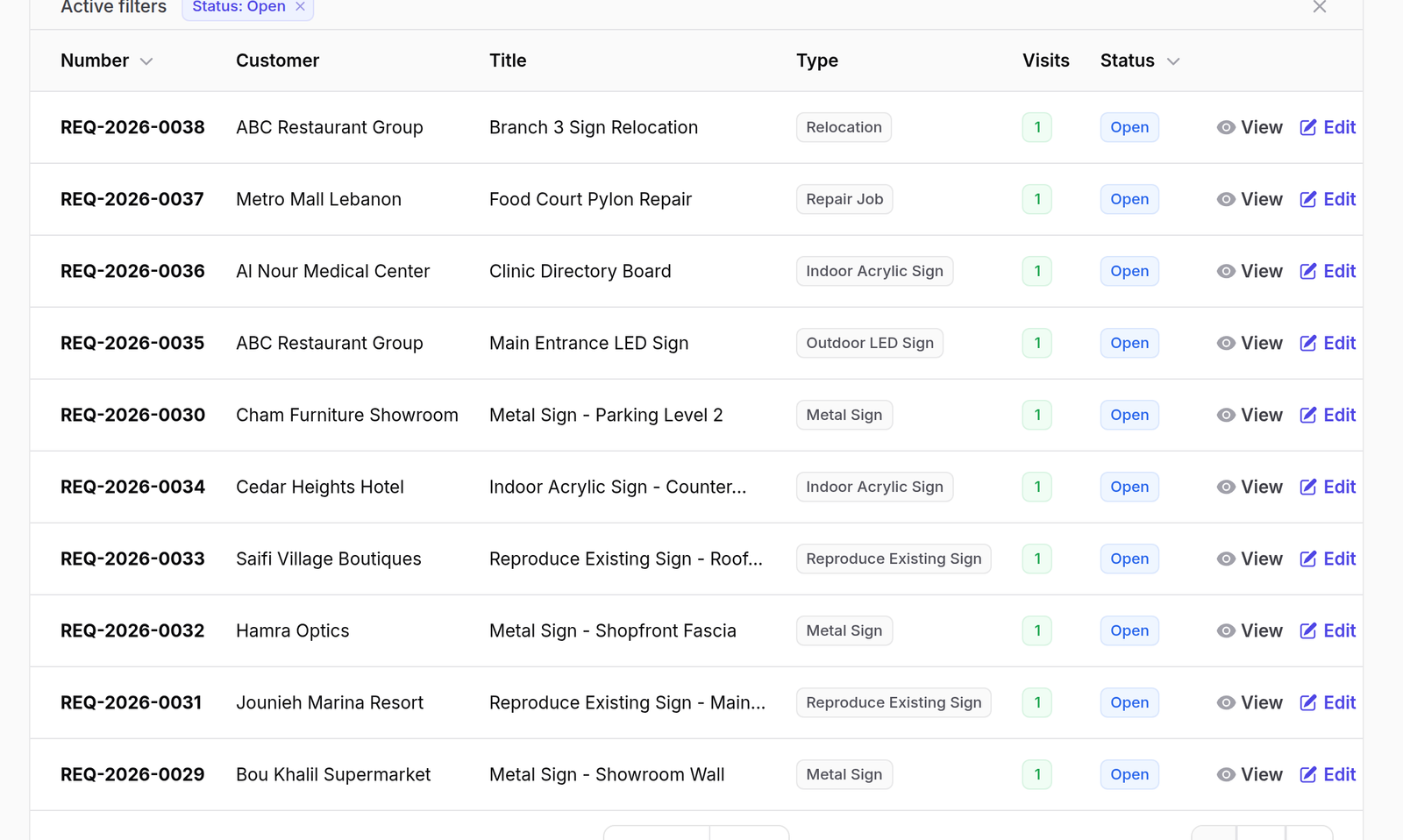
Go to Project Requests.
The columns are Number, Customer, Title, Type, Visits and Status.
Visits counts the site visits attached to the request — the link between
this screen and Inspection. Status carries the request through to Won or
otherwise.
There is no row menu on this list. Open a request by clicking its row.
2Step 1 — Who it is for
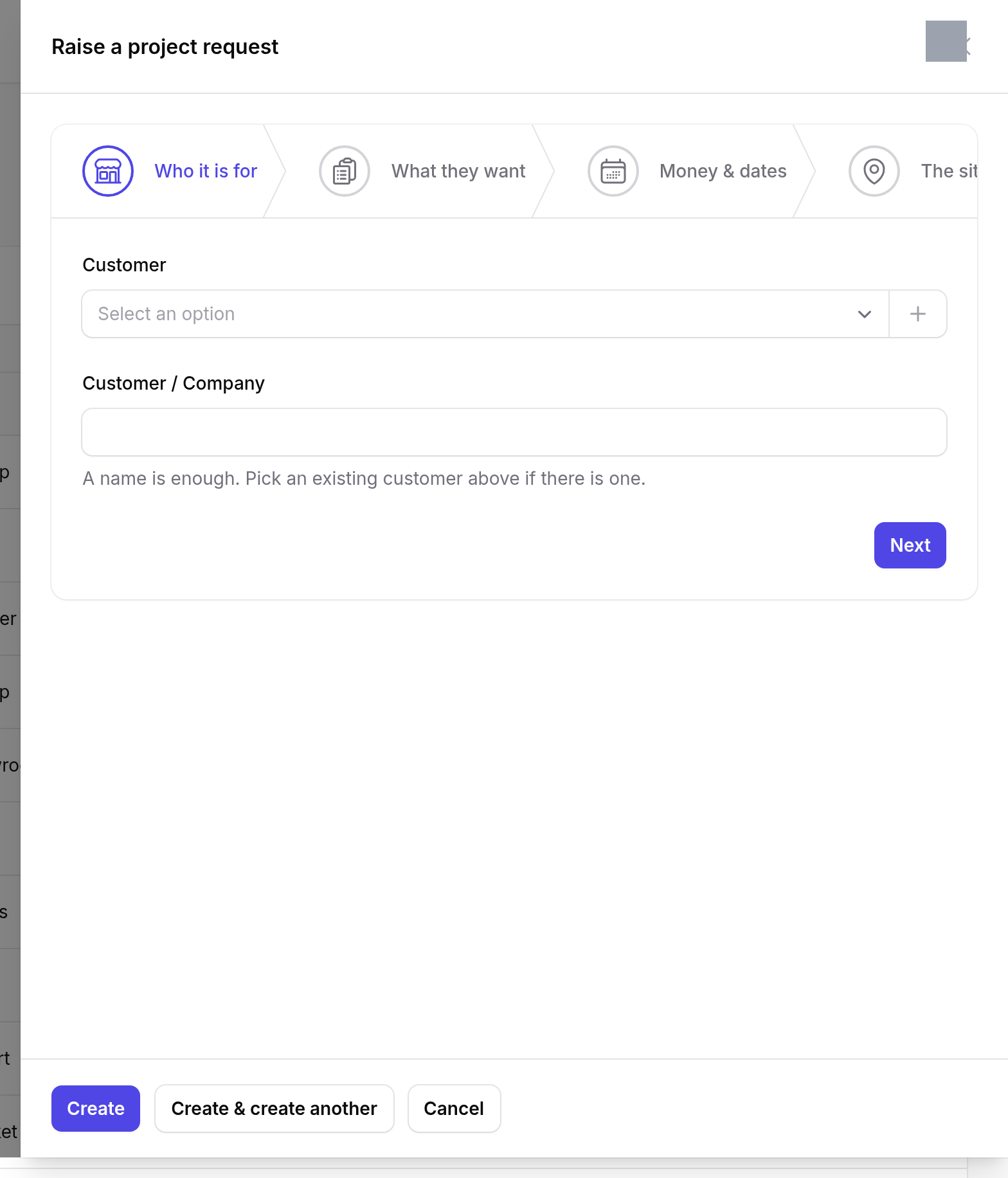
Press Raise a request. The wizard opens on the first of four steps, named along the top: Who it is for, What they want, Money & dates, The site visit.
Two fields, and they are not duplicates:
- Customer picks an existing customer from the list
- Customer / Company is free text
The helper text says it exactly: “A name is enough. Pick an existing customer above if there is one.”
Somebody ringing up for a quote does not have to exist in the system before Sales is allowed to write down what they asked for. The record can be created now and tidied later — which is the difference between a system people use and one they work around.
3Step 2 — What they want
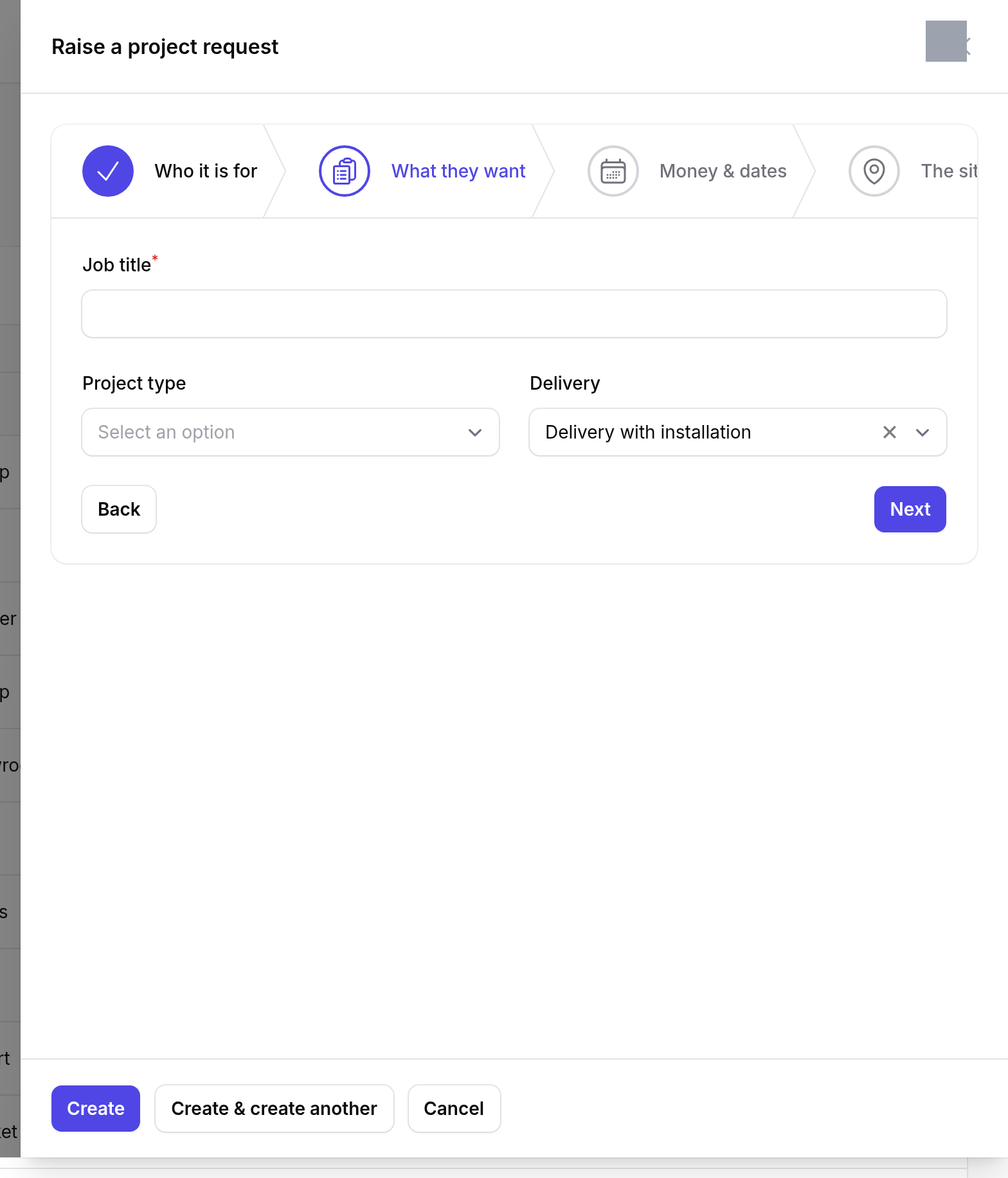
- Job title — required, and the only required field in the whole wizard besides the customer
- Project type — the kind of sign, which decides the production route later
- Delivery — defaulted to Delivery with installation
4Step 3 — Money & dates
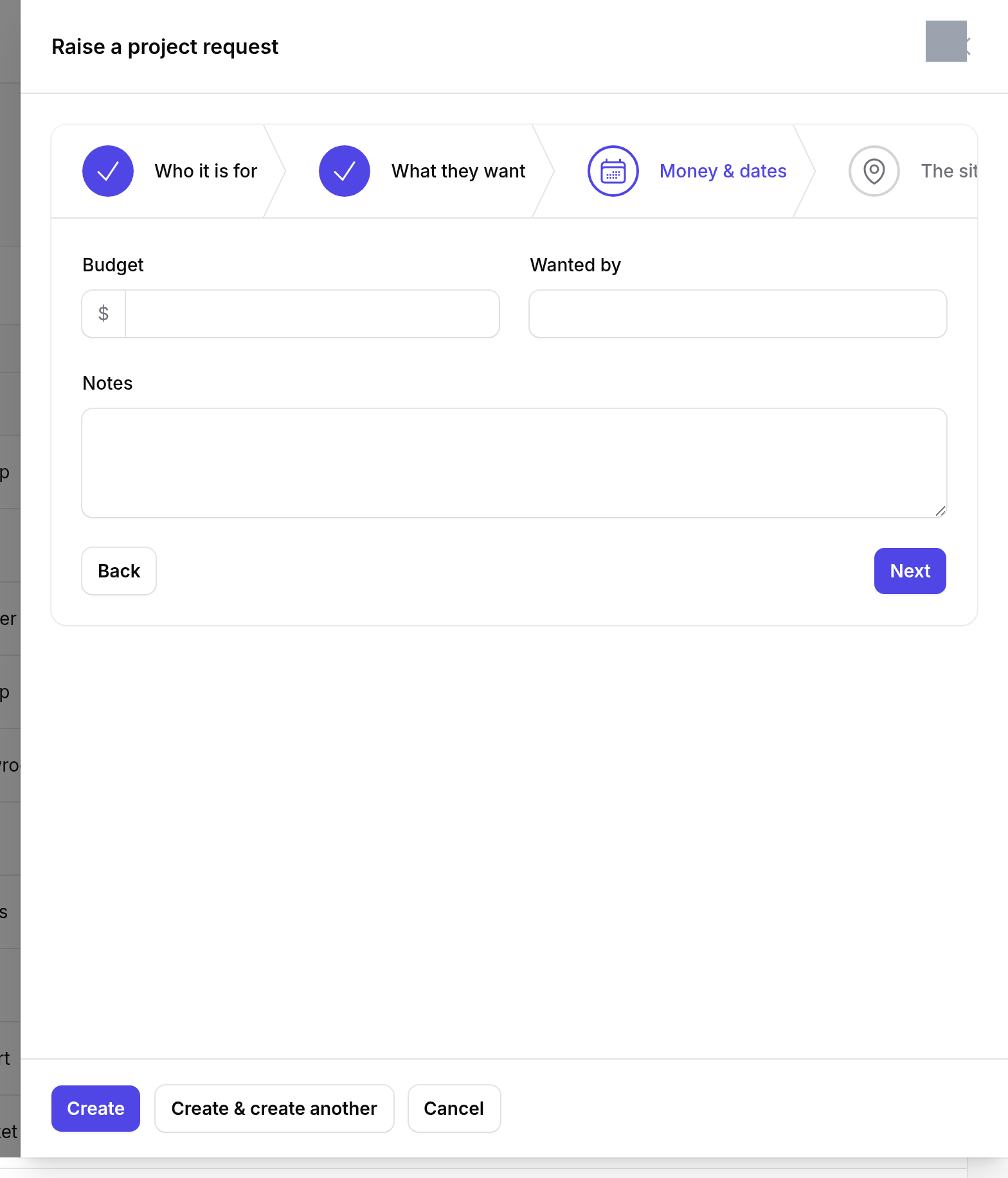
Budget, Wanted by and Notes — all three optional.
An empty budget is a real answer: it means nobody has said one yet.
5Step 4 — The site visit
The step that connects Sales to Inspection.
Book a site visit is on by default. The screen explains when to turn it off: “Turn this off for a repeat order, or a job nobody needs to survey.”
Inspector is optional, and its helper text is the important sentence:
Optional. Leave it empty and the visit goes on the Open Inspections board for any inspector to claim.
Naming an inspector assigns the visit to that person. Leaving it blank puts it on a shared board where whoever is free picks it up.
Both are correct — one is a rota, the other is a queue — and Sales should not have to know who is free today in order to raise a request.
Press Raise the request to finish.

What happens next
The request appears on the list. If a site visit was booked, it also appears for Inspection — either assigned to the inspector you named, or on the Open Inspections board.
Pricing happens next, on Quotations.
Sending it to a designer
Opening the request gives you a send to design button beside the two site-visit decisions it follows from — it reads Assign Designer or Publish to Open Jobs depending on how the company hands design out.
It is here because these are the two moments a job becomes somebody’s to draw: you have just read a submitted survey, or you have just pressed No site visit needed.
Before, design was reachable only from the site visit and from the design queue, so having made the decision on this page you had to go and find another screen to act on it.
A request with no survey behind it is still designable — a repeat order has no visit — so the button being hidden is a courtesy, not a rule.