SNB Production WorkflowGuideProjects
Projects
The job itself, once it is won — and the one screen in Sales with no "New" button.
A project is a job the company has actually won. Everything the factory does hangs off it: tasks, deliveries, material issued, invoices.
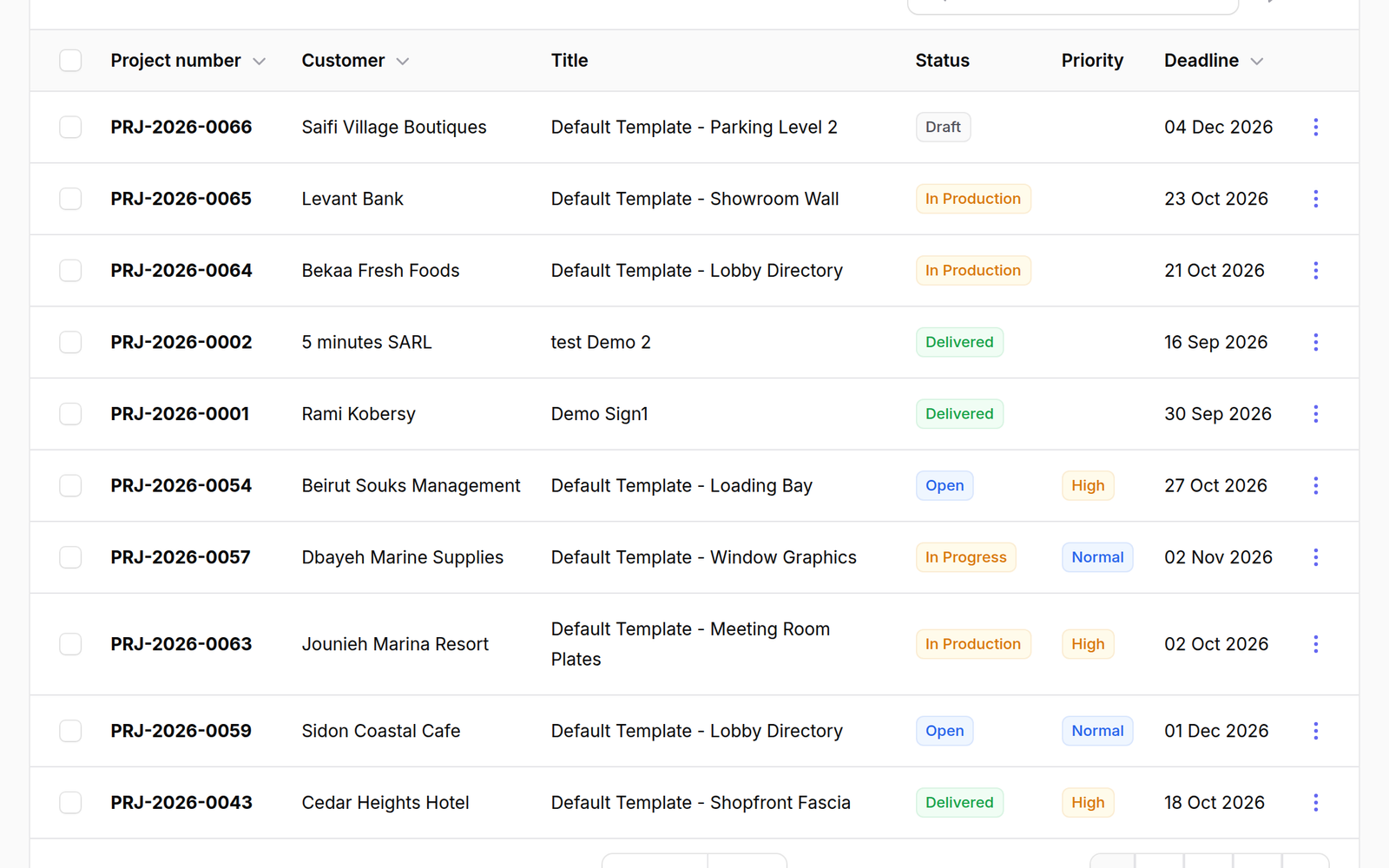
There is no “New project” button, and that is deliberate.
A project comes from an accepted quotation on a request. Creating one directly would produce a job with no customer agreement behind it, no price, and nothing to invoice against.
If you need a project, raise a request and win it.
1Open the list
Go to Projects.
The columns are Project number, Customer, Title, Status, Priority and Deadline. Note the header: no create action.
2Open one
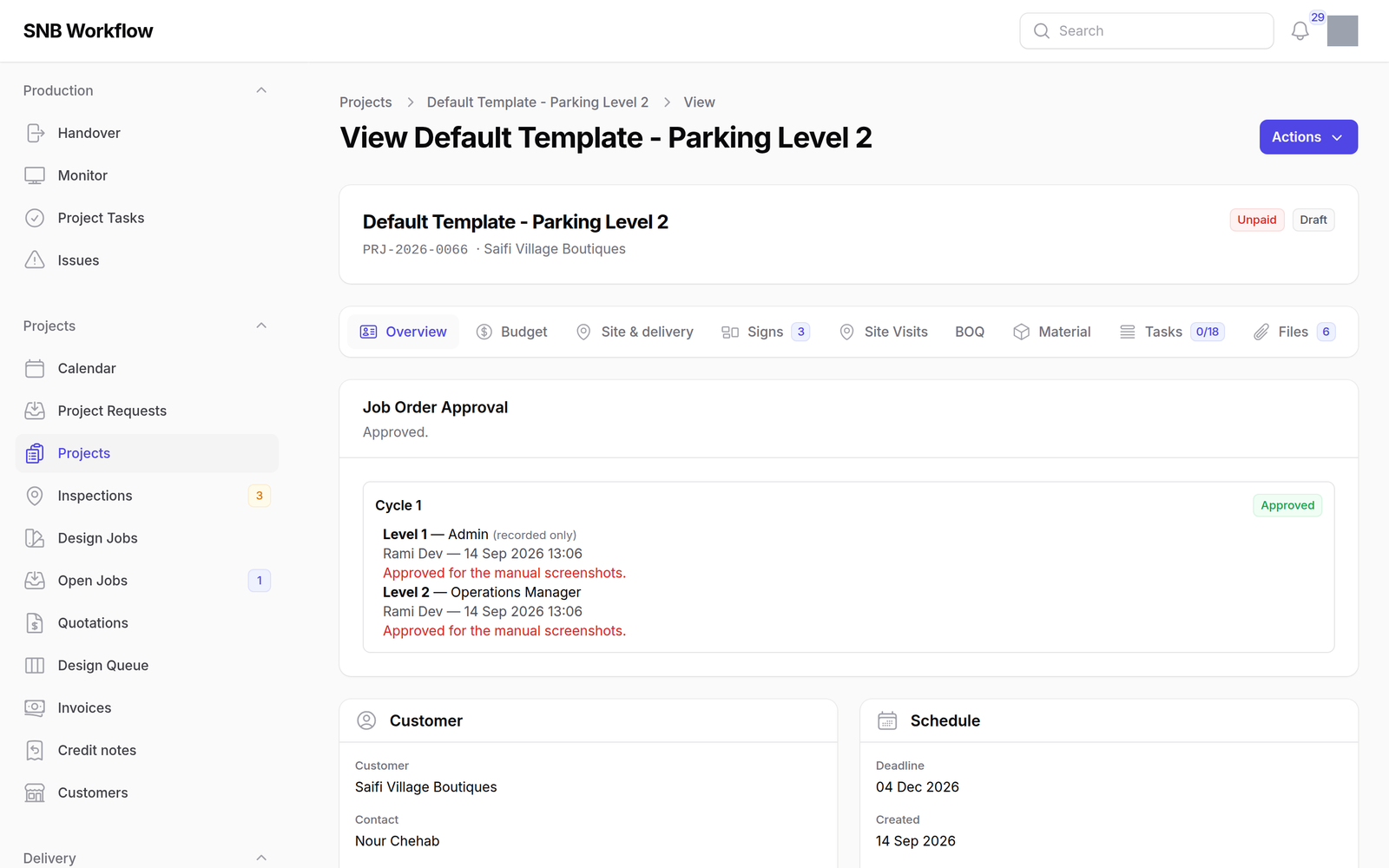
Click a row to open the project.
The row menu (⋮) carries six actions:
- View and Edit
- Generate Tasks — drafts the production chain
- Print — the job ticket
- Delete, and Restore for one that was deleted
What happens next
Getting a job to the factory is three decisions, not one, and they are made on the project’s own page rather than from this list.
1. Generate the tasks
Generate Tasks reads the project type’s workflow template and drafts a chain
of tasks — but it does not hand anything over. The tasks are created at
pending, and every screen in the factory is blind to pending.
Generating is not releasing, and it used to be.
Until this changed, one click created the chain and put it on the department screens in the same breath. If you remember it that way, that is why the floor is not seeing a job you have generated.
Two things about what it generates are worth knowing:
- A chain is built per sign, not per job. A job with three signs gets three chains, so the floor can say which of the three it is holding.
- Only departments with a kiosk screen produce tasks. Design, its approval and delivery are steps on the template and are not factory work — they are run from their own screens.
2. Review the production flow
Review the production flow opens the job’s graph. A template is a starting guess — a galvanized-steel sign needs no paint job — and this is where a factory manager makes the chain match what this job actually takes.
It also refuses to release a job whose graph would never finish. See Production → Reading the flow and Changing the flow.
3. Schedule it, then start it
Schedule production records a planned start date. The helper text says what it is: “A plan, not a trigger. The job still has to be started by hand once its production flow has been checked.” It puts the job on the handover board.
Start production is the handover. Every step becomes visible on its department screen and work can begin.
The button says why it cannot, before you press it, rather than failing afterwards. It is dim with the reason in the confirmation when:
- the job order has not been approved
- a sign has no production flow yet
- there is no production flow to release at all
- the flow has a problem that would stop the job
Pull off the floor takes it back. Nothing new is released to a department, and work already started or finished stays exactly as it is — the record of what was done is not rewritten.
All three are covered in full under Production → Handing it over, including the four faults that refuse a release.