SNB Production WorkflowGuideStock Items
Stock Items
The catalogue: every material the system can hold, count, buy or issue — across all three tabs of the form.
Everything else in Inventory points at this list. A transfer moves stock items, a purchase buys them, an issue takes them out. If a material is not here, no document can mention it.
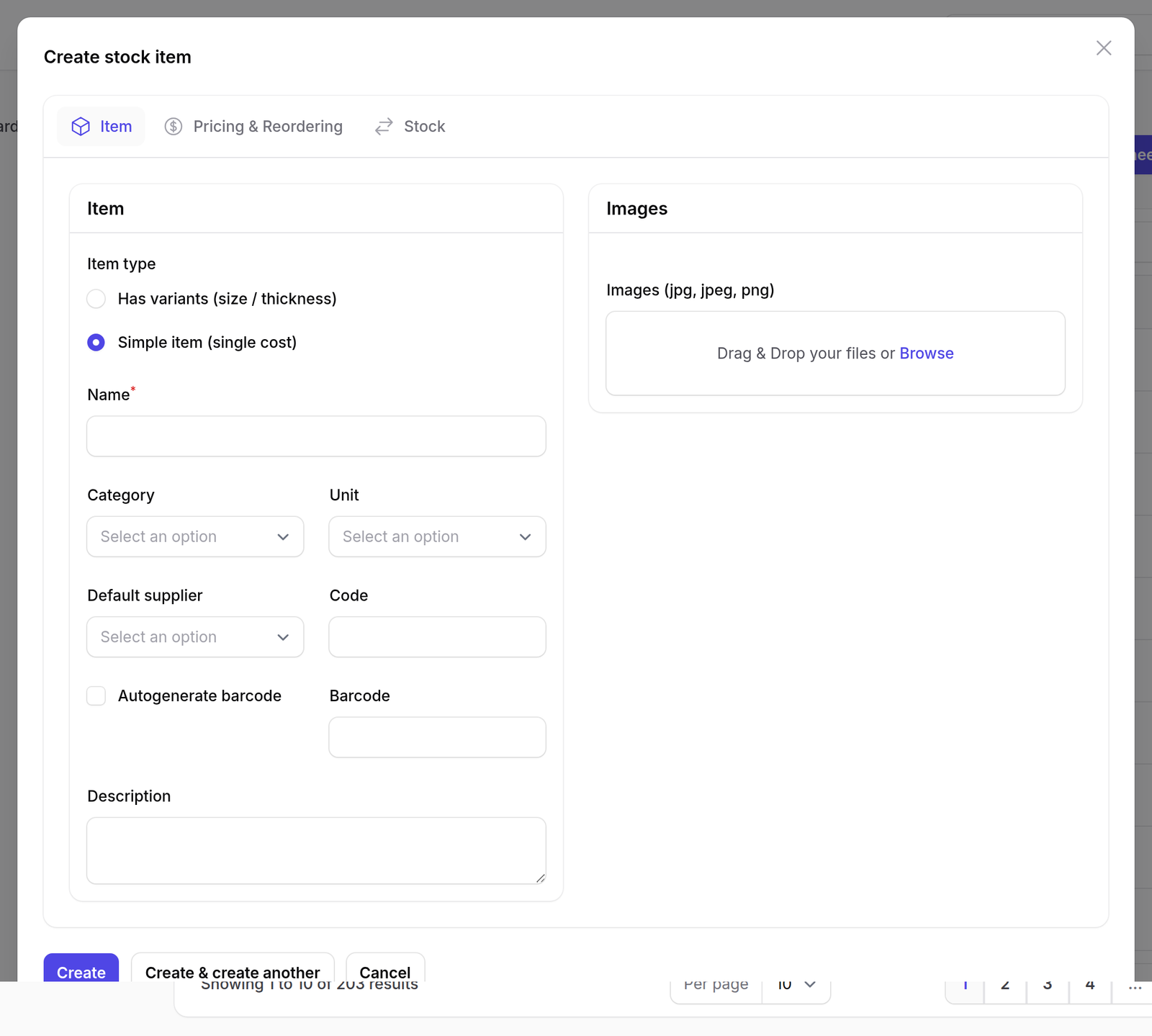
The form is in three tabs — Item, Pricing & Reordering and Stock — and each holds something the others do not.
1Open the list
Go to Inventory → Stock Items.
The columns are Name, Type, Category, Unit, Variants, On hand and Active.
Variants is the one that surprises people. An item is either simple — one thing, one quantity — or it has variants: sizes, thicknesses or colours counted separately under one name. On hand for an item with variants is the sum across all of them.
An item with no name shows as (unnamed). It is not a fault in the list; it is an item that was imported without one, and it will read that way everywhere it appears — on a transfer line, on a purchase, in a report.
Give it a name here and every one of those screens is fixed at once.
Two controls sit beside New stock item, and they are worth knowing about before anybody types a hundred items by hand:
- Download import template gives you a spreadsheet with the right columns
- Import from spreadsheet loads it back

2Tab 1 — Item
Press New stock item. The form opens on Item, which is the material’s identity: what it is called, which Category it is filed under, and which Unit it is measured in.
3Tab 2 — Pricing & Reordering
Two panels, and neither is obvious from the tab’s name.
Pricing & Cost holds Cost and Sale price, both starting at 0, and Purchase formats underneath. A purchase format is a pack size for buying, and the screen explains itself: “Pack sizes for buying (Box = 12). Stock is counted in the item unit.”
That sentence is the whole point of the field. You may buy a box of twelve and still count singles on the shelf — the format describes the buying, never the counting.
Without it, either the purchase has to be entered in singles, or the stock figure quietly becomes boxes and every quantity in the system starts meaning something different.
Reordering holds Min qty and Reorder qty. Min qty is the level below which the item is reported as low; reorder qty is how much to buy when it gets there. Both start at 0, which means the item will never be flagged.
Active lives on this tab, not on the first one. Switching it off hides the item from every dropdown without touching the history — old documents that used it still read correctly.

4Tab 3 — Stock
On a new item this tab holds one sentence:
Save the item first. Stock levels and movements appear once it exists.
That is not an error and nothing is missing. Quantities belong to a warehouse and to documents, so there is nothing to show until the item exists and something has moved it.

What happens next
Create the item, then reopen it: the Stock tab now carries its levels per warehouse and the movements behind them.
Setting Cost here does not value stock you already hold. It is the figure new documents start from.
Existing quantities keep the cost they were brought in at — which is why an item can show a sensible cost on this tab and still contribute nothing to the value on the Inventory Dashboard.